While logging into the Microsoft Services, like MS Outlook, some users have complained of witnessing this ‘The Microsoft account login server has detected too many repeated authentication attempts.‘ error message. This error message induces an inevitable delay in the login system, which adversely affects the users’ productivity. If you are also getting this error message while logging in to Microsoft services, these are the only solutions you’ll need to troubleshoot the problem.
Fix 1 – Use your Microsoft account password to log in
Even if from the surface it looks that the problem has originated from the Hotmail side, it is actually a Microsoft account issue. You may just solve the issue by signing in to the Microsoft account using your account password.
Outlook on Web users –
This problem has been reported majorly by the Outlook web client users.
Step 1 – Open up Microsoft Accounts page.
Step 2 – Then, tap the Sign in option to load up the Microsoft accounts sign in console.
Step 3 – Next, input your MS account credentials to log in properly.
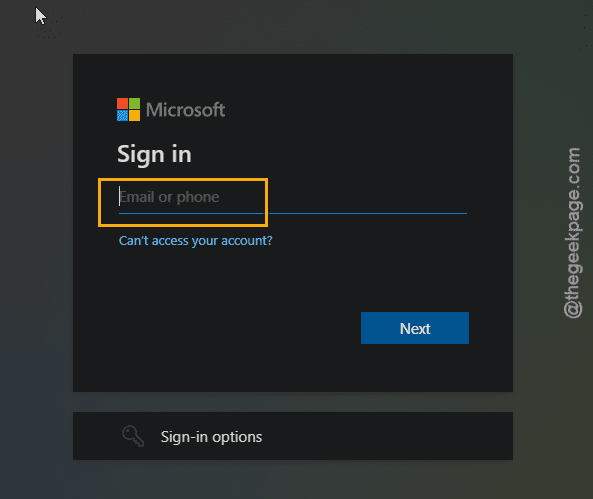
If you have set up the 2-FA or any other security protocol, like the usage of Microsoft Authenticator, use that to approve the login.
Once you have logged in, this will solve the authentication error prompt that you are facing on the outlook client.
Outlook Desktop client users –
Make sure you are logged into any of the Microsoft services using your main Microsoft account.
Step 1 – If you are having this problem on Outlook, search for the OneDrive from the search box.
Step 2 – Then, open up the OneDrive app from your desktop.
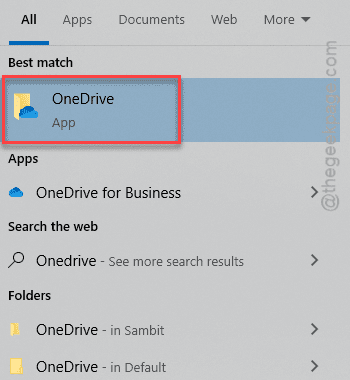
Once you have opened it up, it will request for you to sign in using your Microsoft account.
Step 3 – If you get a prompt to sign in, use your account credentials (like email ID, password) to log into it.
Step 4 – Go ahead and open up the OneDrive folder manually on the File Explorer tab.
Once you have opened it up, return to the same Outlook page and give it another try.
Fix 2 – Wait for 24–48 hours
When this message shows up on your computer, you must not take it lightly. This means that you, the user or someone else has tried to log in with your credentials and have failed with their attempts. There is a restriction on the number of sign in attempts an end user can try, and consecutive unsuccessful logins alerts the windows security systems, which restricts further access.
Instead of retrying the login process, if you are not in a hurry to access the inbox, we suggest that wait for at least a day or two and then try logging into account. You can easily access your account at the time using the correct credentials. Otherwise, there are other avenues open for you like, resetting the account password.
Fix 3 – Log into Outlook from an incognito tab
if you need instant access to the inbox of the main client, you should open up an Incognito tab or private tab and login to your Outlook account from there.
Step 1 – Either press the Ctrl+Shift+N keys together or tap the three dot button on the Chrome browser and tap the New Incognito tab to load up a private tab.
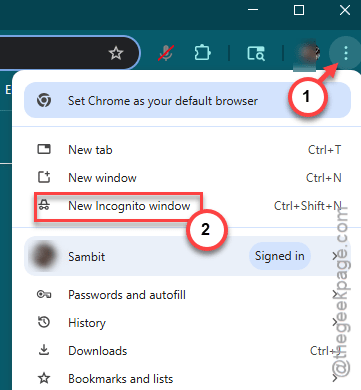
Step 2 – Now, search or directly load up the Outlook web client from there.
Step 3 – You have to log in manually, as the saved credentials don’t work in the incognito tab.
This way, you should not face any log in issues again. But keep in mind that closing the tab will end the session, nothing will be saved as this is an incognito window.
Fix 4 – Log in from other devices
You can use other email clients to reach the inbox directly. Otherwise, you can just use another device, where you are already logged in, to perform the urgent task. Outlook is available on almost all the widely accessible platforms, like iOS, macOS, Android, Linux, etc.
Hope these fixes have helped you sort this out!