Can’t connect to the App Store on your iPhone? Some users have faced this issue with their App Store. The affected users can neither download new apps nor they can update the installed one that are already present on the device. Solving this issue won’t take much time, and you can do it using these set of solutions.
Fix 1 – Check the date and time settings
Wrong date and time settings can lead to this problem.
Step 1 – You must open the Settings, first.
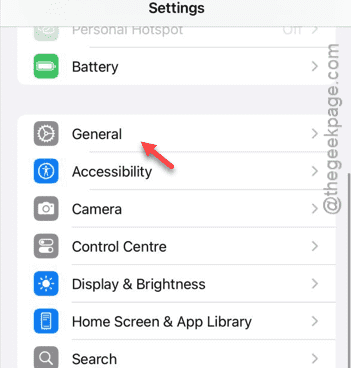
Step 2 – Later, open the “General” tab.
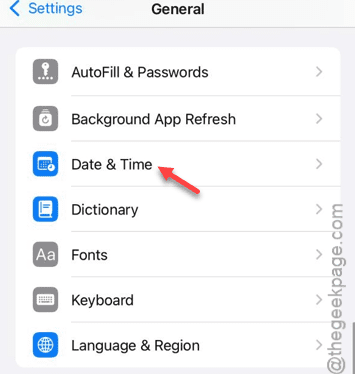
Step 3 – Open up the “Date & Time” settings.
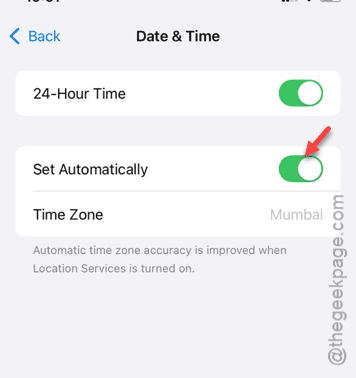
Step 4 – Next, set the “Set Automatically” option is turned on there.
While this option is enabled, iPhone can set the date and time settings on its own.
Give the App Store another try.
Fix 2 – Check the network connection
Faulty network connection can lead to this issue on the App Store. You must test out the network connection on the device to see whether it is creating the problem or not.
Step 1 – Open the fast.com to test the network capabilities.
Step 2 – Check the network speed.

Opt for a stable network in case if you can’t access App Store.
Fix 3 – Sign out and sign in to the App Store
Sign out from the App Store and later, sign in to it.
Step 1 – Open up the App Store. Do that using the search option.
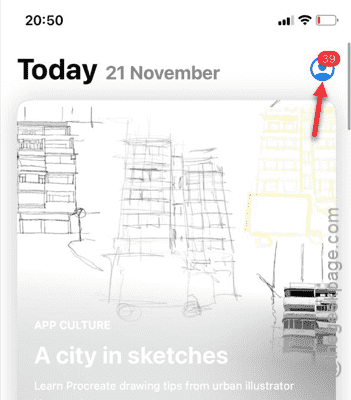
Step 2 – While you are in there, tap the small profile picture on the top to load it up.

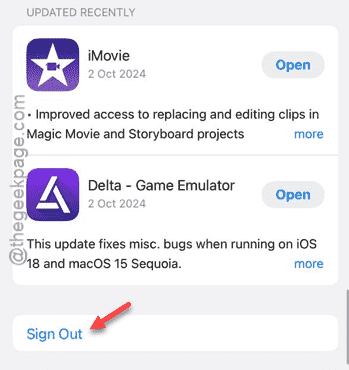
Step 3 – Now, scroll down to the bottom to find the “Sign out” feature there.
Step 4 – Tap that once and tap “Done” to complete the process.
App Store will load up the default page.
Step 5 – Now, tap that profile picture symbol once more.
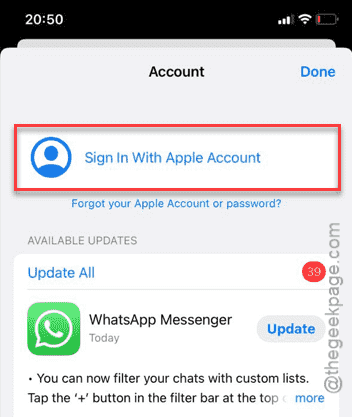
Step 6 – Tap the “Sign in With Apple Password” option.
Step 7 – Provide your Apple ID, Password data there to sign in to the App Store.
After you have done this, App Store will be operational once again.
Fix 4 – Refresh the connection
You can refresh the network connection by enabling and disabling the Airplane mode.
Step 1 – It is easy to open up the Control Center.
Step 2 – Next, enable the “Airplane mode” from there.
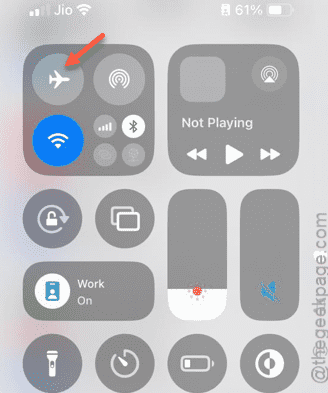
All the network connections will be blocked on your device for the moment.
Step 3 – After this, disable the “Airplane mode” again.
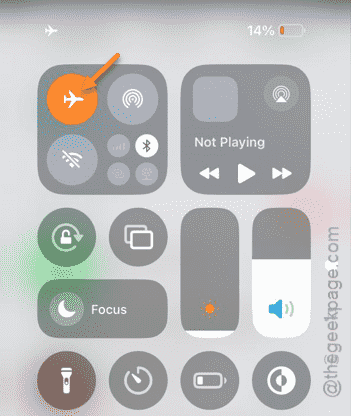
Wait for the network connection to get restored. Test the App Store.
Fix 5 – Reset the network connections
Reset all the network configuration data stored on the device.
Step 1 – Go to the Settings page on the device.
Step 2 – The path to reset the network configuration leads to this –
General > Transfer or reset iPhone
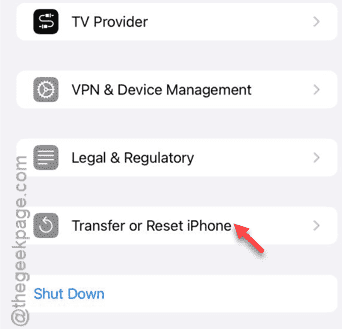
Step 3 – Later, tap the “Reset” button.
Step 4 – Next, use the “Reset Network Settings” term.
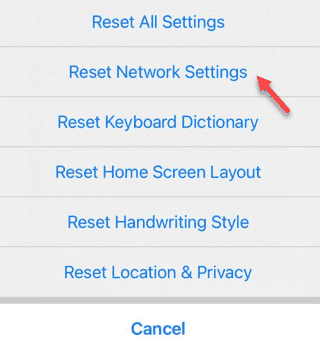
This resetting process requires a verification step. So, provide the necessary security information and reset the iPhone’s network configuration.
Your iPhone will restart automatically during this process. It is a standard procedure. But, when the device finally restarts, you have to reconnect to the Wi-Fi afresh.
App Store should become operational once again.