Multiple sheets on a single Excel workbook is very useful for the users who work with complex, variable streams of data. But, while copying some sheets or parts of the sheets together, you can meet with this message “This action won’t work in multiple section”. This statement simply means you can’t copy the entire part of the sheets due to grouping issues. You can only transfer the workbook if you follow our instructions.
Fix 1 – Ungroup the Sheets
MS Excel is not allowing to move the multiple sections on your current workbook is because the sheets are all grouped up. So, you must ungroup the sheet manually and then, you can move them around.
Step 1 – Open up the workbook, if you have closed it.
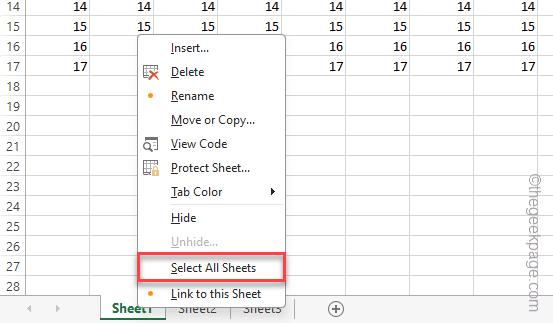
Step 2 – On the bottom dock of the workbook, right-click on any of the sheet names and tap “Select All Sheets” option to select all the sheets together.
Step 3 – After all the sheets are selected, right-click the selected sheets and tap “Ungroup Sheets” to ungroup each of them.
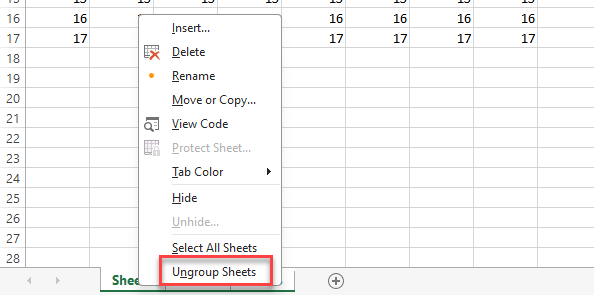
This should rectify the previous mistake and now, you can share sheets or multiple sections without any more problems.
Fix 2 – Copy sheets to transfer
You can take an alternative route to copy sheets to transfer the sheets from your workbook.
Step 1 – Open up the workbook on the MS Excel.
Step 2 – Right-click the sheet bar and click “Select All Sheets” option.
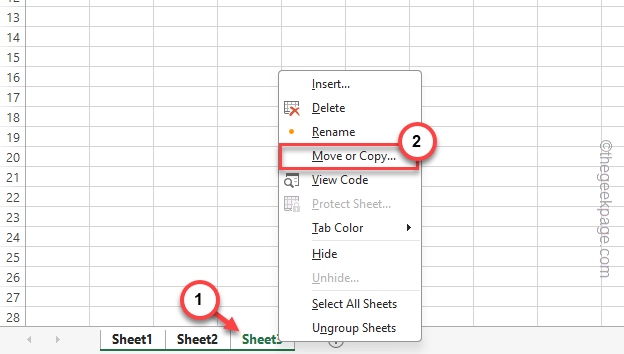
Step 3 – Right-click the same selected sheets and tap “Move or copy” option.
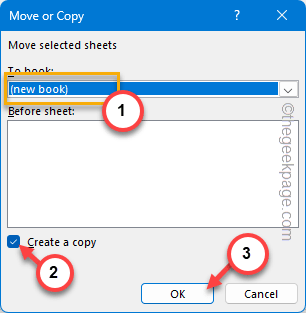
Step 4 – Tap the ‘To book:’ section and set the “(new book)” from the list. You can choose any of your preferred workbook as well.
Step 5 – Check the “Create a copy” option there.
Step 6 – Tap “OK” to move the copy to another workbook.
This should do the trick.
Fix 3 – Save, close and relaunch the Excel sheets
You can save the worksheet, close it and relaunch the same on MS Excel.
Step 1 – Save your Excel worksheet. You can do that using Ctrl+S shortcut keys or using the ‘File‘ console.

Step 2 – Once you have saved the Excel sheet, close MS Excel.
Step 3 – Relaunch the Microsoft Excel and load up the Excel sheet once again. This time, you won’t have any problem copying or moving your content to another sheet.
After doing this, you can move your Excel sheet according to your preference.
Fix 4 – Disable any macros in Excel sheet
If you have any macros in your Excel, sometimes copying stuff from one workbook can be tricky because of that. So, we recommend disabling any macro in the Excel sheet and then try moving it.