You press Windows + J, or you search the Start menu for Recall. But, nothing opens Here’s what might have happened. After the security backlash, Microsoft rebuilt Recall as an optional feature. That means it can ship switched off. Your PC maker can strip it out. And a privacy tool you ran months ago can block it without ever mentioning the word Recall. Recall is also picky about hardware. It only runs on Copilot+ PCs, and it hides itself completely when a PC doesn’t qualify. Follow these set of instructions to calmly analyze the issue and fix it.
Fix 1 – Check That Your PC Can Run Recall
You should look whether you . Recall needs an NPU (a neural processing unit, the chip that handles AI work).
1 – Right-click the taskbar and select Task Manager.
2 – Click the Performance tab.
3 – Look down the list on the left for an entry called NPU.
No NPU entry? Then Recall can’t run on this PC the normal way, and Fixes 2 to 7 will not change that. (Fix 8 is the unofficial route.)
But if you do see one, check the other requirements too. Microsoft asks for 16 GB of RAM and eight logical processors. The drive has to be 256 GB or bigger with 50 GB free. BitLocker (Windows’ drive encryption) must be on, and so must Windows Hello with a fingerprint or face sign-in.
Fix 2 – Turn Recall Back On in Windows Features
This is the one that works for most real Copilot+ PCs. Recall is not a downloadable app. It is a Windows feature with a checkbox.
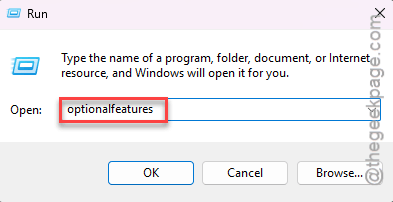
1 – Press Windows + R.
2 – Type optionalfeatures and press Enter. The old-style Windows Features window opens.
3 – Scroll down the alphabetical list to Recall (it may show as Windows Recall).
4 – Check the box next to it.
5 – Click OK and let Windows download what it needs (this can take a few minutes).
6 – Restart your computer.
After the restart, open Settings and go to Privacy & security. The Recall settings should be listed there now.
Box already checked? Uncheck it, click OK, restart, and then check it again. That forces a clean download.
Prefer a command?
Open Command Prompt as administrator and
Then, type this, and hit Enter:
DISM /Online /Get-Featureinfo /featurename:Recall
If the state says Disabled, run this code, and restar –
Dism /Online /Enable-Feature /Featurename:Recall
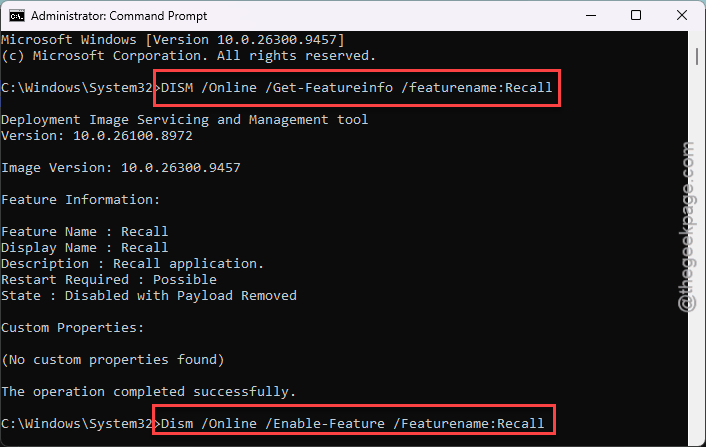
Same switch, different door.
Fix 3 – Update AI Components in the Microsoft Store
You should recall the Update AI component in the Microsoft Store.
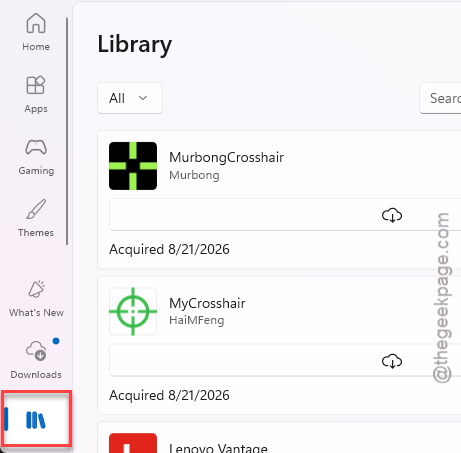
1 – Open the Microsoft Store app.
2 – Click Library in the bottom left corner.
3 – Click Get updates.
4 – Wait for the updates to finish, and check that AI Components was one of them.
And then try opening Recall again.
Fix 4 – Remove the Registry Block Left by Privacy Tools
Ever run a debloat script? Chris Titus Tech’s tool, O&O ShutUp10, anything like that? Those tools add a policy that shuts down Recall’s background services for good. They mean well. But they don’t tell you how to undo it.
1 – Press Windows + R.
2 – Type regedit and press Enter.
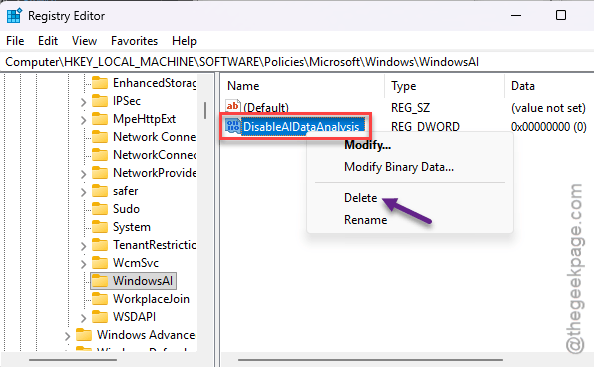
3 – Go to this address. You can paste this address and directly reach there-
HKEY_LOCAL_MACHINE\SOFTWARE\Policies\Microsoft\Windows\WindowsAI
4 – Look in the right pane for a value named DisableAIDataAnalysis.
5 – Right-click it and select Delete.
6 – Restart your PC.
No such value? Then this isn’t your problem. Close the Registry Editor and move on.
One more thing. On a work or school PC (domain-joined, Enterprise, or Education), Recall is off by default and only an administrator can allow it. Don’t fight that one. Ask IT.
Fix 5 – Change Your Region If You’re in the EU
Microsoft hides Recall on PCs registered to European regions, to comply with the EU’s Digital Markets Act. Switching the region to the United States brings it back.
1 – At first Press Windows + I to open Settings.
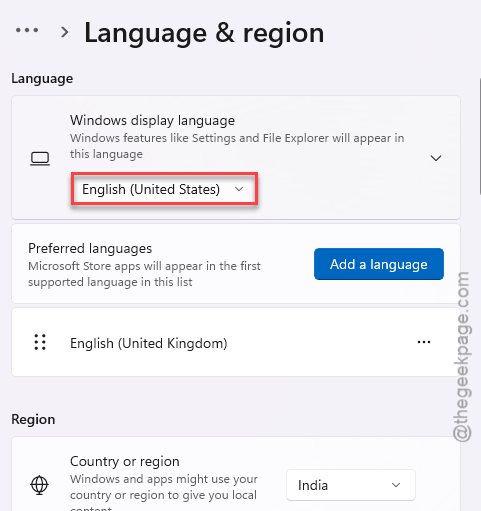
2 – Go to Time & language, then Language & region.
3 – Under Region, change Country or region to United States.
4 – Open the Registry Editor, like in Fix 4 (steps 1 and 2).
5 – Go here:
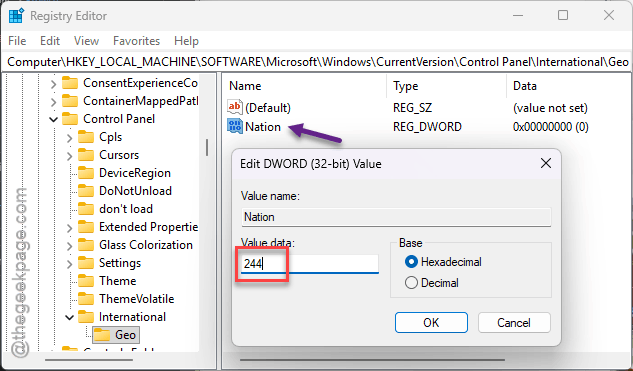
HKEY_LOCAL_MACHINE\SOFTWARE\Microsoft\Windows\CurrentVersion\Control Panel\International\Geo
6 – Double-click Nation and make sure the value is 244 (the code for the United States).
7 – Restart your PC.
8 – Open Windows Update in Settings and click Check for updates.
But there’s a side effect. While the region is switched, the Microsoft Store and some apps show US content and prices. Worth knowing before you commit.
Fix 6 – Try a Fresh Local Admin Account
Sometimes it’s not Windows. It’s your user profile. A damaged profile can stop AI apps from starting.
1 – At first, open Settings and go to Accounts.
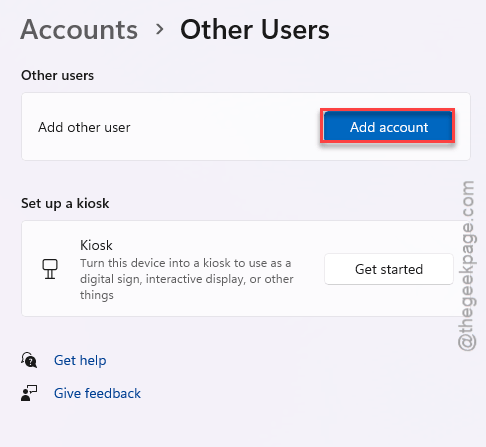
2 – Click Other users.
3 – Click Add account.
4 – Then, choose the I don’t have this person’s sign-in information feature.
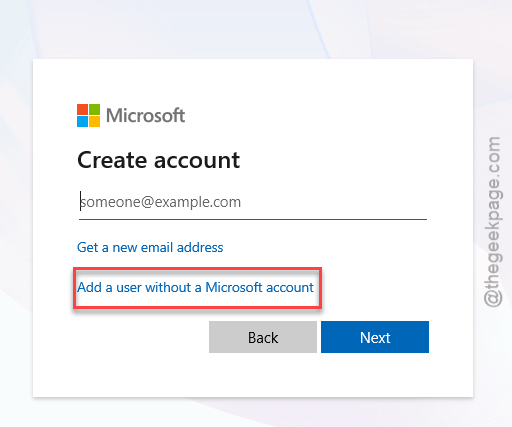
5 – Later, opt for the Add a user without a Microsoft account and give it a name.
6 – Then, click the new account and opt for the Change account type,
7 – Next, set it to Administrator.
8 – Sign out, sign in to the new account, and try Recall.
Works there? Then your old profile is the culprit. Moving your files over to the new account is tedious, but it is the dependable way out.
Fix 7 – Do a Clean Boot
Third-party overlays can crash the Recall window before it even draws. And a clean boot tells you fast whether something you installed is to blame, because it starts Windows with only Microsoft’s own services.
1 – Press Windows + R.
2 – Type msconfig and press Enter.
3 – Click the Services tab.
4 – Check Hide all Microsoft services at the bottom left.
5 – Click Disable all.
6 – Click OK and restart your PC.
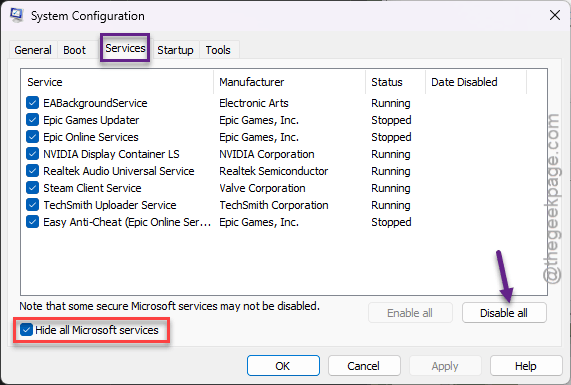
7 – Open Recall.
If it opens now, go back into msconfig and turn the services on a few at a time until it breaks again. (Don’t leave everything disabled. Things like your printer software need those services.)
Fix 8 – Force the Feature On With ViVeTool
This is the unofficial one. If your PC doesn’t pass the Copilot+ hardware check, Windows hides Recall on purpose. ViVeTool is a free community tool that flips hidden Windows feature switches.
1 – Download the latest ViVeTool release from GitHub.
2 – Extract the zip file to a short path like
C:\ViVeTool
3 – Then, right-click the Start button and choose Terminal (Admin).
4 – Later, type this code, and press Enter.
cd C:\ViVeTool
5 – Type this line of code next, and press Enter.
.\vivetool /enable /id:48488884,43572855,4147738
6 – Restart your computer.
Fair warning. Microsoft doesn’t support this, and the IDs can stop working after an update. And if your PC has no NPU at all, the switch alone will not be enough, because there’s no chip to do the work.
Keep It From Coming Back
- Read what a privacy or debloat tool is about to switch off before you click Apply.
- Leave BitLocker and Windows Hello on, because Recall requires both and disappears without them.
People Also Ask
How to open Recall Windows 11?
Press Windows + J, or type Recall in the Start menu search. Nothing there? Press Windows + R, type optionalfeatures, and check the Recall box in the Windows Features window. Restart afterwards. Recall only shows up on Copilot+ PCs, so check Task Manager’s Performance tab for an NPU first.
Why did my Recall fail?
A few things can stop it. The PC may not meet the hardware rules, like having an NPU and 50 GB free. BitLocker or Windows Hello might be off. And privacy tools often block it with a registry policy. On work PCs, an administrator has to allow it first.