This one looks like a virus tore through your system. And honestly? Something close to that happened. But the fix is more tedious than scary — your services are still there, just renamed.
Where This Comes From
Almost every case traces back to an “activator” tool. The kind that promises free Windows or Office. Those tools rename update services like wuauserv to wuauserv_bkp so Windows Update can’t undo their patch job.
Sneaky? Very. And the tool usually leaves a background process running to guard those changes, which is why your edits keep reverting until you shut it out.
One more thing before you start. Treat the PC as possibly infected and run a full antivirus scan once updates work again. Better safe.
Fix 1 – Start in Safe Mode
Try booting your device in safe mode. Do this first or the later fixes may keep undoing themselves.
1 – Click Start, then the power icon.
2 – Then, hold the Shift button on your keyboard, and click Restart.
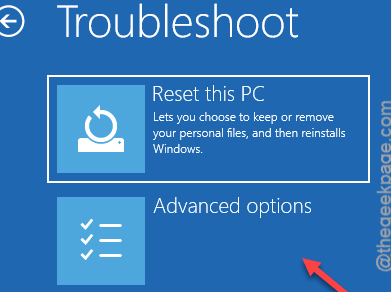
3 – Now, When the blue menu appears, click Troubleshoot.
4 – Proceed to the Advanced options panel.
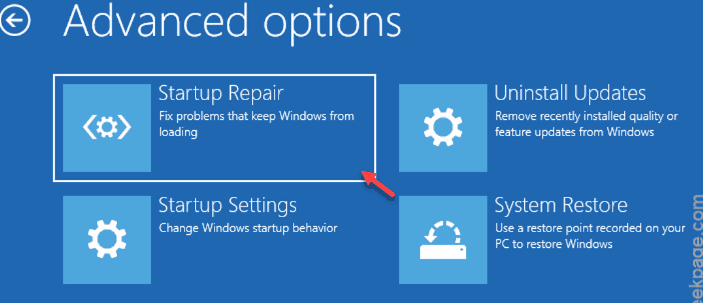
5 – Then, use the Startup Settings.
6 – Later, Restart.
7 – A numbered list shows up after the reboot. Press 4 to pick Enable Safe Mode.
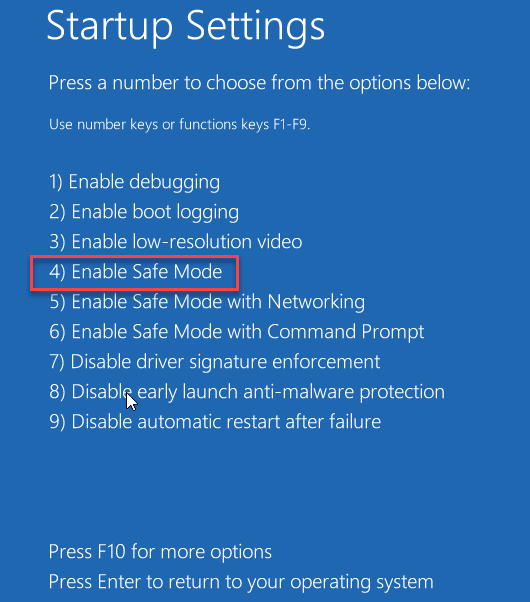
The screen will look low-resolution and plain in Safe Mode. That’s normal — don’t panic.
Fix 2 – Strip the _bkp From the Service Names
Try renaming the services using the registry trick.
1 – Press Windows + R. Then, write down regedit, and press Enter.
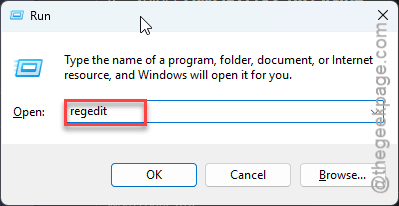
2 – Click Yes on the permission prompt.
3 – Put this into the address bar of the Registry at the top and press Enter:
HKEY_LOCAL_MACHINE\SYSTEM\CurrentControlSet\Services
4 – In the left pane, scroll down to find wuauserv_bkp.
5 – Once you have found it, right-click it, select Rename, and delete the _bkp part so it reads wuauserv again.
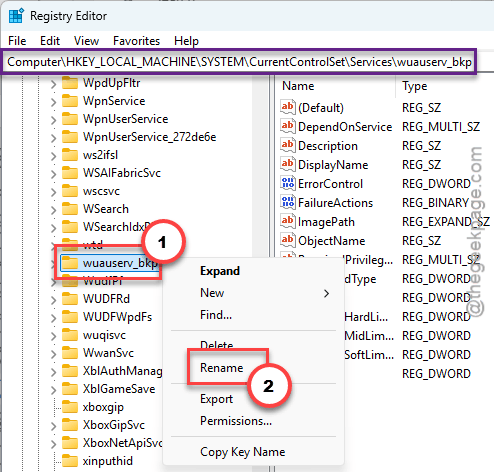
6 – While you’re there, look for any other name ending in _bkp.
7 – Rename each one the same way.
Check if this works for you.
Fix 3 – Re-register the Update DLLs
DLLs are shared code files that services depend on. Re-registering them re-links everything, so the services you just restored can actually run.
1 – Restart normally to leave Safe Mode.
2 – Click Start and type cmd.
3 – Right-click Command Prompt and pick Run as administrator.
4 – Write this down in the terminal and press Enter:
regsvr32.exe /s wuaueng.dll
5 – Then this:
regsvr32.exe /s wuapi.dll
Nothing appears after each command? Good. The /s means silent, so no news is success. Now open Settings > Windows Update and check for updates.
Fix 4 – Rebuild the BITS Service
Try rebuilding the BITS service.
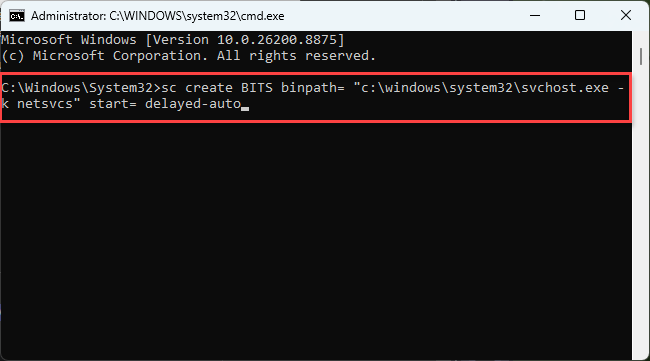
1 – Launch an Command Prompt terminal with administrative rights.
2 – Copy-paste this line in and press Enter:
sc create BITS binpath= "c:\windows\system32\svchost.exe -k netsvcs" start= delayed-auto
3 – Restart the PC and try an update check.
And yes, those spaces after binpath= and start= are supposed to be there. Copy the line exactly as written.
Fix 5 – Do a Repair Install
Still broken? Some activator tools chew up WinSXS — the folder holding Windows’ backup copies of its own files. When that’s gone, the only real cure is laying a fresh copy of Windows over the damaged one. Your files and apps survive this.
1 – Download the Windows 11 ISO.
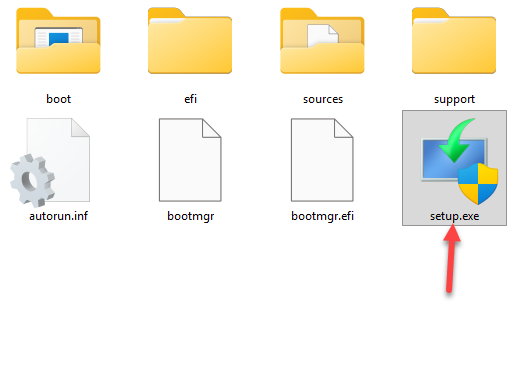
2 – Once you have got it, double-click the downloaded file to mount it.
3 – Run setup.exe from the window that opens.
4 – When asked, select Keep personal files and apps.
5 – Let it run. Takes about an hour, with a few restarts along the way.
And once everything works again? Skip the activator tools. A legit license costs less than an afternoon of registry surgery.
People Also Ask
Why were my Windows Update services renamed to _bkp?
An activation crack or “activator” tool did it on purpose. Renaming wuauserv and friends to wuauserv_bkp stops Windows Update from running, so the tool’s changes never get patched out. Renaming the services back in the registry restores updates.
Is wuauserv_bkp a virus?
Not by itself — it’s your real Windows Update service wearing a fake name. But the software that renamed it behaves like malware and often runs a guard process in the background.
Will a Windows 11 repair install delete my files?
Documents, photos, and installed programs stay put. Windows itself gets replaced with a clean copy. Back up anything precious first anyway — repairs on a damaged system deserve a safety net.