This error looks like a hardware death sentence. It isn’t. Your pen is fine, your tablet is fine — Live Canvas just can’t hear them, because Windows juggles two pen systems and handed your stylus to the wrong one. Ten minutes of settings-flipping fixes almost every case.
Why This Happens
Windows has two ways of listening to a pen. There’s Windows Ink, the modern system Microsoft builds everything new around. And there’s WinTab (the older pen system that ships with your tablet’s driver). Live Canvas only speaks Windows Ink. But plenty of Wacom and Huion tablets still default to WinTab. The result? Your pen draws fine in Photoshop while Copilot swears no stylus exists. Infuriating.
There’s also a sneaky legacy setting that treats your pen as a plain mouse. It strips out the pressure data. And without pressure data, Live Canvas decides your stylus isn’t compatible at all.
Sometimes it’s simpler than any of that — the digitizer service hiccupped, or a Bluetooth pen quietly lost its pairing. Microsoft built a whole new AI canvas and didn’t bulletproof the one thing it needs: the pen. Of course.
Fix 1 – Turn On Windows Ink in Your Tablet Software
Fix the language mismatch first. This setting lives in your tablet driver’s app, not in Windows.
1 – Open your tablet’s control app — Wacom Tablet Properties, Huion Tablet, or whichever app came with your driver.
2 – Go to the Mapping section.
3 – Check the box for Use Windows Ink.
4 – Close the app and try Live Canvas again.
Different brands tuck the toggle into slightly different corners, but it is always called Windows Ink. Hunt for those two words.
Fix 2 – Restart the Tablet Input Service
When the pen service hiccups, no app hears the pen until the service gets kicked.
1 – Press Windows + R, type services.msc, and press Enter.
2 – Scroll down and look for TabletInputService — on some setups it’s named Wintab Service instead.
3 – Right-click it and select Restart.
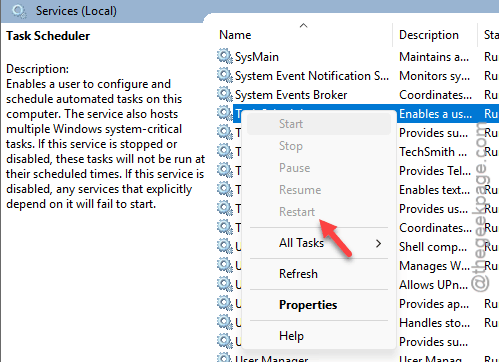
4 – Give it a few seconds, then test the pen in Live Canvas.
And that’s the whole fix for a surprising number of people.
Fix 3 – Uncheck “Let Me Use My Pen as a Mouse”
That legacy mouse setting from earlier? Time to switch it off.
1 – Press Windows + I to open Settings.
2 – Click Bluetooth & devices in the left sidebar.
3 – Click Pen & Windows Ink.
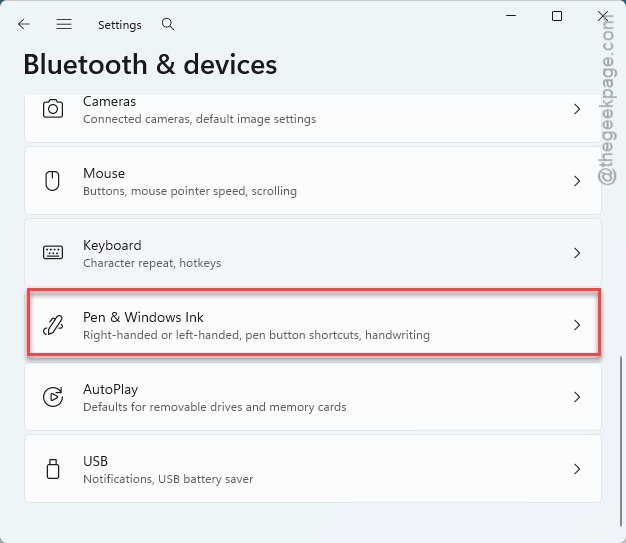
4 – Expand Additional pen settings.
5 – Uncheck Let me use my pen as a mouse in some desktop apps.
Weirdly, a few setups behave the exact opposite way — the box has to be ON before their pen shows up. So if unchecking changed nothing, flip it back on and test once more. Yes, really. Welcome to Windows pen support.
Fix 4 – Re-Pair a Bluetooth Stylus
Bluetooth pens (Surface Slim Pen and friends) drop their handshake now and then without saying a word.
1 – Open Settings and go to Bluetooth & devices.
2 – Find your stylus in the devices list.
3 – Click the three dots (⋯) next to it and select Remove device.
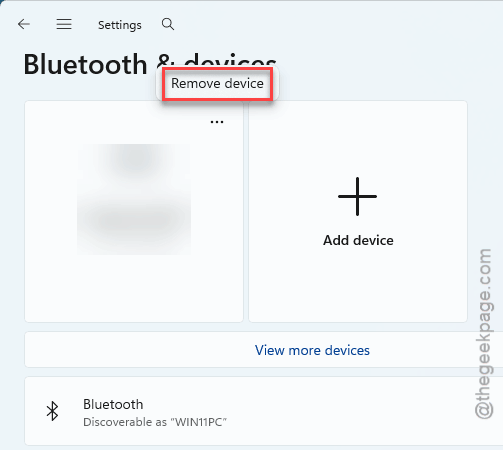
4 – Put the stylus into pairing mode (usually by holding its top button until a light flashes).
5 – Click Add device, choose Bluetooth, and pick your stylus.
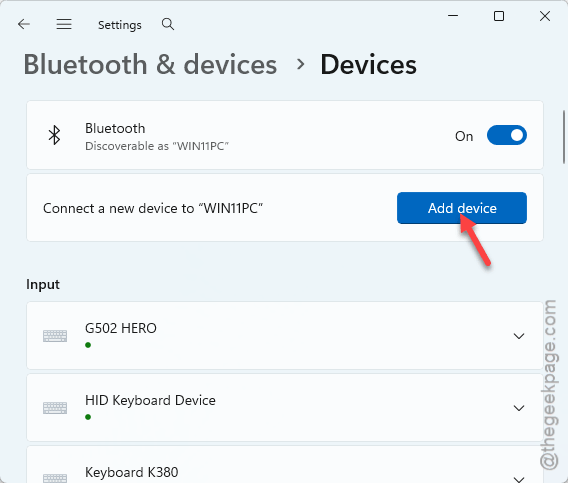
USB and EMR tablet pens (the battery-free kind) never pair over Bluetooth. So skip this one if that’s you.
Fix 5 – Force the Pen Protocol in the Registry
Try enforcing the pen protocol via the system registry.
1 – Press Windows + R, type regedit, and press Enter.
2 – Paste this into the address bar at the top:
HKEY_CURRENT_USER\Software\Microsoft\Windows\CurrentVersion\Pen
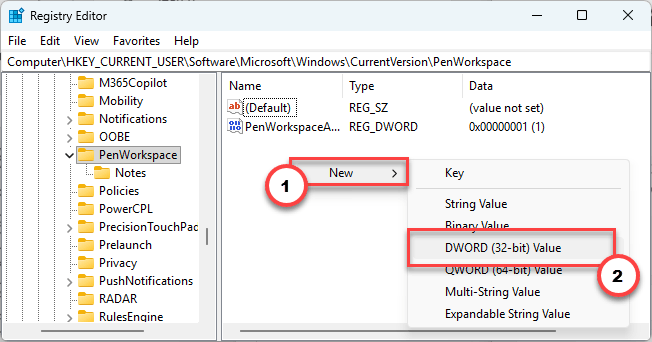
3 – Right-click empty space in the right pane, choose New, then DWORD (32-bit) Value.
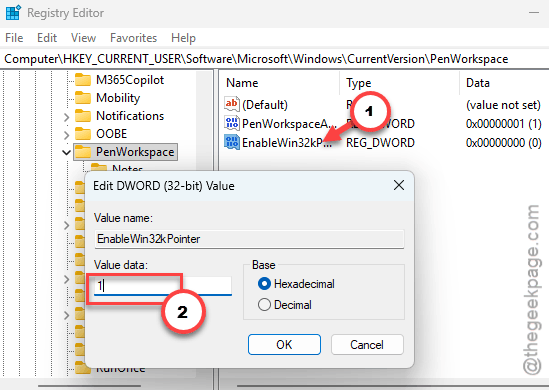
4 – Name it EnableWin32kPointer.
5 – Double-click it and set the value to 1.
6 – Click OK and restart your PC.
But remember this value exists. If a future update fixes Windows Ink properly, delete it to go back to defaults.
How to Prevent This
- Recheck the Windows Ink box every time you update your tablet driver. Updates love unchecking it.
- Pick one pen system and stick with it. Windows Ink, ideally. And leave it alone.
- After big Windows updates, poke Live Canvas once before you actually need it. Two-minute check.
- Bluetooth stylus? Keep it charged. A dying pen drops its pairing first and dies second.
People Also Ask
What can I do about license validation errors in Copilot?
Sign out of your Microsoft account inside the app, restart it, and sign back in — that forces a fresh license check. Still failing? Update the app from the Microsoft Store and confirm your subscription is active on account.microsoft.com. Stale tokens cause most of these.
Does Live Canvas work with third-party drawing tablets?
Yes, as long as the tablet’s driver routes input through Windows Ink. Wacom, Huion, and XP-Pen all have a “Use Windows Ink” checkbox in their driver apps. With it off, the pen still draws in art software but Copilot reports no compatible stylus.