Does the alarm widget not showing up on your iPhone lock screen? Since the introduction of the Alarm widget on iOS 16, users have used this feature extensively in their daily life. But some users have recently complained that the alarms are not showing up on the lock screen. The issue with the alarm widget can happen due to some internal settings issues, one-time alarm alerts, or focus mode on the device. Don’t worry. We will guide you through the proven solutions to get the alarm widget up and working in no time.
| Issue Cause | Quick Fix | Time Needed |
|---|---|---|
| Sleep Screen | Enabling Sleep Screen in Sleep Focus | 2 min |
| Sleep Focus | Alarms show up in Sleep Focus | >1 min |
| Repeated Alarms | Must have an alarm | 2 min |
Why the alarm is not showing up on the lock screen?
The alarm widget is tightly linked to the alarms that you have set up on your iPhone. It seems that the Alarm widget does show up proper information only when you put the device in Sleep Mode. This problem usually arises from misconfigured alarm settings, sleep focus mode features, or other complications.
The main resolution to this problem is linked to enable the advanced features of the Sleep Mode, like Sleep Screen.
Fix 1 – Turn on Sleep Screen in Sleep Focus
It seems that the turning on the Sleep Screen in the Sleep Focus mode has helped many users solve the problem.
Step 1 – Go to your iPhone Settings console and open up the Focus mode.
Step 2 – Then, open up the Sleep focus mode.
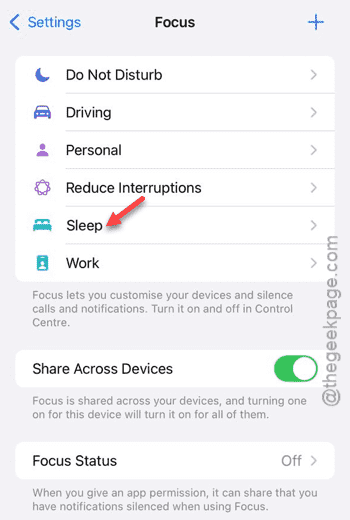
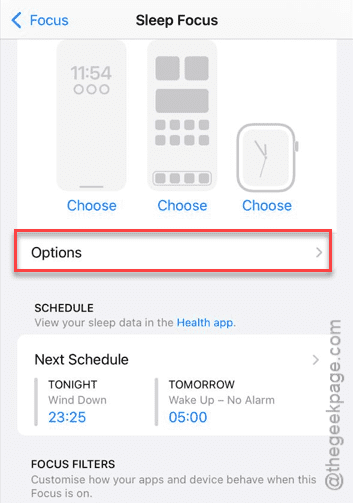
Step 3 – Scroll down to Options module there.
Step 4 – Turn on the Sleep Screen and Show Time both the options.
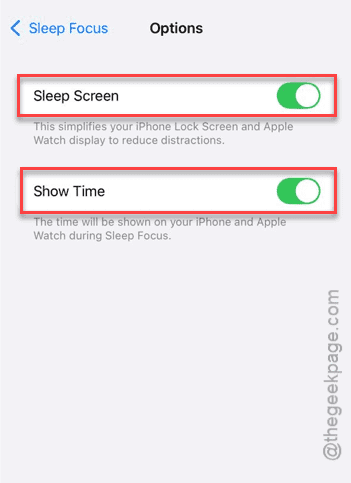
The alarm widget will show up properly on the lock screen on your iPhone. You will be able to view the upcoming alarm there.
Fix 2 – Alarms show up in Sleep Focus mode
Some of the alarms prominently show up while the device is in Sleep Focus mode.
Step 1 – Start by swiping your finger from the top to access the Control Centre.
Step 2 – Next, tap-hold the Focus mode button for a few seconds.
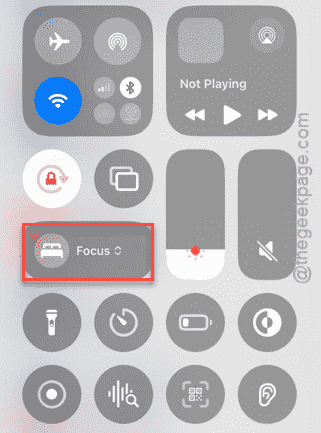
Step 3 – Choose the Sleep mode from the toggle to apply it.
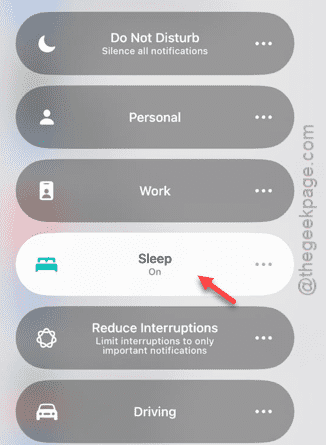
Once the Sleep focus mode is activated, the alarm information should show up on the lock screen widget.
Fix 3 – Reconfigure the Alarm
A one-time preset alarm may not appear on the Alarm widget on the lock screen. It must be a repeated alarm for it show up directly on the widget.
Step 1 – To check this, open up the Clock app on your iPhone.
Step 2 – Next, go to the Alarms section and check your alarm. Tap the alarm to view its settings.
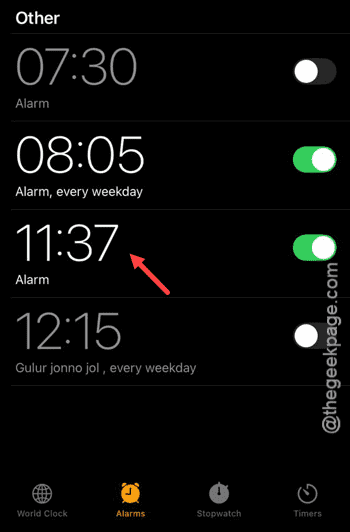
Step 3 – Check whether the Repeat is set to Never. If it is set to never, edit it and set the alarm to ring according to your daily preference. Save the changes in there.
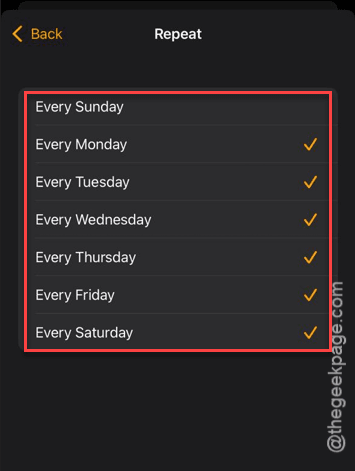
Once you have set the alarm, it will show up directly on the alarm widget on the lock screen.
FAQs –
1. Why the alarm widget is available only in Sleep Focus?
The Sleep Focus and alarm system is tied integrally due to Apple’s own Health and Sleep system integration. The variability attached to the normal alarms that users can change, and the alarm tied to the Sleep schedule is different. This continuity is the reason for this type of design of choice.
2. What are the limitations of Alarm widget on iPhone?
The main limitation of the alarm widget is that it just show up one upcoming alarm. It doesn’t show any other alarms, even if you have multiple alarms. Another shortcoming is the lack of operations like checking or turning on/off alarms directly from the lock screen widget.