Have an iOS update failed recently on your iPhone? iOS update is a native process, but they are not an exclusion to such failures. Generally, the lack of free space on your iPhone, poor internet connection, low battery can stern this kind of iOS update failures on the device. These are some proven solutions that will help you to install that software update.
Here is the quick fix guide for you ~
| Issue Cause | Quick Fix | Time Needed |
|---|---|---|
| Poor connection | Switch to a stable Wi-Fi connection | >1 min |
| Low free space | Delete unnecessary files | 2 min |
| Low battery | Charge the device up to 50% or update while the device is charging |
Fix 1 – Delete older update files from iPhone
Whenever an update fails, it leaves some of the residual update file packages on your iPhone.
Step 1 – Go to your iPhone Settings. Next, go this way ~
General > iPhone Storage
Step 2 – Then, go through the list of apps and packages there. Find any trace of iOS update packages. It should be of considerable size.
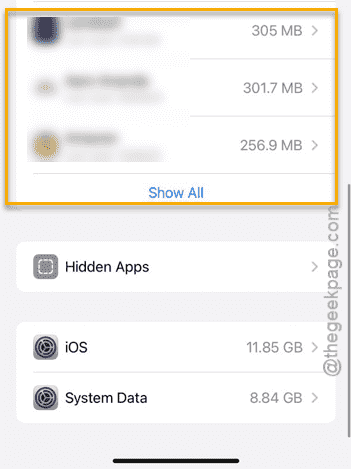
Step 3 – If you can find any such residual update packages, delete that file.
Later, restart the iPhone and try to update it once again.
Fix 2 – Free up the iPhone storage space
There is a need for at least 4-6GB of free space available on the iPhone for you to install the iOS update package successfully.
Step 1 – In your iPhone Settings page, go here ~
General > iPhone Storage
Step 2 – Check the current free space available on your iPhone. If you don’t have that amount of free space, you must make arrangements to achieve that.
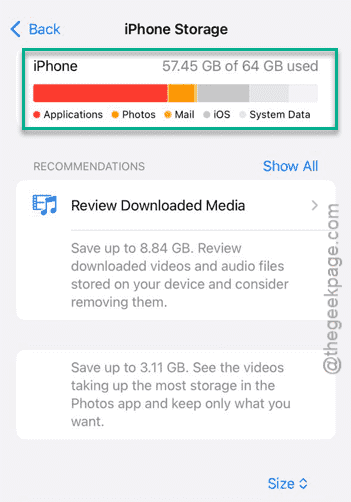
Step 3 – For example, deleting some of the big files or uninstalling space-mongering apps or games should do the job for you.
Once you have enough free space, like more than 10 GB, initiate the update process once again.
This time, it will work as usual.
Fix 3 – Update the device via iTunes/Apple Devices
If the update is failing consecutively for 2–3 times, you must update the iPhone via iTunes or the Apple Devices.
Step 1 – Connect the iPhone to your MacBook or Windows PC/laptop.
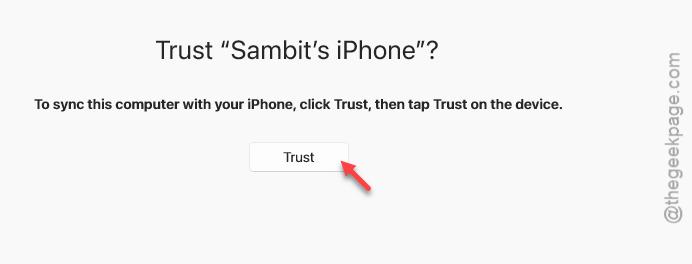
Step 2 – If you are using a MacBook, load up the Finder app. For other users on Windows machines, install the Apple Devices program from Microsoft Store.
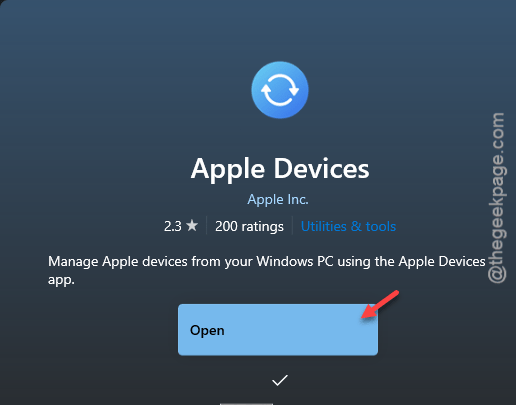
Step 3 – You may get a ‘Trust‘ prompt on your devices to authenticate your access. Do tap the Trust button there.
Step 4 – Select your iPhone from the left-hand tab on iTunes/Apple Devices.
Step 5 – Go to the General tab from there.
Step 6 – Tap the Check for Update to update the software of the iPhone.
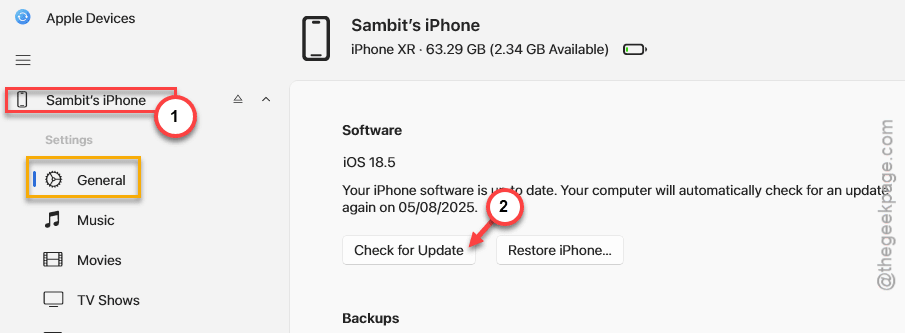
Follow the on-screen steps now to complete the update process.
FAQs –
Here are some frequently asked questions related to this discussion~
1. Why my phone say “Software update has failed”?
The reason you are facing this problem is directly linked to any of these factors— unstable Wi-Fi, low free space available on the device, corruption of the downloaded iOS update file. On the other hand, VPN usage or several other network restrictions can halt the iOS update in the middle of the process.
2. Can I update my iPhone without Wi-Fi?
Yes. While it is possible for you to update your iPhone completely on a mobile data plan, the stability, network bandwidth of a Wi-Fi cannot be understated. iPhone 11 or later and compatible iPhones running on iOS 17 or later can take advantage of the mobile data to update. Usage of Wi-Fi is highly recommended for a more smooth update experience.
3. Does a failed iOS update deletes my data?
No. A failed iOS update process doesn’t delete any of your personal or application data from the iPhone. However, we recommend you create a backup of your iPhone data before updating the iOS version. This backup method is strongly suggested in case of the iOS users who are installing the iOS Developer beta versions.