Does your Home Screen on your iPhone looks washed out? Some of the iPhone users have recently complained about the same issue. The washed out home screen that you are getting on your iPhone seems to have originated from a misconfigured iOS settings or a display modification, to be precise. Certain effects like background blur effect on wallpaper, true tone can give some washed out effect on the Home Screen wallpaper. Here is a step-by-step guide that should help solve this issue.
You may use this quick fix guide for an instant breakdown of the issue ~
| Issue Cause | Quick Fix | Time Needed |
|---|---|---|
| Blur or Dimming effects | Settings > Wallpaper >Disable Blur effect | 1 min |
| True Tone and or Night Shift enabled | Settings > Display & Brightness > Turn off True Tone, Night Shift | 1 min |
| iOS bug | Do a force restart | 2-3 min |
Here is the detailed version of the fixes with a step-by-step guide to solve the washed out effect on the wallpaper~
Fix 1 – Turn off the Blur effect on wallpaper
You can manually disable the blur effect on the wallpaper on the iPhone to fix this washed out effect.
Step 1 – At first, load up the iPhone Settings. Open up the Wallpaper settings in there.
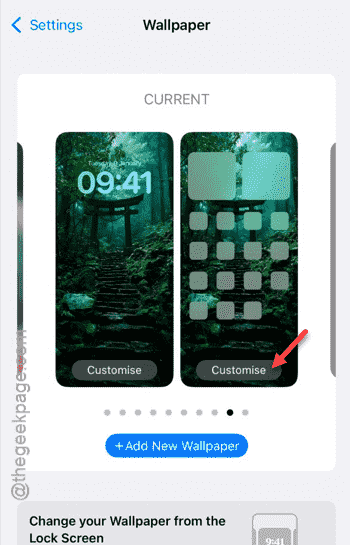
You will see the current wallpaper and lock screen combinations in there.
Step 2 – Tap the Customize button under the home screen wallpaper (or the one that is appearing to be faded).
Step 3 – Now, turn off the Blur effect option from the bottom of the same wallpaper setting.
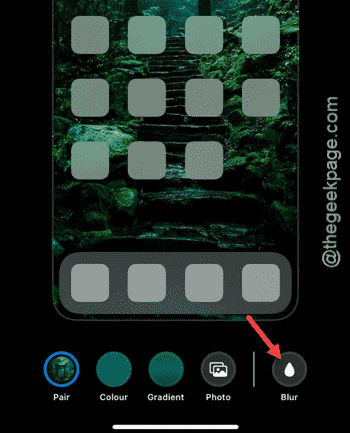
Once you have removed the blur effect, return to the home screen and check it out.
Fix 2 – Disable Night Shift and True Tone effects
Display effects like True Tone or Night Shift does affect the iPhone’s display to suit with your ambient conditions, causing it to appear dull or washed out.
Step 1 – On your iPhone Settings console, go to the Display & Brightness settings.
Step 2 – Turn off the True Tone effect.
Step 3 – Open the Night Shift settings and turn it off from there.
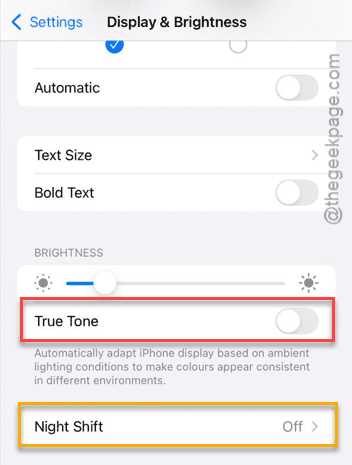
Once you have disabled the effects on the display, have a look at the iPhone’s wallpaper.
Fix 3 – Force restart your iPhone to clear glitches
Force restart or a hard reset is the go-to method if this washed out effect has evolved from just a glitch in iOS 18/26.
Step 1 – Press and release these two buttons one after the other~
Volume Up
Volume Down
Step 2 – Then, press and hold the Power button on the iPhone for 10 seconds until the display completely turns off and the Apple logo has appeared on the display.
After force restarting the iPhone, test your wallpaper once again.
Fix 4 – Turn off the Low Power mode on your iPhone
Having the low power mode enabled on your iPhone can dim the wallpaper to save battery.
Step 1 – Open the Battery settings on the iPhone.
Step 2 – Turn off the Low Power mode from there to deactivate its effect on the iPhone.
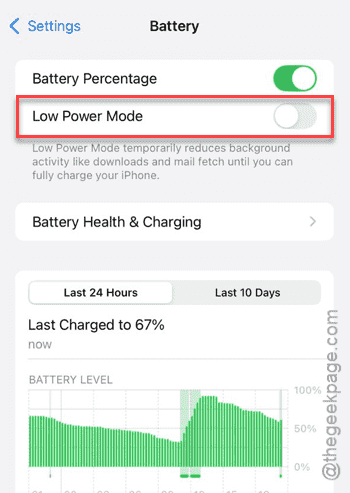
The dim or dull effect will vanish from the iPhone’s wallpaper.
Check again.
FAQs
Here are some frequently asked question related to the washed out home screen wallpaper issue on iPhone~
{
“@context”: “https://schema.org”,
“@type”: “FAQPage”,
“mainEntity”: [
{
“@type”: “Question”,
“name”: “Why does my iPhone wallpaper look faded on the home screen?”,
“acceptedAnswer”: {
“@type”: “Answer”,
“text”: “The dullness or faded effect that you are noticing on the wallpaper can originate from several factors like the blur effect, Night Shift, or True Tone. Sometimes, these effects can cause the wallpaper to look less colourful and vibrant, giving off a dull, washed-out appearance.”
}
},
{
“@type”: “Question”,
“name”: “Does iOS dim wallpapers automatically?”,
“acceptedAnswer”: {
“@type”: “Answer”,
“text”: “Yes. Sometimes iOS dims the wallpaper in the background to increase the readability of text on the screen. It does this so that the letters on the screen can be easily distinguished against the backdrop of the wallpaper in various lighting conditions.”
}
},
{
“@type”: “Question”,
“name”: “Can Low Power Mode cause a washed-out wallpaper on my iPhone?”,
“acceptedAnswer”: {
“@type”: “Answer”,
“text”: “Yes. When Low Power Mode is enabled, your iPhone dims the overall display brightness to save battery. This can make wallpapers appear washed out or dimmer than usual. Turning off Low Power Mode or charging your device will restore normal wallpaper brightness.”
}
}
]
}