Can’t share your whiteboard on Microsoft Office with anyone outside your organization? Users who want to share their whiteboard from their MS Teams meetings have found the ‘Anyone’ option greyed out in the sharing settings. We have discussed what have gone wrong in this case, along with the countermeasures that you can apply so that you can share your whiteboard with others outside your office.
Quick Fixes –
1. Close the Teams app. Quit it from the system tray as well. Then, relaunch the app and retry sharing the whiteboard link with the other user.
2. Ask your IT administrator to permit sharing files with external users.
Fix 1 – Check whether the external sharing is allowed
You need proper permission for you to share whiteboards with others.
[NOTE – You will need IT administrator rights to perform this entire operation. If you don’t have that, contact IT administrator for further proceedings. ]
Step 1 – Log in to the Microsoft Office 365 Admin Center with proper credentials.
Step 2 – Search for Whiteboard in the search box.
Step 3 – Make sure the Turn on Whiteboard for everyone in your org in checked.
Step 4 – Enable the External sharing through OneDrive option. Save the changes there.
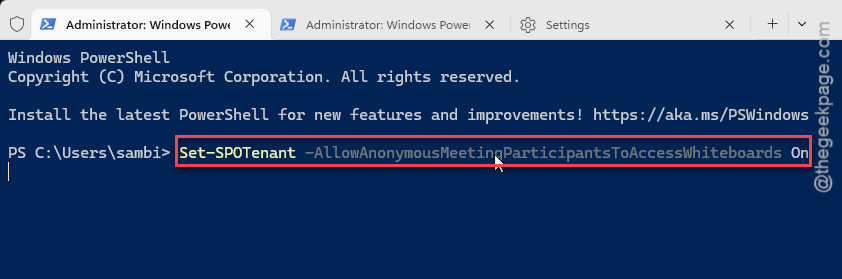
Step 4 – Now, connect to the SharePoint Online PowerShell console.
Step 5 – Once you are there, paste this command and hit Enter.
Set-SPOTenant -AllowAnonymousMeetingParticipantsToAccessWhiteboards On
NOTE – Microsoft Business-to-business Invitation Manager automatically creates a guest account for any third-party user.
Fix 2 – Can’t share the whiteboard with mass participants
The sharing of whiteboard links with mass guest accounts is blocked by design. You can only share the whiteboard link using the ‘Share with specific people’ with other user from your organization. You must specify the user credential in the particular section to create the shareable link. The user must do this for all the guest users. Otherwise, you can’t create a link that can be shared with multiple third-party user.
Fix 3 – Export the whiteboard as an image
[NOTE – Request prior permission from designated authority before doing this.]
You can just export the contents of the whiteboard as an image or PDF and share it with the other, if you can’t provide them direct access to the whiteboard.
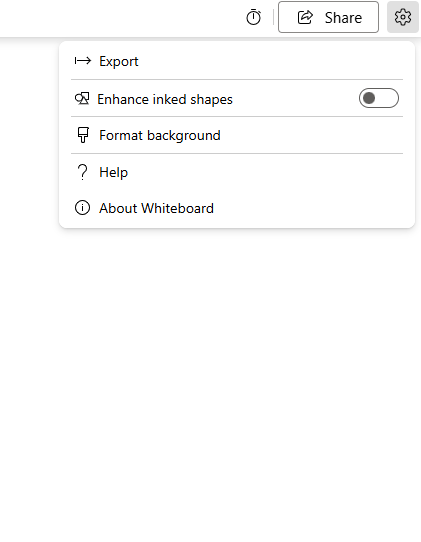
Step 1 – Go to the whiteboard that you want to share. Next, tap the ⚙Settings option there, choose the Export option.
Step 2 – Now, on the following tab, you can choose either the PDF or Image system to share the whiteboard in that format. Otherwise, you can also choose to get it in a Zip format as well.
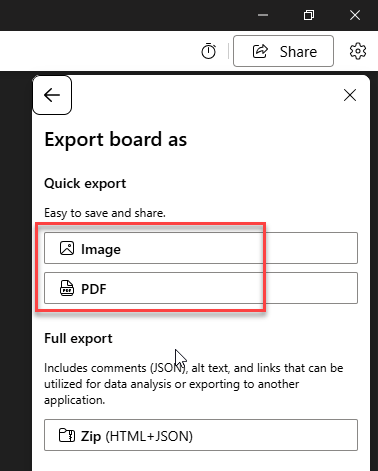
Once you have got the file, you can share it via email or any other channel according to your choice.
Why can’t I share my whiteboard with anyone outside my organization?
Whiteboards on the Microsoft Office 365 applications usually contains sensitive information that may not be allowed to be shared with anyone outside your organization. So, the sharing criteria for distributing whiteboard links is limited to the users from the same organization. There are two distinct account types you can share the files with ~
B2B (Business to business) only – An Azure Active Account (AAD) holder can access the whiteboards within the Office ecosystem.
Guest only – If a user from outside the organization demands the whiteboard, they must join using a Guest account.
Please note that you can only share the whiteboard links if your organization policies allow the sharing of files in the first place. You can get a detailed idea on the External Sharing criteria of whiteboards from this Microsoft Support page.