You copy an image. Open Paint. Ctrl + V. Nothing. Blank canvas. Paste just doesn’t work. Clipboard issue. Surprisingly common after updates or when clipboard history is involved.
Why This Happens
Here’s the deal. Windows has two clipboard systems. The classic one. And the newer Clipboard History. When they conflict — or when the data format doesn’t match what Paint expects — paste fails.
Some apps copy images in formats Paint can’t read. DIB. Enhanced metafile. Whatever. And the new Paint is pickier than the old one. Which is dumb.
Also? If the clipboard service crashes silently — which it does more than you’d think — nothing pastes. Anywhere. Not just Paint. So yeah.
Fix 1 – Re-copy the Image
Sounds too simple. But the clipboard might have lost the data.
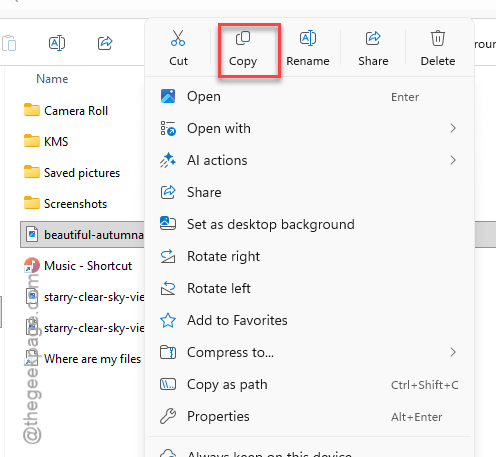
1 – Go back to the source image.
2 – Right-click it.
3 – Click Copy. Or press Ctrl + C.
4 – Open Paint immediately.
5 – Press Ctrl + V.
If it works now? Clipboard data just expired. Happens when you switch apps a bunch before pasting.
Fix 2 – Enable Clipboard History
Weird fix. But enabling Clipboard History sometimes resolves paste issues.
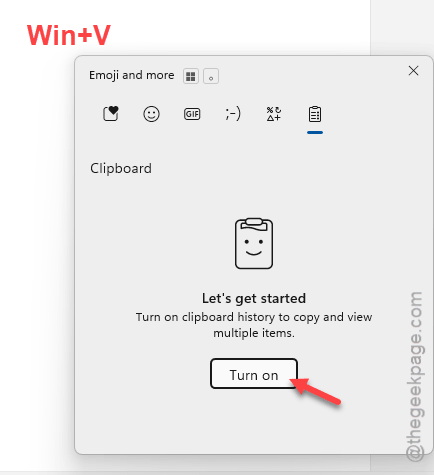
1 – Press Win + V.
2 – If it asks to enable Clipboard History, click Turn on.
3 – Re-copy the image.
4 – In Paint, right-click the canvas.
5 – Click Paste. Or press Win + V and click the image from the history.
No idea why this helps. But multiple people report it fixes the issue.
Fix 3 – Clear Clipboard Data via Command Prompt
Clears the clipboard buffer. Fixes stuck or corrupted data.
1 – Click Start.
2 – Type cmd.
3 – Open Command Prompt.
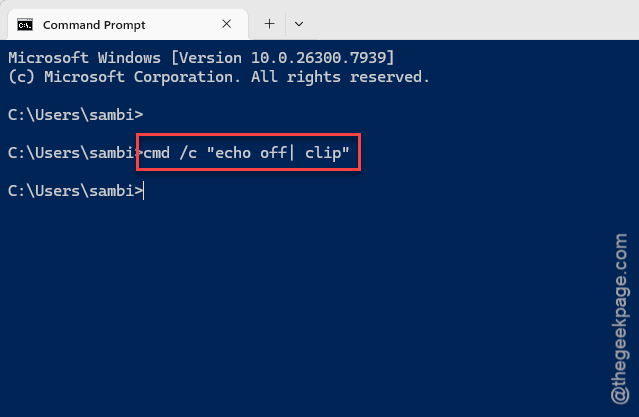
4 – Type this command and press Enter:
cmd /c "echo off | clip"
5 – Close the window.
Now re-copy your image and paste. This clears whatever junk was stuck in the buffer.
Fix 4 – Use Print Screen Instead
Quick workaround. Screenshots always paste into Paint.
1 – Display the image on your screen.
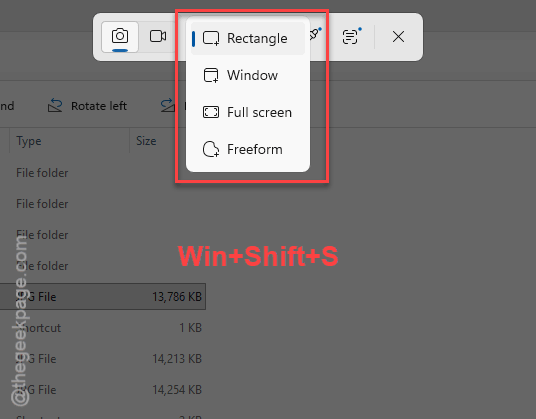
2 – Press Win + Shift + S for a region capture. Or just Print Screen for the whole screen.
3 – Open Paint.
4 – Press Ctrl + V.
Screenshots go to clipboard in a format. Paint always accepts. Not permanent. But gets the image in right now.
Fix 5 – Reset Paint
Clipboard works in other apps but not Paint? The app itself is broken.
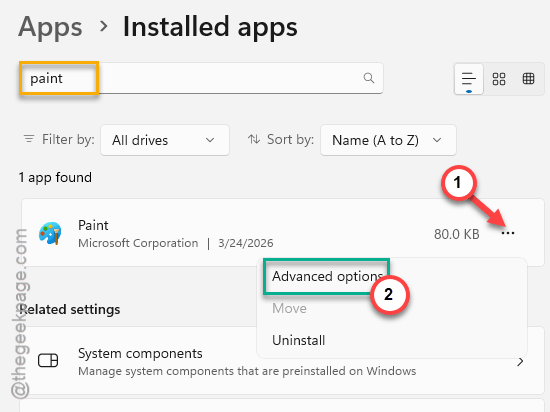
1 – Open Settings.
2 – Click Apps.
3 – Click Installed apps.
4 – Find Paint.
5 – Click the three dots.
6 – Click Advanced options.
7 – Click Reset.
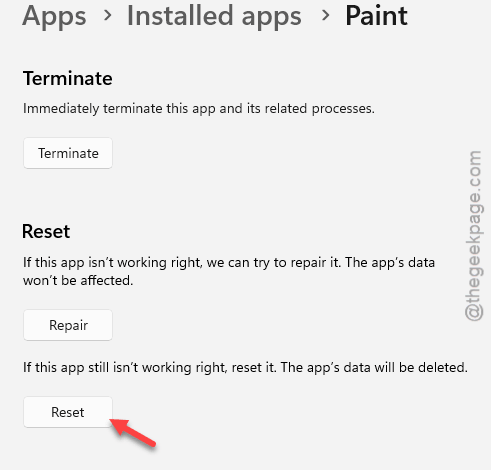
Clears Paint’s cache (won’t touch saved files). Try pasting after.
How to Prevent This
- Copy images with right-click > Copy. Avoid dragging from browser tabs.
- Paste immediately after copying. Don’t switch between ten apps first.
- Keep Paint updated.
- If Clipboard History causes issues, try toggling it. On or off. Whichever you don’t have.
People Also Ask
Why won’t my image paste into Paint?
Probably a format thing. Or the clipboard service crashed. Re-copy the image. Clear the clipboard with the cmd command. Try Win + V history.
How do I paste a screenshot into Paint?
Win + Shift + S to capture. Open Paint. Ctrl + V. Done.
How do you paste an image from a clipboard?
Copy the image first. Open Paint. Ctrl + V. Or right-click canvas > Paste. Or Win + V for clipboard history.