Does your personal hotspot keep disconnecting in iPhone? Hotspots works as an emergency network provider when you are out of your range of your Wi-Fi. But, in some cases, you may have noticed that the hotspot is disconnecting automatically after a certain period of time. To fix this, these are the only solutions you need.
Why my personal hotspot is disconnecting?
Your iPhone can disable the hotspot on its own will if there are no devices connected to it. This statement also holds true if the connected device has been out of range for quite a while. iPhone does this to save battery power.
Fix 1 – Turn off Maximize Compatibility
It seems that the Maximize Compatibility settings is the one that can be held responsible in this case.
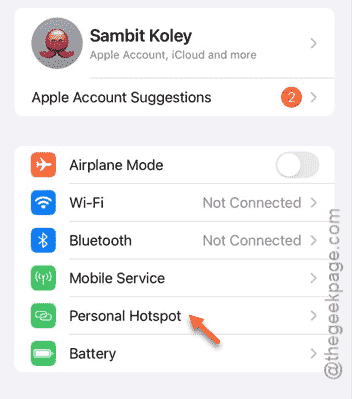
Step 1 – Visit iPhone’s Settings panel.
Step 2 – Open up the “Personal Hotspot” module.
Step 3 – After opening the Hotspot settings, make sure to turn off the “Maximize Compatibility” option.
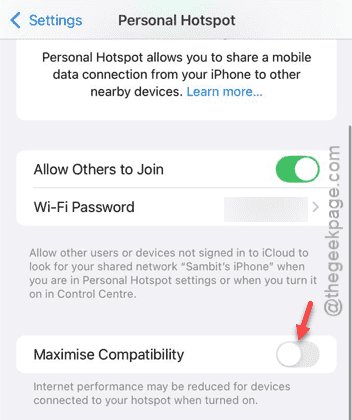
After turning off this feature, turn on the hotspot on your iPhone and reconnect the device.
Check if this works.
Fix 2 – Disable Low data mode on connecting device
[To be done on the connecting device]
If the device you are connecting have the Low Data mode enabled, it may get disconnected from the hotspot again and again.
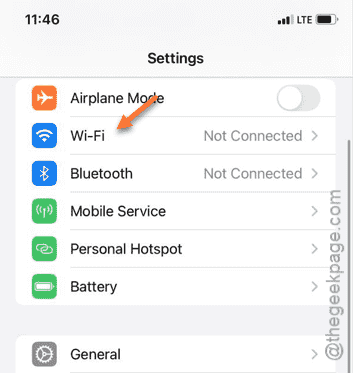
Step 1 – To do this, you must open the Settings on the device (iPhone, iPad or a Mac) that you are trying to connect.
Step 2 – Next, open the “Wi-Fi” settings.
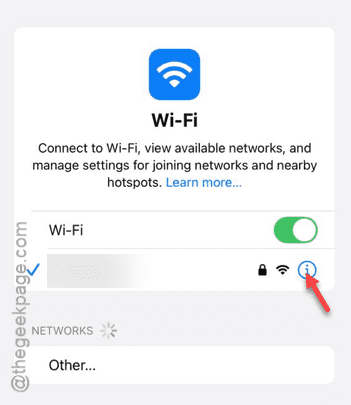
Step 3 – In that Wi-Fi page, find the name of the hotspot that you have.
Step 4 – Touch the small “i” button next to it to open it up.
Step 5 – Disable the “Low Power mode” for the Wi-Fi.
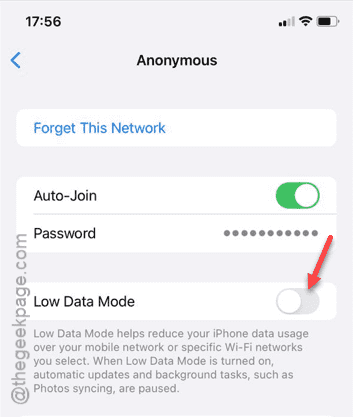
Disabling the ‘Low Power Mode’ should help you use the hotspot without any restrictions.
Keep on using the mobile hotspot for sometimes. See whether it is getting disconnected automatically.
Fix 2 – Enable Bluetooth on both the devices
You have to connect the hotspot sharing iPhone and the other device via Bluetooth. This disconnection issue will be solved by this.
Step 1 – Go to the Settings tab.
Step 2 – Next, open the “Bluetooth” settings.
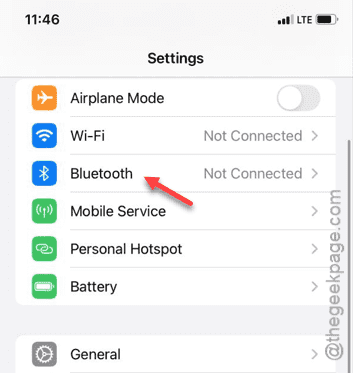
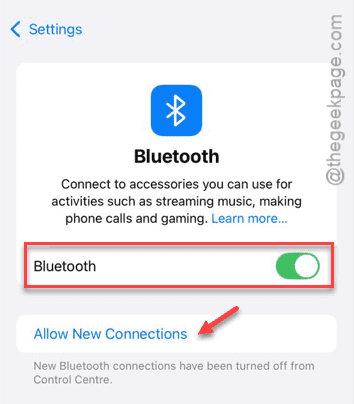
Step 3 – Turn on the Bluetooth from there.
Step 4 – If you have never paired the other devices to this iPhone, tap the “Allow New Connections” mode.
Step 5 – Now, open the Settings and enable the Bluetooth on the other iPad or iPhone that you want to connect.
Step 6 – To increase the Bluetooth visibility, keep both the devices close.
Step 7 – Now, come back to the first iPhone and see whether you can view the name of the device that you are to connect.
Step 8 – Tap the device to establish a connection between the devices.
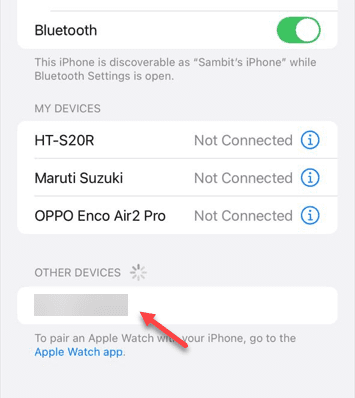
Step 9 – Now, when the devices are connected, you can go ahead and create the Wi-Fi hotspot and connect the devices.
This time, the hotspot will work properly for the entire duration you want. There won’t be any problem with it.