A tiny operating system called SafeOS runs the Windows installer. And when setup freezes on the USB, that’s what actually died — not your flash drive. I’ve watched people re-burn the same stick five times. Same freeze, every time. Because the stick was never the problem.
Where This Comes From
SafeOS is a stripped-down mini-Windows (Microsoft calls it the Safe OS phase) that boots from your USB and runs the setup screens. Stripped-down is the problem. Its driver set is thin, and USB 3.0 controllers can crash it during boot.
And there’s a second trap. Setup tries to download “Dynamic Updates” over the internet mid-install. If those signatures don’t match what’s on the stick, everything stalls. So you can freeze from your port, or freeze from the internet. Great system, Microsoft.
Old media makes it worse. The Media Creation Tool gets refreshed periodically, and a stick you made in January runs January’s SafeOS with January’s bugs.
So start with the cheap fixes. The first one takes ten seconds.
Fix 1 – Move the Stick to a USB 2.0 Port
The oldest trick in the deployment book. USB 2.0 ports run on basic motherboard drivers that SafeOS handles fine — no fancy 3.0 controller to crash.
1 – Shut the PC down.
2 – Find a USB 2.0 port on the back of the motherboard. They’re the black ones (3.0 ports are usually blue).
3 – Move the install USB to that port.
4 – Boot from the stick again.
Slower? Sure, a bit. But slow and finished beats fast and frozen.
Fix 2 – Cut the Internet and Install Offline
Setup fetching broken updates mid-install is a classic freeze. Keeping the machine offline forces it to use only what’s already on the stick.
1 – Unplug the ethernet cable before you start setup.
2 – If the PC uses Wi-Fi, skip the network step instead of connecting when setup asks.
3 – Continue the installation all the way to the end.
4 – Reconnect once you reach the desktop and run Windows Update to pull everything down properly.
Nothing you skip is lost. It all installs later, from a full OS that does not fall over so easily.
Fix 3 – Turn Off Secure Boot for the Install
Firmware checks can stall SafeOS when update signatures mismatch. Turning Secure Boot off for the install sidesteps the check. And yes, you can turn it right back on after.
1 – Restart the PC and tap the BIOS key while it boots — usually Delete or F2, shown briefly on the first screen.
2 – Find the Boot or Security tab.
3 – Set Secure Boot to Disabled.
4 – Save and exit (usually F10).
5 – Run the installer again.
6 – After Windows is installed, go back into the BIOS the same way and re-enable Secure Boot.
Don’t leave it off long-term. Windows 11 expects it on, and your boot security is weaker without it.
Fix 4 – Rebuild the USB With a Fresh Tool
That stick you made months ago? It carries an old SafeOS. Microsoft quietly updates the Media Creation Tool. And a current download includes the newest, fixed setup environment.
1 – On a working PC, open Microsoft’s Download Windows 11 page in your browser.
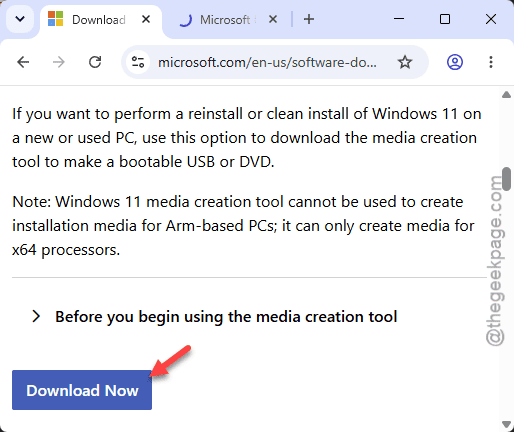
2 – Download the Media Creation Tool again. A fresh copy — not the one sitting in your Downloads folder since spring.
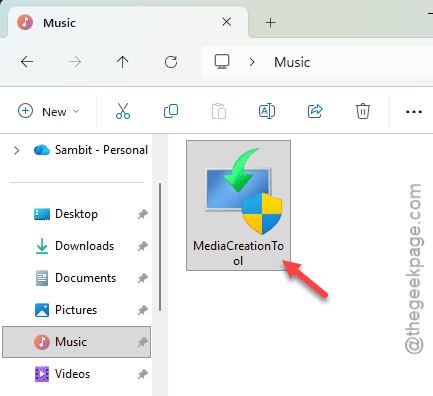
3 – Run the tool, choose your USB stick, and let it rebuild the installer.
4 – Try the install with the rebuilt stick.
Ten minutes of downloading. But it wipes out the entire “stale installer” category of failures in one move.
Fix 5 – Inject the Update Into boot.wim
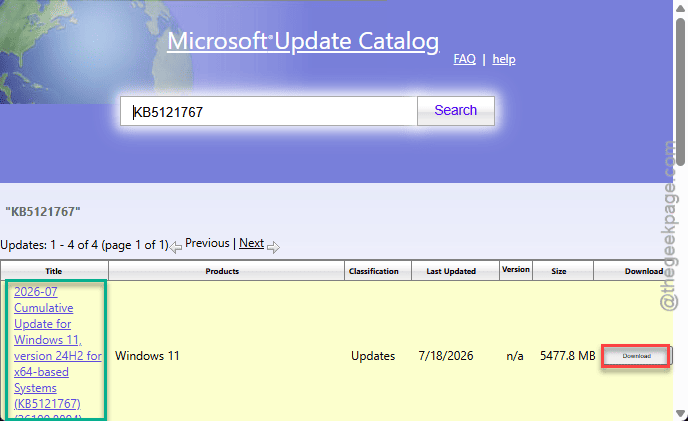
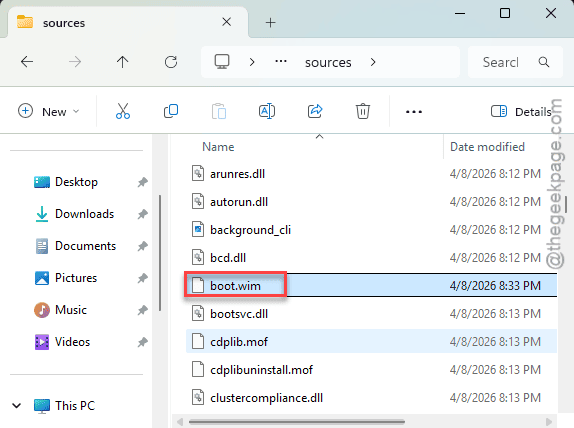
The power-user route. If SafeOS is missing the driver fix, you can add the KB5121767 package into the boot image yourself with DISM. Fair warning: this involves mounting a .wim file, and it’s easy to fumble — try Fixes 1-4 first.
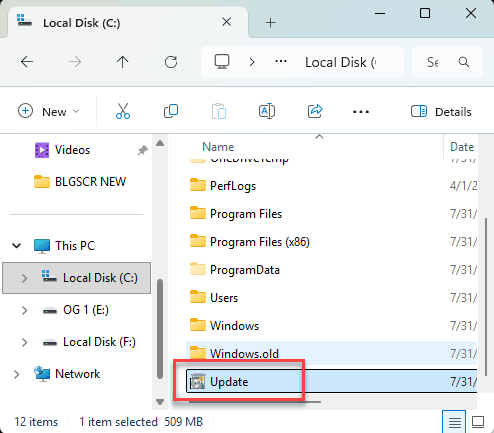
1 – On a working PC, download the KB5121767.msu file from the Microsoft Update Catalog and save it as C:\Update.msu.
2 – Open an admin Command Prompt: click Start, type “cmd”, right-click Command Prompt, and choose Run as administrator.
3 – Mount (copy) the boot.wim file from the USB stick’s sources folder to an empty folder such as C:\MountDir.
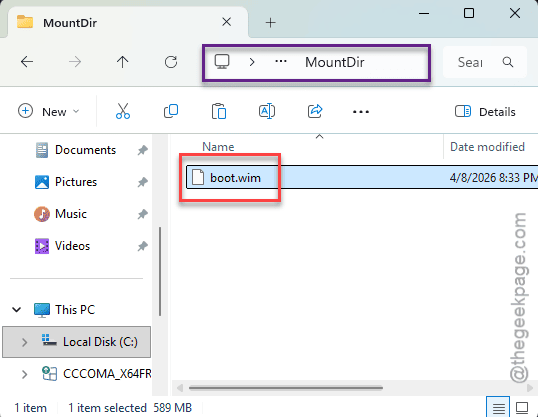
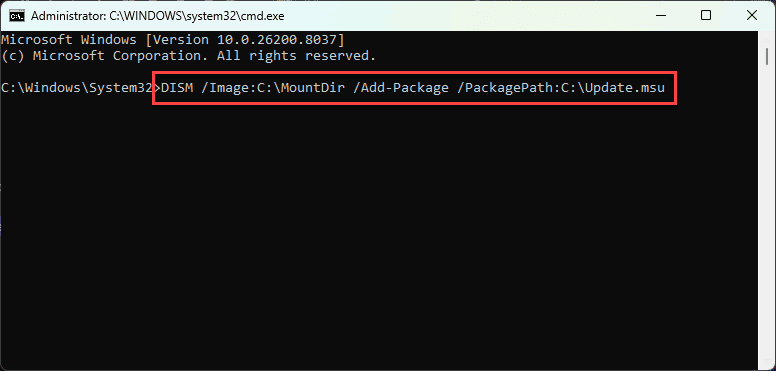
4 – Run the command below and wait for it to report success.
DISM /Image:C:\MountDir /Add-Package /PackagePath:C:\Update.msu
5 – Unmount the image with the commit option so the change is written back to the stick.
6 – Boot from the USB and run setup again.
If that read like gibberish, no shame — stick with Fix 4. A rebuilt USB gets the same result with none of the risk.
Avoiding This Next Time
– Make a fresh install USB for every install round. Sticks age badly — the tool updates, your old stick doesn’t.
– Remember which port is USB 2.0 (back of the motherboard, black). It’s the most reliable boot port you own.
– Install offline, update after. Let the full OS handle the downloads.
– Write down your BIOS key somewhere. You will need it again. Trust me.
Quick Answers
What is the SafeOS phase in Windows Setup?
It’s the stripped-down mini-Windows that boots from your install media and runs the setup screens. Because its driver set is small, things a full Windows shrugs off — USB 3.0 controller quirks, mismatched update signatures — can freeze it completely. Most SafeOS freezes are fixable from your side.
Why does Windows 11 setup freeze when installing from USB?
Three usual causes: a USB 3.0 controller crashing the boot environment, Dynamic Updates arriving mid-install with mismatched signatures, or an outdated installer stick. Try a black USB 2.0 port first, then run setup offline, then rebuild the stick with a freshly downloaded Media Creation Tool.
Is it safe to disable Secure Boot to install Windows?
Temporarily, yes. Secure Boot checks boot files against known signatures, and switching it off for one install just skips that check. Turn it back on as soon as setup finishes — Windows 11 expects it enabled, and your boot chain is less protected while it’s off.
Do I lose anything by skipping updates during installation?
No. Everything setup would have downloaded arrives later through Windows Update once the full OS is running. An offline install just means your first update check has a bit more to grab. And that trade is well worth it when Dynamic Updates were the thing freezing your install.