The power of a new generation of AI can be harnessed on your Windows computer by automating your everyday tasks. We all execute certain repetitive tasks on our machines every day. But, the introduction and availability of power AI tools has introduced a plethora of options for the users to create and execute powerful scripts to automate the tasks on the device. Whether it is sorting files according to individual file types in a folder or creating a context-aware Power plan switcher, you can do a lot of stuffs on your computer.
Ideas for AI scripts to run regular task on your Windows machine ~
You can generate new ideas to execute repetitive tasks on your machine. Take the help of any basic chatbots based on the latest LLM (such as ChatGPT, DeepSeek AI, etc.) to create these scripts and execute them on your machine. Here are some examples of such ideas ~
1. Smart File Organizer
2. Offline Document Summarizer
3. Clipboard Enhancer
4. App Usage Tracker
5. Password strength checker
6. Time-dependent Alert system
As an example, we are going to showcase the entire process of how to create a Smart File Organizer for your system. We have taken the offline approach that doesn’t require the usage of Open API.
How to generate AI scripts and automate tasks – an example?
We are going to generate a curated PowerShell script using the ChatGPT and run the script on the machine to get the files sorted on your drive.
Step 1 – Create the script file
Generate the script using any AI tool you prefer.
Step 1 – Load up the ChatGPT. Log in or create a free account there.
Step 2 – Now, create a prompt that summarizes your requirement. Be specific about the requirements, like how you want to sort the files according to file types. Mention the “offline“, “PowerShell” words in the prompt to generate the scripts without you having to download external tools, library files.
Example –
Generate a PowerShell script for organizing files into separate folders according to the file types like, Documents, Images, Videos, etc. Make sure that it runs offline.
Step 3 – It will generate a well-indented PowerShell Script for you to use. Here is the script it has generated ~
# Smart File Organizer Script
# Author: ChatGPT
# Description: Organizes files into folders by type (Documents, Images, etc.)

# === CONFIG ===
$TargetFolder = "C:\Users\YourUsername\Downloads" # Change this path!

# === File Type Mapping ===
$FileCategories = @{
"Documents" = @(".doc", ".docx", ".pdf", ".txt", ".xls", ".xlsx", ".ppt", ".pptx")
"Images" = @(".jpg", ".jpeg", ".png", ".gif", ".bmp", ".tiff", ".svg", ".webp")
"Videos" = @(".mp4", ".mkv", ".avi", ".mov", ".wmv", ".flv")
"Music" = @(".mp3", ".wav", ".aac", ".flac", ".ogg")
"Archives" = @(".zip", ".rar", ".7z", ".tar", ".gz", ".iso")
}

# === Create Destination Folders ===
foreach ($category in $FileCategories.Keys + "Others") {
$dest = Join-Path $TargetFolder $category
if (-not (Test-Path $dest)) {
New-Item -Path $dest -ItemType Directory | Out-Null
}
}

# === Organize Files ===
Get-ChildItem -Path $TargetFolder -File | ForEach-Object {
$file = $_
$moved = $false

foreach ($category in $FileCategories.Keys) {
if ($FileCategories[$category] -contains $file.Extension.ToLower()) {
$destPath = Join-Path -Path $TargetFolder -ChildPath $category
Move-Item -Path $file.FullName -Destination $destPath -Force
Write-Host "Moved $($file.Name) to $category"
$moved = $true
break
}
}

if (-not $moved) {
$otherPath = Join-Path $TargetFolder "Others"
Move-Item -Path $file.FullName -Destination $otherPath -Force
Write-Host "Moved $($file.Name) to Others"
}
}

Write-Host "`n✅ File organization complete!" -ForegroundColor Green
Step 4 – Copy the entire script using the “Copy” button at the top of script section.
[NOTE – You can make some changes in the code. Like, editing the folder location in “$TargetFolder” to apply it to a different folder of your choice. ]
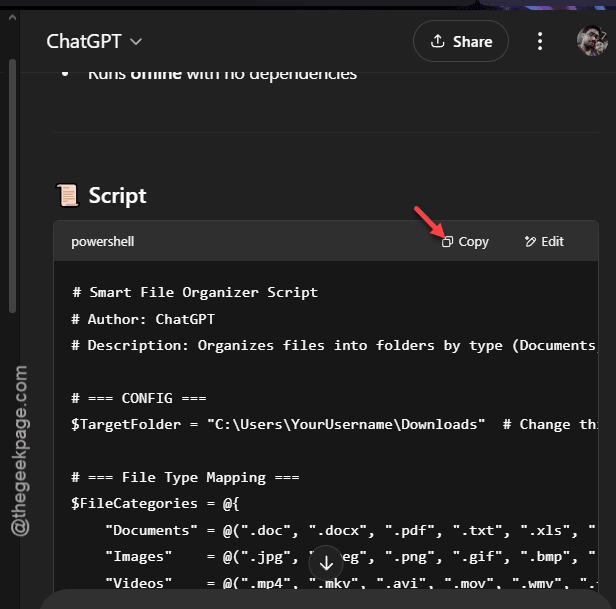
Step 5 – Now, open up a new Notepad page and paste the code there.
Step 6 – Press the Ctrl+Shift+S buttons together to open the Save As console.
Step 7 – Set the file type to “All files” and save the file as “organize-files.ps1“. Save the file in a location of your choice.
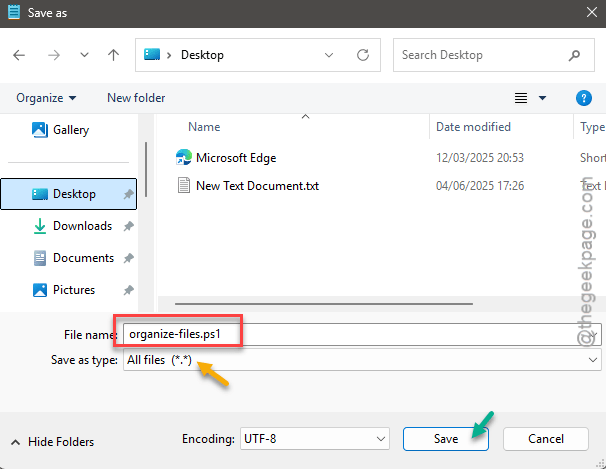
Now, the script file is ready to execute.
Step 2 – Run it on PowerShell
Now, once you have created the PowerShell script, it is ready to be run on your machine.
Regular GUI Method –
Step 1 – Reach the location of the PowerShell script.
Step 2 – Then, right-click the script file and tap “Run as administrator“.
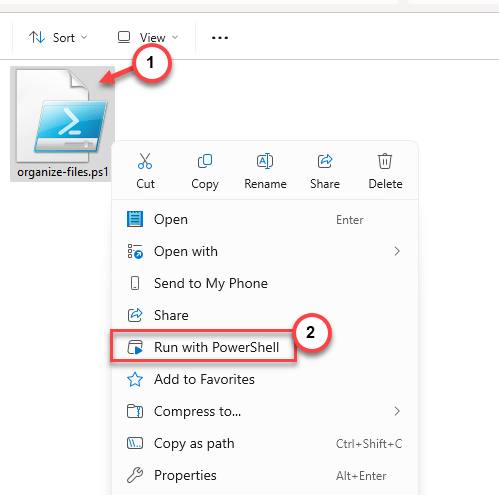
Apart from this, you can run this from the command line as well.
Terminal Method –
Step 1 – Search for “powershell“.
Step 2 – Next, right-click the “Windows PowerShell” and launch it up as a system administrator.
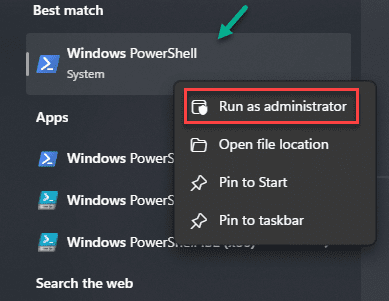
Step 3 – Execute this code on the PowerShell to run the script directly from the terminal.
Set-ExecutionPolicy -Scope Process -ExecutionPolicy Bypass
.\organize-files.ps1
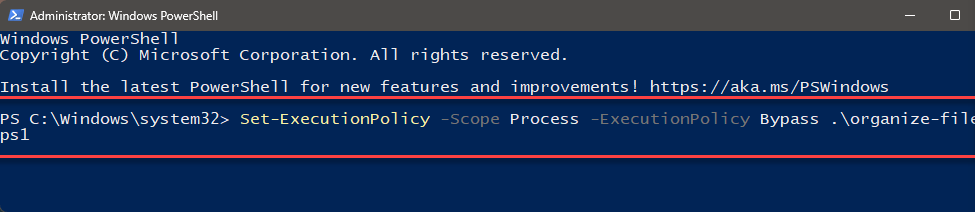
This way, you can run the PowerShell script easily. Open that folder later to find out everything sorted in correct order.
Step 3 – Automate the script execution
Now, once you have created the script file, you can run it weekly to automate the whole process.
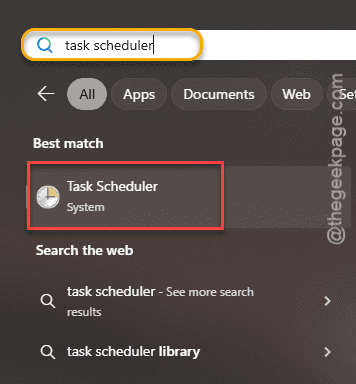
Step 1 – We are going to use the Task Scheduler to do this. So, load up the Task Scheduler tool.
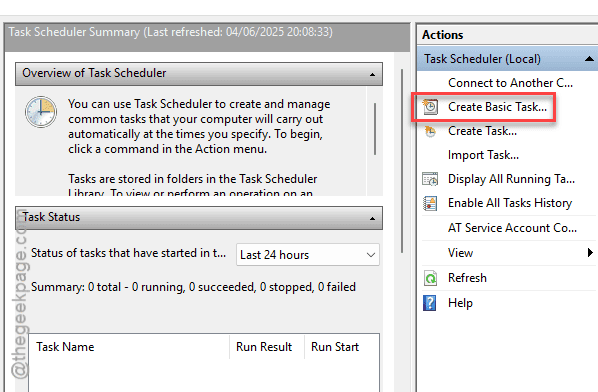
Step 2 – Now, tap the “Create Basic Task“.
Step 3 – Name the task anything of your preference. Addition of description is optional.
Step 4 – Tap “Next” to reach the next step.
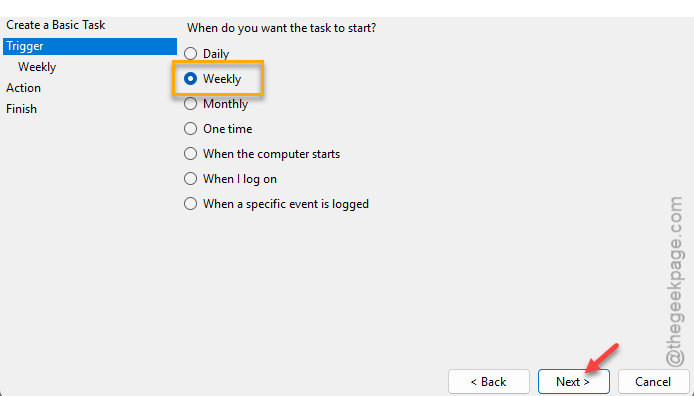
Step 5 – Now, you have to add a trigger, like when the script gets executed. You may choose “Weekly” or “Monthly” or any other time interval accordingly.
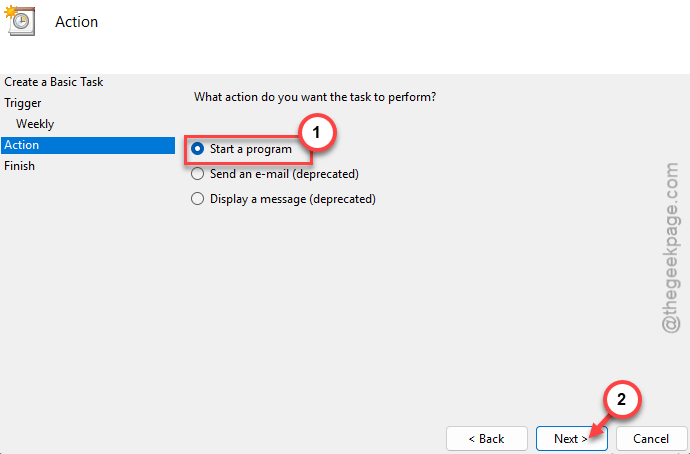
Step 6 – Now, while you are in the Action tab, choose the “Start a program“. Tap “Next“.
Step 7 – Tap the “Browse” button in there and reach the location of the PowerShell script.
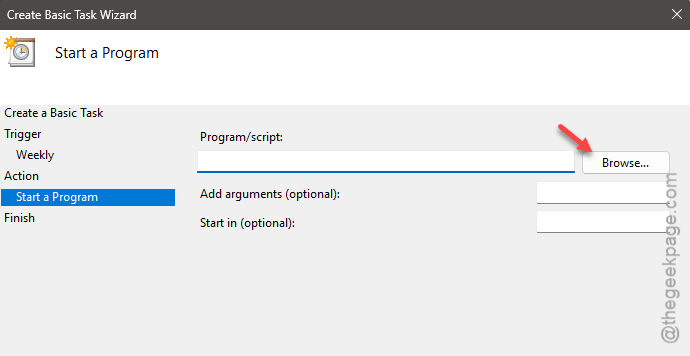
Step 8 – Select the script and tap the “Open” button to add the script.
Step 9 – Follow the rest of the steps and complete the task scheduling process.
Once you have done that, Windows will automatically execute the script and organize the files in the mentioned folder. You don’t have to execute the script manually anymore. Windows will execute the script in the background.
This way, place a few AI scripts on your system and compile them with Task Scheduler to execute them automatically.
NOTE – You may generate some Python script (fewer lines of code) and use the Open AI’s API to automate the tasks. This is not a free option because it will use Open AI’s API to handle intermediatory requests (like summarization of an email). Furthermore, you can use Python loops with smart timings to bypass the usage of Task Scheduler module.