Having some problem with the Sleep Mode on your Apple Watch? The Sleep mode on the Apple Watch does have some features that automatically curates the watch parameters so that you don’t get disturb during your peaceful sleep. If the Sleep Mode is not working perfectly on the watch, these fixes will help you out.
Fix 1 – Do a simple restart of the iPhone, Watch
You should definitely try a quick reboot as a quick fix for this problem.
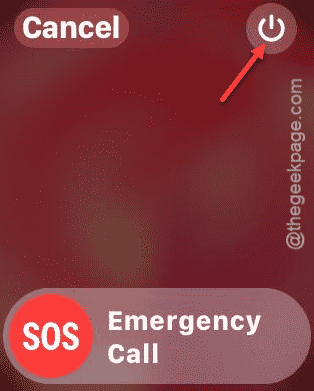
Step 1 – Just long press the side button on the Apple Watch.
Step 2 – Then, press the Power icon on the power console.
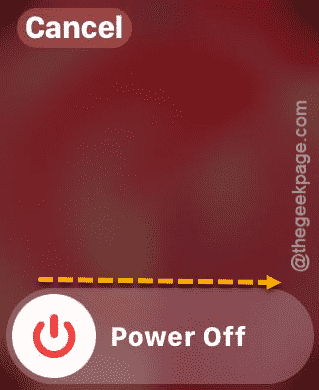
Step 3 – Next, drag the “Power Off” slider to power it off.
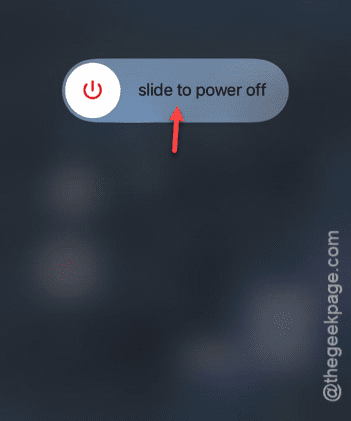
Step 4 – After that, hold the Power Button and the Volume Down buttons together on the iPhone.
Step 5 – Next, drag the slider on “Slide to power off” to power it off.
Restart the watch and the iPhone again. Check if this works out for you!
Fix 2 – Check the Sleep Mode settings
You must check whether the Sleep mode is configured correctly on your Apple Watch or not.
Step 1 – Open the iPhone Settings.
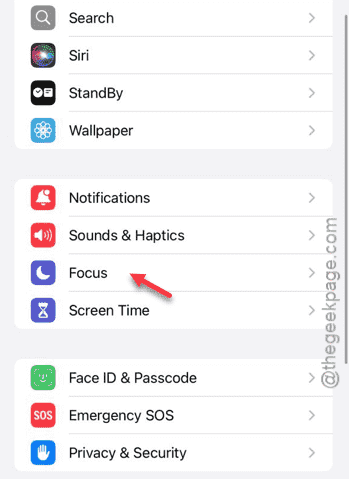
Step 2 – Then, go to the “Focus” settings.
Step 3 – Open the “Sleep” settings.
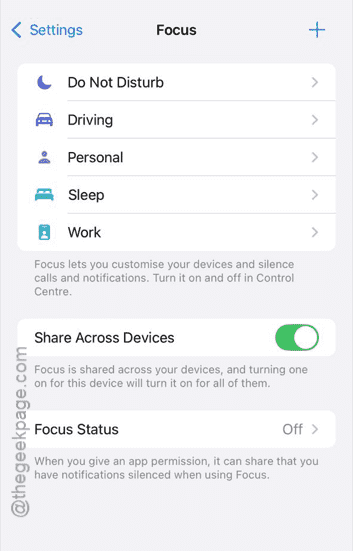
Step 4 – Tweak it, if it is needed. Change the Sleep mode settings according to your preference. Like, add an app that you may want to allow on the Sleep mode. Later, you can just remove the app.
[NOTE – You should change any other focus settings a bit as well. Some users have claimed to fix it that way.]
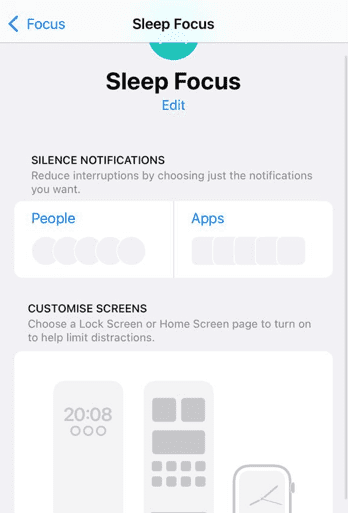
After you have changed the focus settings, it should sync with the watch and get activated automatically.
Fix 3 – Update the watchOS
If you haven’t updated the watchOS in a while, you should consider getting that update.
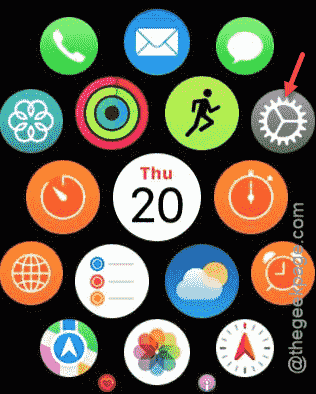
Step 1 – Tap the digital crown.
Step 2 – When it loads up the apps list, go to the “Settings” utility.
Step 3 – Next, open up the “General” module.
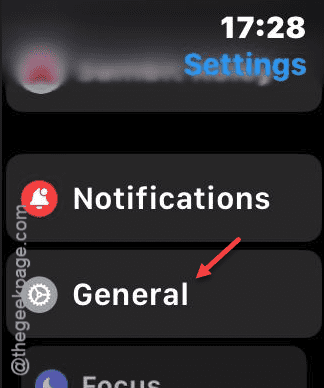
Step 4 – Tap the “Software Update” to update the software on the device.
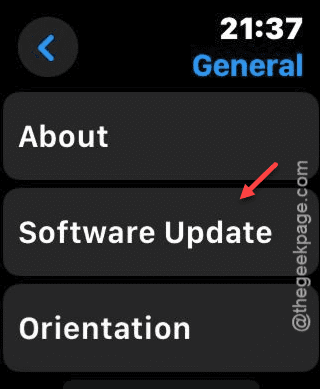
Step 5 – You may update the watchOS directly from that screen.
After updating the device, you can use the sleep mode again.
Fix 4 – Disconnect the watch from iPhone and reconnect
You can disconnect the Apple Watch from your iPhone and reconnect the same.
Step 1 – Open the Watch app on the iPhone.
Step 2 – Once you have opened it up, go to the “My Watch” tab.
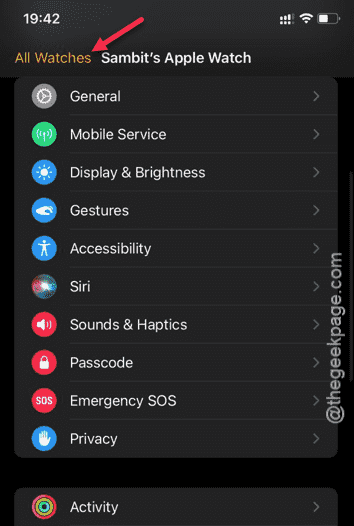
Step 3 – Then, tap the “All Watches” option in the top-left corner.
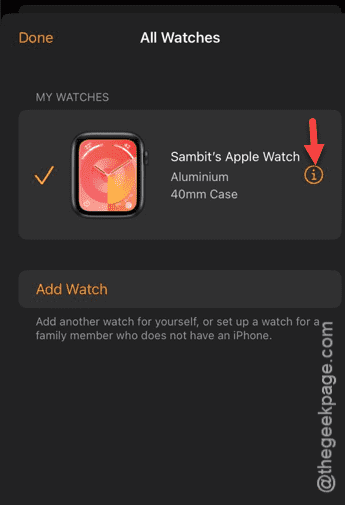
Step 4 – Then, tap the “i” button beside the watch to open its settings.
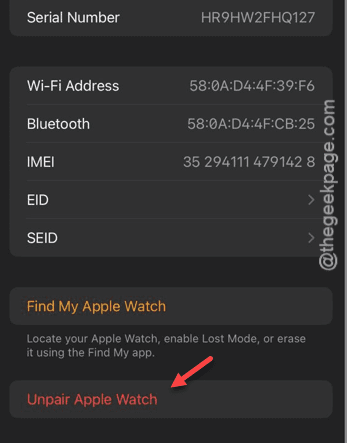
Step 5 – Later, use the “Unpair the Apple Watch” to unpair the watch.
Step 6 – You will see a warning prompt. Confirm that to unpair the watch.
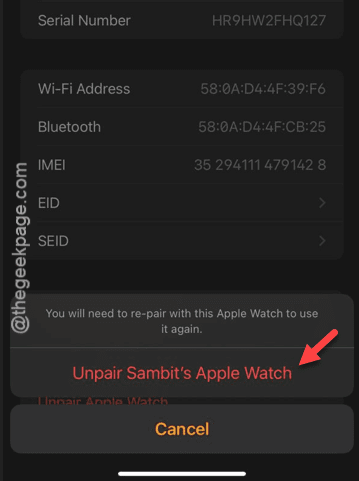
Once you have unpaired the Apple Watch, it returns to the default state.