The lack of the Face ID technology on the Apple Watch finds an alternative as the four digit passcode. The passcode allows you to lock or unlock your Apple Watch. But, what if you want to turn off this passcode on the Apple Watch, but it is greyed out? If the option appears to be greyed out, that means it is disabled, and you can’t turn it off from there directly. In that case, this guide will be helpful in troubleshooting the issue.
Fix 1 – Turn off Wrist Detection
While the passcode is enabled on the Apple Watch, it can automatically detect your wrist position and lock the watch.
Step 1 – To avoid this problem, tap the crown on the Apple Watch.
Step 2 – Then, load up the Settings.

Step 3 – In the Settings page, load up the “Passcode” settings.
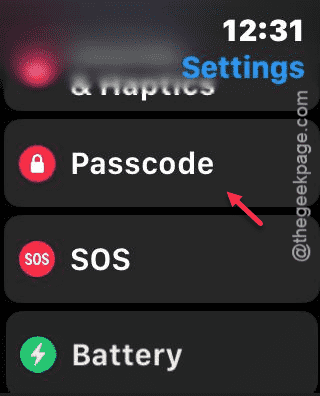
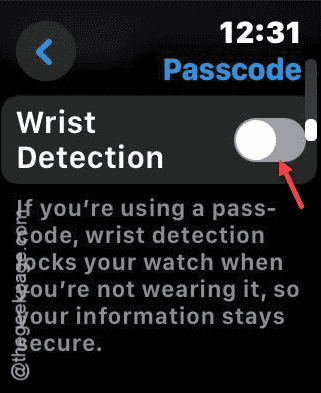
Step 4 – Scroll down and look out for the “Wrist Detection” settings.
Step 5 – Tap to turn it off.
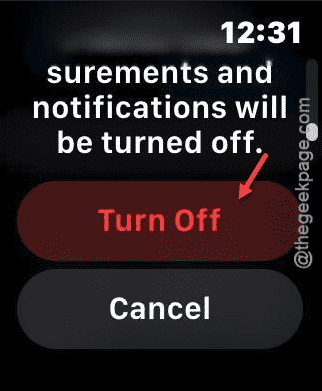
Step 6 – You will see a long warning prompt. Scroll all the way down and tap “Turn off” to turn off the wrist detection there.
You can do this via Watch app, as well.
Step 1 – Go to the “My Watch” panel on the Watch app.
Step 2 – Next, open up the “Passcode” settings.
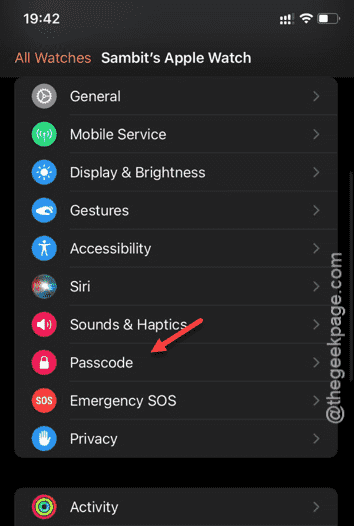
Step 3 – You may turn off the “Wrist Detection” feature from there.
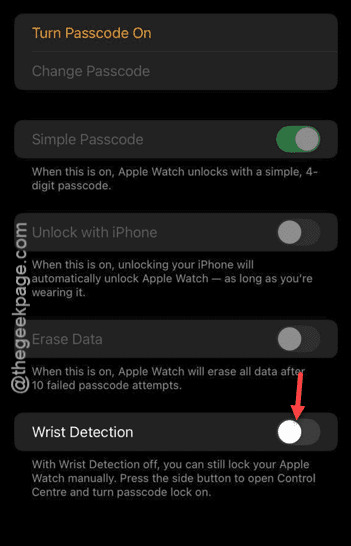
Step 4 – When you see a warning message, tap the “Turn Off” prompt to turn it off.
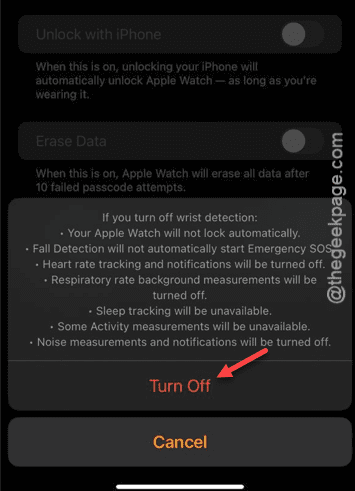
Once you have turned it off, you can control the Passcode feature on the watch.
Fix 2 – Turn off the Passcode from Watch app
You can try to turn off the passcode directly from the Watch app.
Step 1 – Reach the Watch app on your iPhone.
Step 2 – Now, go to the “Passcode” section. You can find it in the “My Watch” panel.
Step 3 – Now, you may see the ‘Turn Passcode Off‘ is greyed out there.
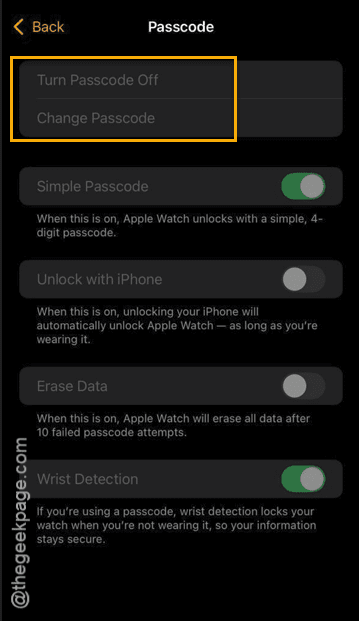
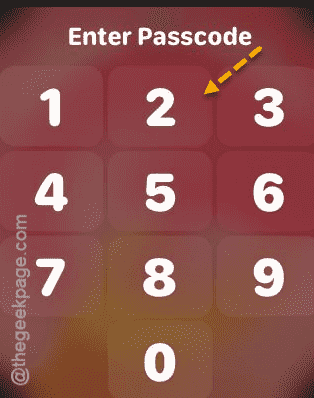
Step 4 – So, you have to unlock the Apple Watch using the passcode while attempting this step. So, unlock the watch directly and make sure it is turned on.
Step 5 – Then, tap the “Turn Passcode Off” option on your iPhone screen.
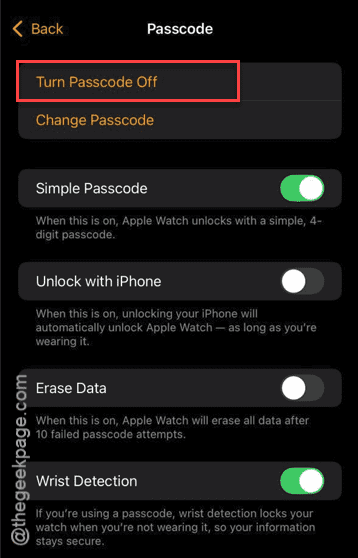
Step 6 – You may have to provide the passcode one more time on the watch to disable it.
Once you have disabled it, the problem will be gone.
Fix 3 – Restart the Watch
Sometimes restarting the watch should help resolve this case.
Step 1 – Press and hold the side button from the side of the watch.
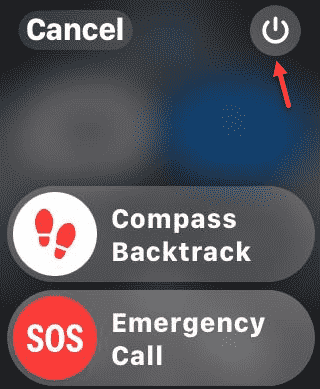
Step 2 – Next, just tap the power button in the watch face.
Step 3 – Later, drag the “Power Off” slider sideways to power it off.
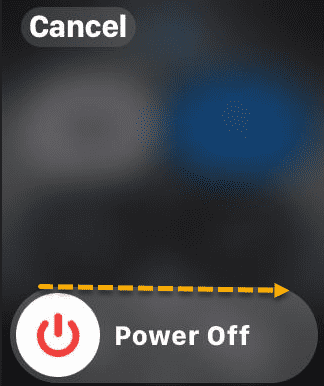
After you have powered it off, press and hold the side button briefly to start it up.
Check if this fix the issue.
Fix 4 – Unpair the Apple Watch and pair it up
You have to sever the connection between the watch and iPhone and create the pairing afresh.
Step 1 – On your Apple Watch, load up the Watch app.
Step 2 – Then, go to the “My Watch” panel.
Step 3 – Tap the “All Watches” in there.
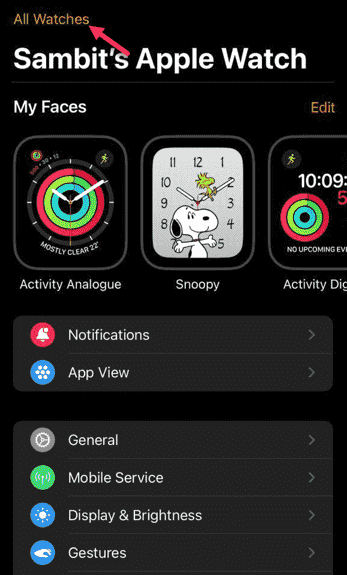
Step 4 – Touch the “i” button beside the watch that you want to unpair.
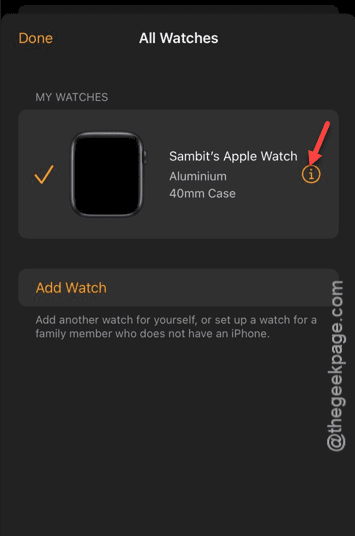
Step 5 – Use the “Unpair Apple Watch” option there to unpair the watch.
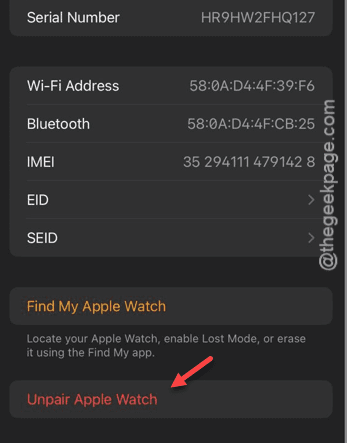
The next part of the process requires your Apple ID password. Once you have done that and unpaired the Apple Watch, you can pair up the watch very easily.