Does the Siri on your Apple Watch listening to you continuously? There are times when you want the Siri to respond to your prompt, but that should be limited to your request. If Siri is appearing out of the blue or listening to you randomly, and you want to stop that, this short guide will be of help.
Why Siri is randomly listening to you on your Apple Watch?
Siri is the native voice assistant on all of your Apple products. The benefits of having Siri right on your wrist cannot be ignored when you are away from your iPhone or any other device. It can call up a number of your choice, or set a reminder, and or even answer to your quick queries.
But, if the same Siri starts to appear out of nowhere, even when you don’t want it, this behavior can annoy you. Don’t worry. You can take control of the Siri prompt directly from the watch. Simply, disable the Siri request prompt from the watch settings to solve the problem.
Fix 1 – Disable the ‘Hey Siri’ feature
Disable the ‘Hey Siri’ feature on your Apple Watch.
Step 1 – You can do this directly from your iPhone. So, open up the Watch app there.
Step 2 – Next, go to the “My Watch” panel.
Step 3 – Later, open up the “Siri” feature there.
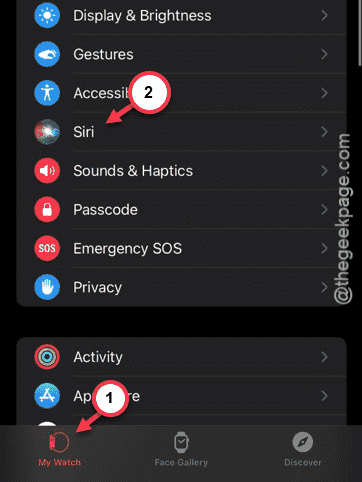
Step 4 – Once you have reached the Siri page, toggle the “Listen for ‘Hey Siri” prompt to off mode.
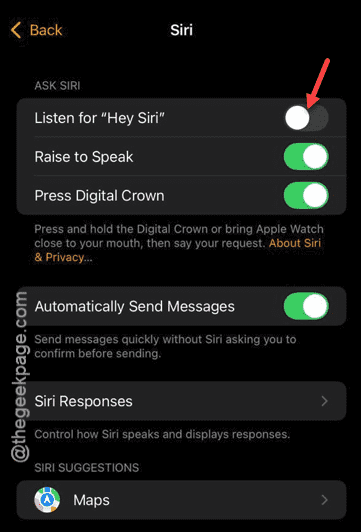
This should disable Siri’s activity whenever you call for it.
Fix 2 – Turn off Digital crown access
You can access Siri using your digital crown on the watch.
Step 1 – To counter this problem, load up the Watch app on the device.
Step 2 – Then, go to the “My Watch” category.
Step 3 – After this, get to the “Siri” panel.
Step 4 – This time, disable the “Press Digital Crown” option.
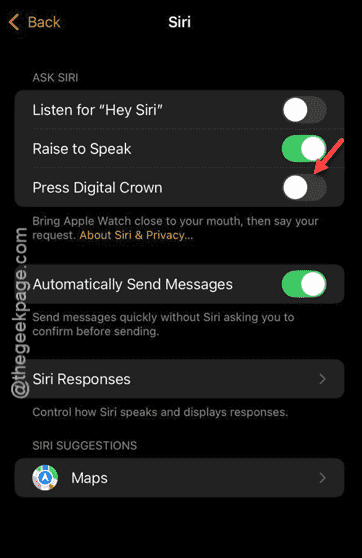
Once you have disabled it, the pressing the crown won’t call up the Siri on your device. After this, Siri won’t activate involuntary.
See if this works.