Facing some problem using WhatsApp from your Apple Watch? Many Apple Watch users enjoys the privilege to communicate via WhatsApp on the go, when they are not using the iPhone. But, if you are trying to do the same and can’t access or reply to any incoming WhatsApp messages on your Apple Watch, this set of solutions should help you fix it.
How to use WhatsApp on your Apple Watch properly?
While there is a partial support for the WhatsApp on your Apple Watch, there are many features absent from its repertoire. So, we recommend you use a safe, third-party plug-in to mirror your WhatsApp messages directly on your Apple Watch. There are many facilities it provides like you can send or receive messages on WhatsApp, interact with incoming messages. You will get a full-fledged WhatsApp experience directly on your wrist.
NOTE – This is a third-party tool for WhatsApp and not officially supported by them. The app privacy policy does mention that the utility doesn’t store or collect user data. But, to be on the safer side, don’t add your official or sensitive WhatsApp number on this app.
Fix – Use WatchChat 2 utility
You have to download the WatchChat 2 utility on your iPhone to utilize the full capability of the WhatsApp directly from your Apple Watch.
Step 1 – Open up the App Store.
Step 2 – Next, search for “WatchChat” in the search box.
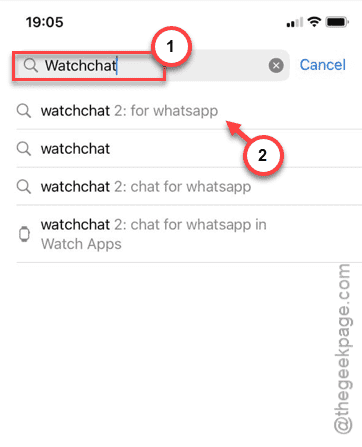
Step 3 – Install the “WatchChat 2” to install the utility on your iPhone.
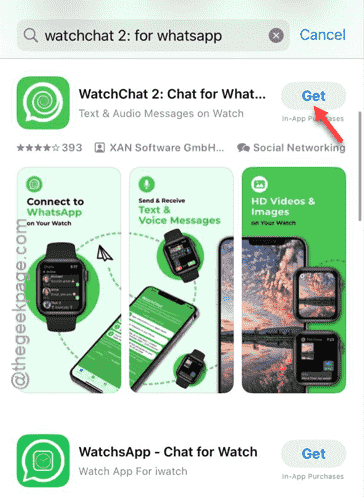
Step 4 – After installing the WatchChat app, load up the Watch app on your iPhone.
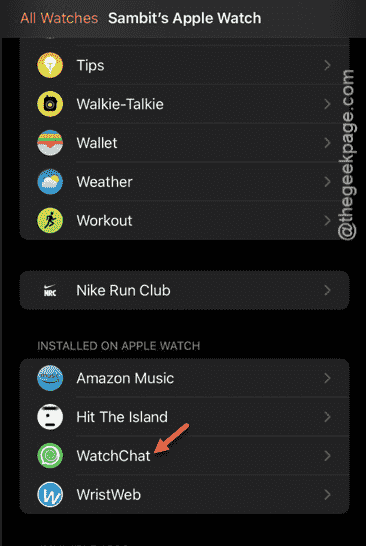
Step 5 – Scroll down to find ‘Available apps’ section. You will see the “WatchChat” app there. Tap to install it on your watch.
Step 6 – Once you have installed it, tap the “WatchChat” utility.
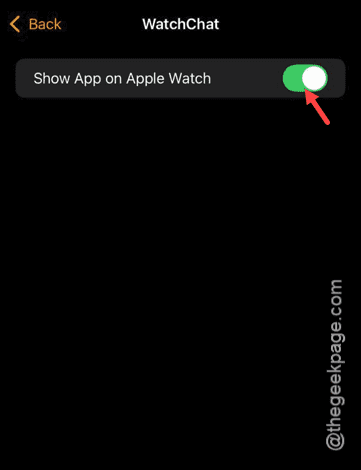
Step 7 – Make sure the “Show App on Apple Watch” option is turned on.
Step 8 – Now, go to your watch and open up the “WatchChat” app.
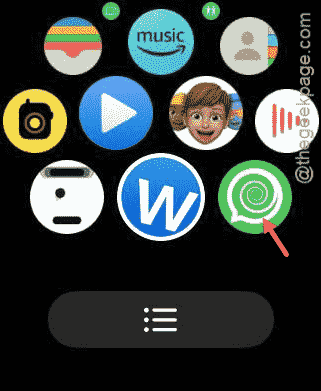
It will show up a QR code on the watch face. Keep the Apple Watch aside for a moment but don’t turn it off.
Step 9 – Now, open the WhatsApp on your iPhone. Tap the “⚙” icon and tap the “Linked Device“.
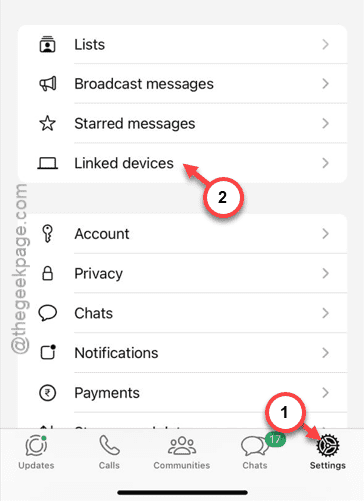
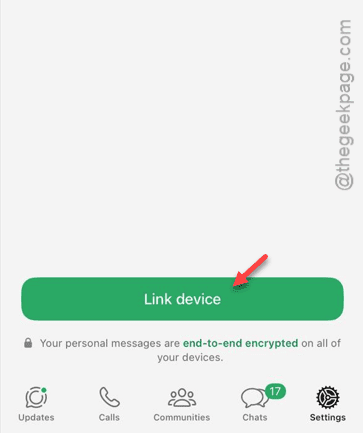
Step 10 – Tap the “Link Device” option.
Step 11 – A QR code scanner should open up. You can use your iPhone’s camera to scan the QR code on the watch to link the device.
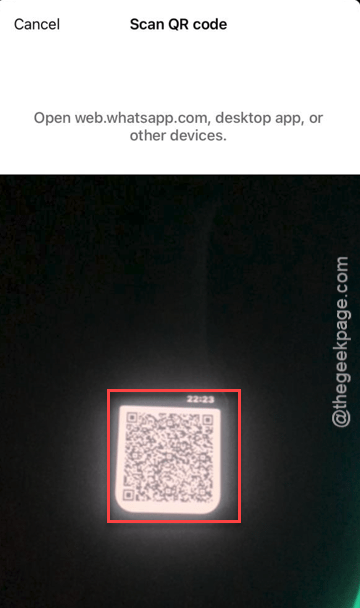
This way, WatchChat app will be installed on your device and WhatsApp will get synced with your device.
NOTE – The free version of the WatchChat 2 has some limited feature where it restricts some features of utility. You may get the premium one, only if it is useful for you.
Hope these steps have helped you!