Can’t find a particular contact on your Apple Watch? While the Apple Watch automatically loads up all the contacts from your iPhone. These contacts are directly synced through your Apple ID, or, the iCloud. If there is any problem with the iCloud sync, it may not sync any new contacts on the Apple Watch. So, follow up these solutions to fix the problem.
Fix 1 – Restart the Apple Watch
You can just restart the Apple Watch to fix this synchronization problem.
Step 1 – Start by holding the side button on the Apple Watch.
Step 2 – When it loads up the console, tap the “Power down” button.
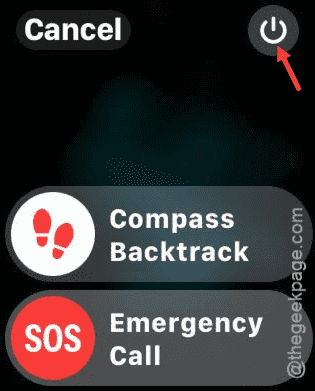
Step 3 – Use the slider on the watch to power off the Apple Watch.
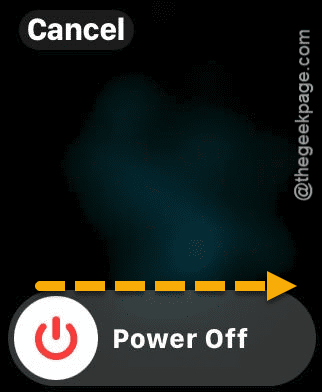
After it shuts down, you can just press and hold the same power button to restart the Apple Watch.
Fix 2 – Reset Sync data on watch
There is a toggle to reset the synchronization data on the Apple Watch.
Step 1 – Open up the Apple Watch utility.
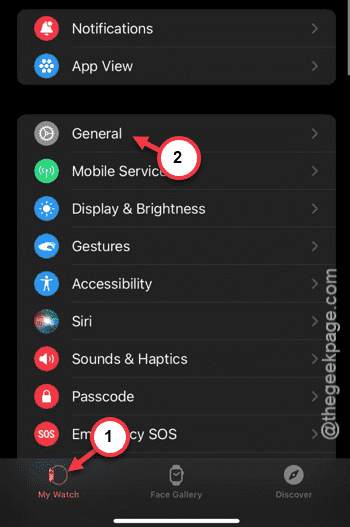
Step 2 – In the Apple Watch app, go to the “My Watch” tab.
Step 3 – Next, load up the “General” settings from there.
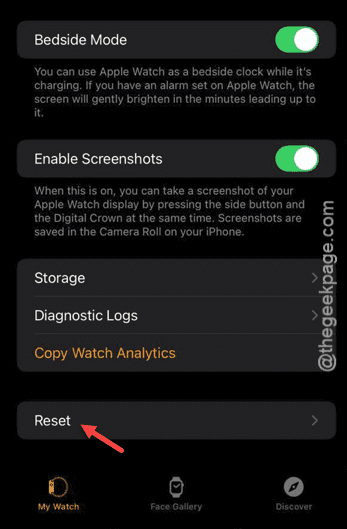
Step 4 – Reach to the bottom of the General page and tap the “Reset” option.
Step 5 – Now, tap the “Reset Sync Data” to reset the data synchronization in between the iPhone and watch.
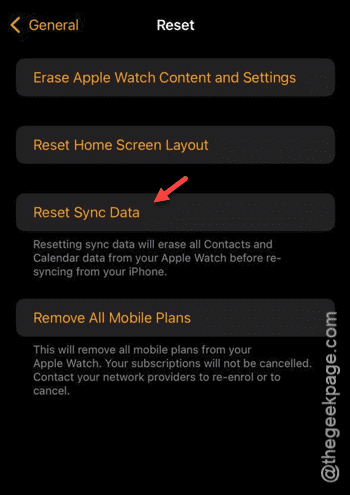
You can restart both of the devices again and check whether the missing contacts have synced or not.
Fix 3 – Check the iCloud Contacts
You can log in just from a browser and see whether the contact is actually present on the iCloud account or not.
Step 1 – Open up a browser on any device.
Step 2 – Go to the iCloud contacts page. You have to log in using your Apple ID credentials.
Step 3 – Tap the “Sign in” button.
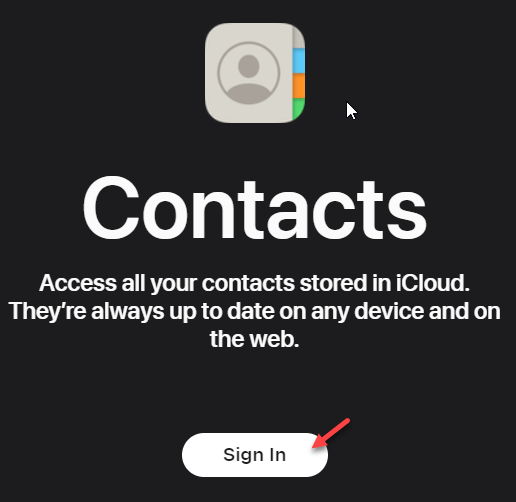
Step 4 – Now, you can use the Apple ID credentials to sign in to your account.
Step 5 – Once you have signed in, you can look for the contacts in there.
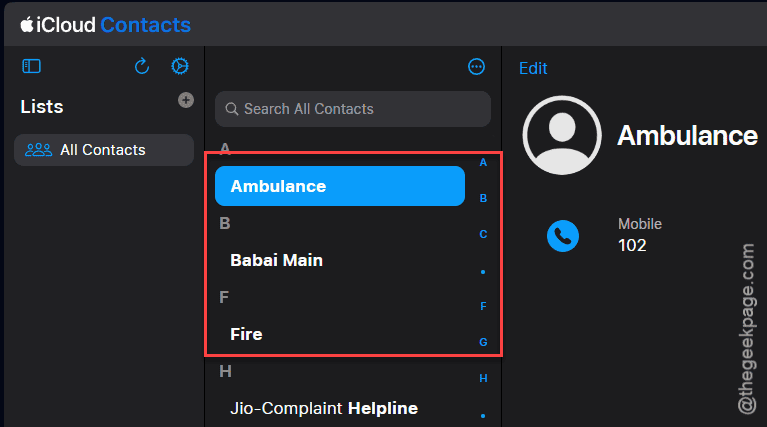
If the contact that you are looking for is not present there, you won’t be seeing that on your Apple Watch as well.
Create the contact a fresh on your iPhone and it will get synced for sure.
Fix 4 – Resync the contacts on the iPhone
You can disable the sync of the contacts and, later, resync the contacts on the device.
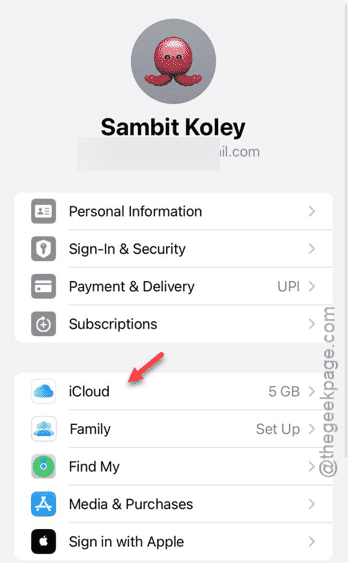
Step 1 – Open up the iPhone Settings, and tap the Apple ID to load it up.
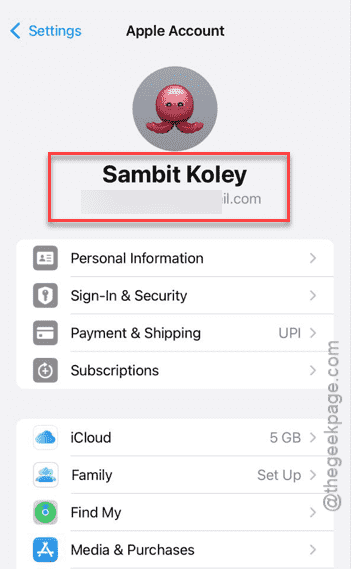
Step 2 – In the Apple ID page, tap the “iCloud” tab.
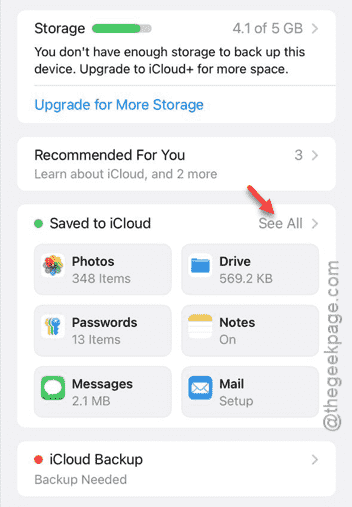
Step 3 – In the iCloud tab, go to the ‘Saved to iCloud‘ tab and tap the “See All” option.
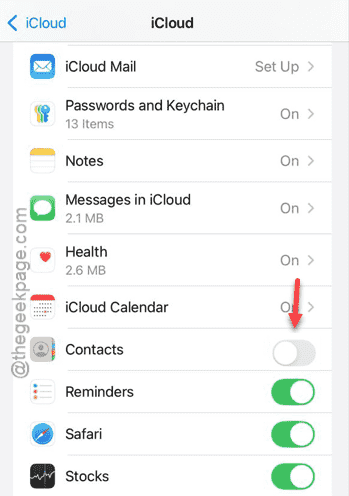
Step 4 – Turn off the “Contacts” option.
Step 5 – A toggle will appear on your screen to keep the contacts on your iPhone. So, tap the “Delete from My iPhone” to remove them. Don’t worry. It is temporary.
Step 6 – Later, just turn on the “Contacts” once again.
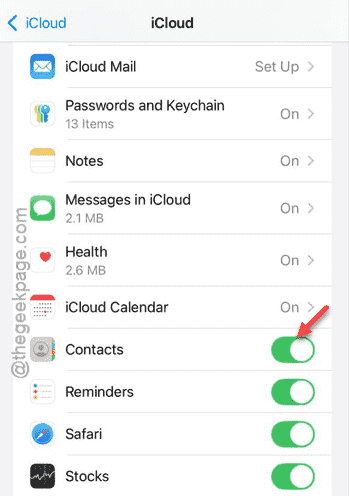
Within a few moments, the contacts will get synced in correctly. Check if this works.