Why does opening the Storage page suddenly demand admin approval? Good question. Microsoft never really explained it. You click Storage, the screen dims for a UAC prompt (that’s the “Do you want to allow this app to make changes” popup), and then it loops — or the whole Settings app freezes. And no, you didn’t break anything. This one arrived with recent Windows 11 updates.
What’s Actually Going On
The UAC prompt runs through a process called ConsentUX. When you open the Storage page, that process can deadlock — it and a background service each sit there waiting for the other, forever.
So the prompt never finishes drawing. Or it pops right back up after you click Yes. Sound familiar?
But here’s the good part: everything the Storage page does is reachable through side doors. The fixes below unstick the app first, then show you those doors, then go after the real cause.
Fix 1 – Force Close the Frozen Settings App
First, kill the stuck process.
1 – At first, hit the Ctrl + Shift + Esc to open Task Manager.
2 – Find Settings in the process list. Typing “set” in the search box at the top gets you there faster.
3 – Right-click Settings and choose End task.
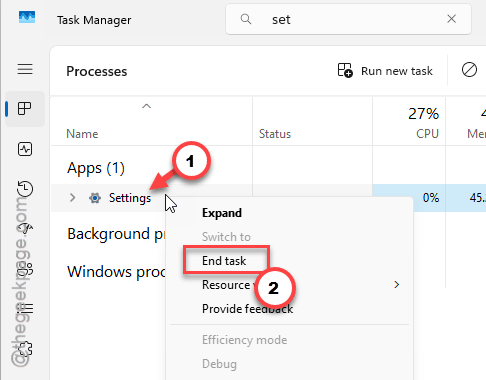
The window vanishes right away. Now try opening Settings again — sometimes one clean restart of the app is all it takes.
Fix 2 – Open Storage Sense From Search Instead
Here’s a neat trick. The bug fires on the main Storage landing page. But the Storage Sense controls have their own direct shortcut, and opening it that way skips the bugged page completely.
1 – Click the Start button.
2 – Type “Storage Sense“.
3 – Click the Turn on Storage Sense shortcut at the top of the results.
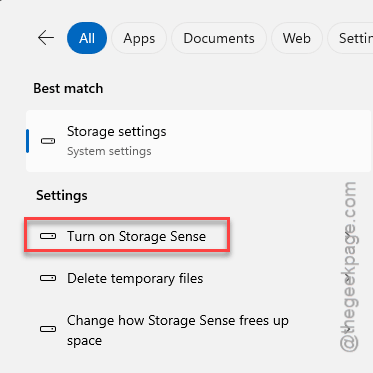
You land straight on the file-management controls. No loop, no freeze. And you can switch on automatic cleanup from here too (Storage Sense is the part that deletes temp files on a schedule).
Fix 3 – Use the Old Disk Cleanup Tool
Just need to clear temporary files? You don’t need the Storage page at all. Windows still ships the classic Disk Cleanup utility (it’s been around since the ’90s, and it skips the modern UAC triggers entirely).
1 – Press Windows + R.
2 – Type “cleanmgr.exe” and press Enter.
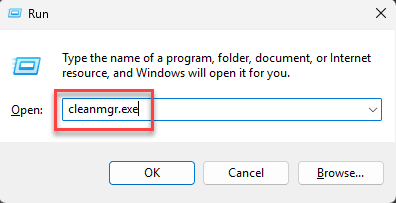
3 – Pick your C: drive from the dropdown and click OK.
4 – Click Clean up system files near the bottom left of the window.
5 – Tick the file types you want gone, then click OK.
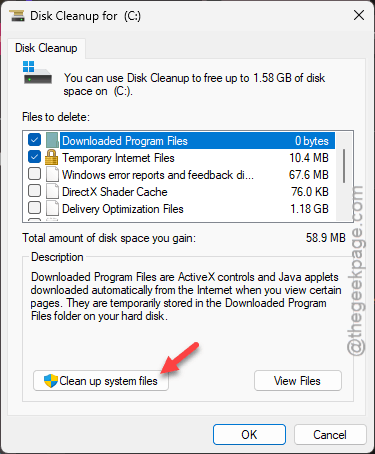
It looks dated, sure. But it clears the same junk — old updates, temp files, the recycle bin — without ever touching the broken page.
Fix 4 – Reset the Settings App
Settings still acting flaky beyond the Storage page? Reset it. This purges the app’s cached data and makes Windows rebuild it fresh (your files and system preferences stay put — this only clears the app’s own cache).
1 – Right-click the Start button and choose Terminal (Admin). Click Yes if a UAC prompt appears — this one should behave normally.
2 – Next, type or paste the command below, then press Enter.
Get-AppxPackage *windows.immersivecontrolpanel* | Reset-AppxPackage
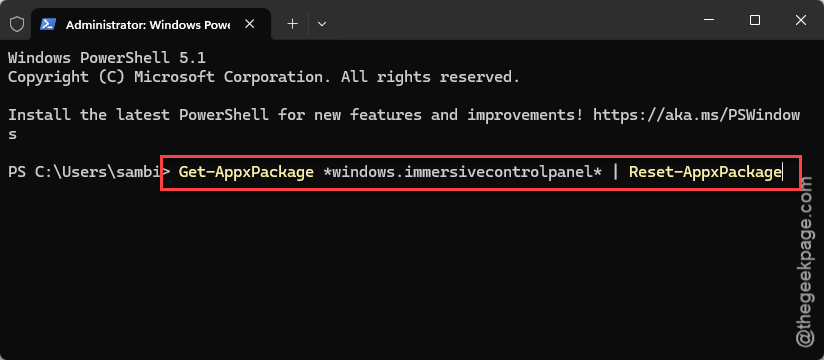
Wait a few seconds for the prompt to come back, then close the window and reopen Settings.
Fix 5 – Turn Off the Secure Desktop for UAC
Still looping? This one goes at the root cause. UAC normally draws its prompt on a separate dimmed screen called the secure desktop — and the deadlock lives exactly there. Moving the prompt onto your regular desktop dodges it.
1 – Press Windows + R, type “regedit“, and press Enter.
2 – Click Yes on the permission prompt.
3 – Paste this into the address bar at the top of the Registry Editor and press Enter.
HKEY_LOCAL_MACHINE\SOFTWARE\Microsoft\Windows\CurrentVersion\Policies\System
4 – Double-click PromptOnSecureDesktop in the right-hand pane.
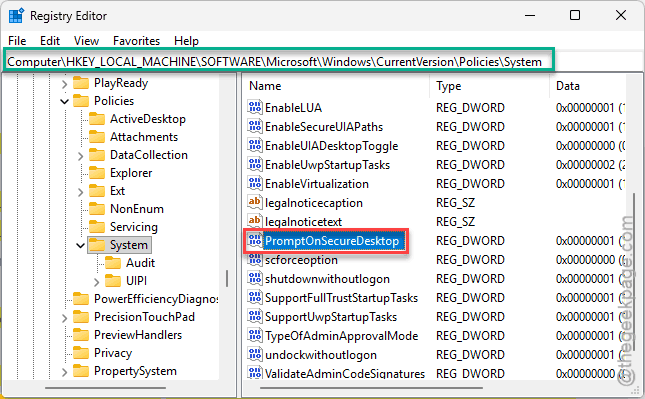
5 – Change the Value data to 0.
6 – Click OK and close the Registry Editor.
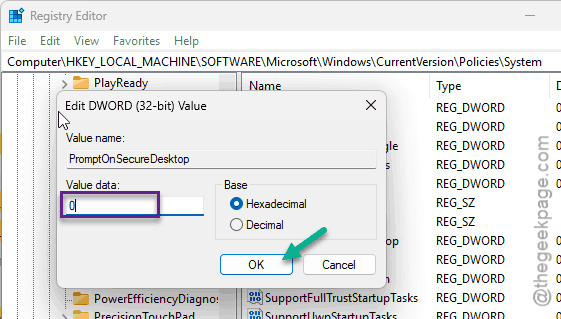
Open the Storage page again. The UAC prompt now shows up as a normal window — click Yes and the page should load. Once Microsoft patches the deadlock, flip the value back to 1 to get the dimmed prompt back.
So It Doesn’t Happen Again
– Install Windows updates when they arrive. This deadlock is the kind of bug Microsoft fixes in cumulative patches — but the fix only helps if you take it.
– Make the Storage Sense search shortcut your regular route. It’s quicker anyway.
– If you turned off the secure desktop in Fix 5, set a reminder to turn it back on (one registry value, ten seconds).
– Remember Task Manager for any frozen Settings page. End task beats waiting. Every time.
Quick Answers
Why does Windows 11 ask for admin permission to open Storage settings?
It’s a bug, not a feature. A recent Windows 11 update introduced a deadlock between the UAC prompt process and background services. The prompt fires when the Storage page loads, then freezes or repeats. Microsoft ships fixes for this through Windows Update, so keep patching.
Is it safe to set PromptOnSecureDesktop to 0?
Mostly, yes — with a small trade-off. Your UAC prompts appear on the normal desktop instead of the dimmed secure screen, which is slightly easier for malware to imitate. Treat it as a temporary workaround. And set the value back to 1 once the Storage page behaves again.