EA shipped a new anti-cheat, and it now treats half the software on a normal gaming PC as cheating tools. That’s the whole story behind error 0x8000002. Daemon Tools, AutoHotkey, DS4Windows — all flagged. And if you’re also seeing rainbow-colored textures in game? That can be something else entirely. Both problems are covered below.
What’s Actually Going On
Short version: the integrity check scans your PC before the game launches. It is not checking whether a tool is running. Installed is enough. Daemon Tools trips the error even when it’s closed.
Harsh? Yep. But that’s how EA built it, so the fix is removing the flagged software, not closing it.
The colored artifacts are a separate story. Sometimes the game’s graphics files break after an update. Sometimes it’s the memory on your graphics card going bad. Fix 6 helps you tell which one you’ve got.
Fix 1 – Uninstall Daemon Tools
1 – Press Windows + I to open Settings.
2 – Click Apps in the left sidebar, then Installed apps.
3 – Type “Daemon” in the search box at the top. Way faster than scrolling.
4 – Click the three dots next to Daemon Tools and pick Uninstall.
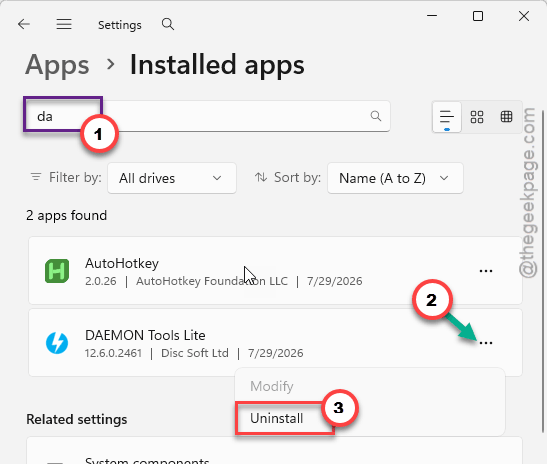
5 – Restart your PC and launch the game again.
Closing it doesn’t count. The anti-cheat flags the installation itself as “Badware.” Same deal with other virtual drive tools — software that pretends to be a disc drive.
Fix 2 – Kill AutoHotkey and Macro Scripts
Apex blocks AutoHotkey outright. It’s a macro engine, so fair enough. Any running script means an instant integrity error.
1 – Click the small arrow near the clock, bottom right corner of the taskbar.
2 – Look for the green AutoHotkey icon (a green square with a white H).
3 – Right-click it and pick Exit.
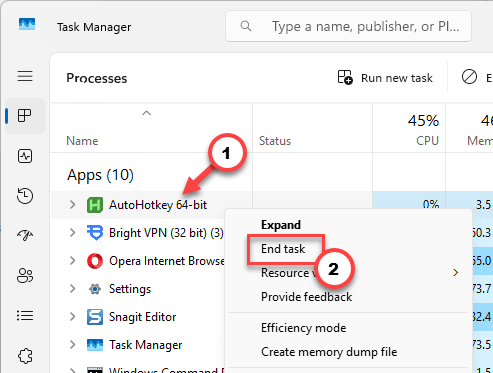
4 – If there’s no icon, press Ctrl + Shift + Esc to open Task Manager, find AutoHotkey.exe under background processes, and click End task.
Using Logitech G-Hub? Turn off its scripting modules before launching too. Same category, same flag.
Fix 3 – Stop DS4Windows and Other Controller Emulators
Recent anti-cheat updates flag DS4Windows — the popular tool that makes PlayStation controllers act like Xbox ones. Not cheating, obviously. Flagged anyway.
1 – Open DS4Windows.
2 – Click Stop in the bottom right.
3 – Close the app fully. Make sure it isn’t hiding in the system tray.
Game still refuses to launch? Delete the whole DS4Windows folder and use Steam’s built-in controller settings instead. And reWASD or other gamepad emulators need a full uninstall, not just a close — the scan catches them either way.
Fix 4 – Clear the EA App Cache
Quick one.
1 – Open the EA App.
2 – Then, click the three dashes in the top left corner.
3 – Go to Help, then App Recovery, then Clear Cache.
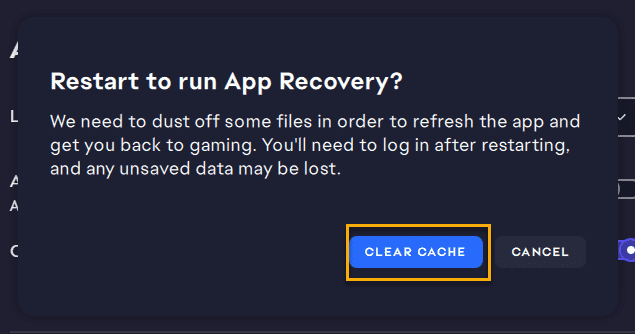
The app restarts on its own. Takes about two minutes, and your game installs stay put.
Fix 5 – Reinstall Visual C++
Visual C++ redistributables are Microsoft runtime files the game leans on. And Apex updates corrupt them weirdly often.
1 – Go to Microsoft’s download page for the latest Visual C++ redistributables.
2 – Download both versions — x64 and x86.
3 – Run each installer. If it offers Repair, take it.
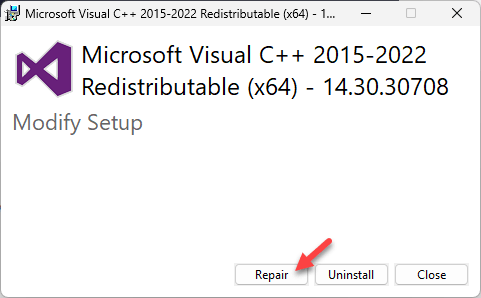
4 – Restart the PC when both finish.
Two minutes of clicking. Fixes more launch crashes than it has any right to.
Fix 6 – Test Your Graphics Card’s Memory
Seeing the colored texture artifacts? Do not skip this one. Those glitches are a classic sign of dying VRAM (the memory chips on your graphics card), and people blame the game for months while the card slowly fails.
1 – Download OCCT, a free hardware stress-test tool.
2 – Open it and pick the VRAM test.
3 – Let it run a full pass. This takes a while — 15 to 30 minutes.
4 – Watch the error counter while it runs.
Any errors mean the card’s memory is failing. That’s warranty territory, not a settings tweak. A clean pass means the artifacts are software — clear the cache like in Fix 4, then use the EA App’s repair option on Apex.
So It Doesn’t Happen Again
– Close macro and controller tools before every launch. Boring, but it beats the error screen.
– Better yet, move controller remapping into Steam itself. The anti-cheat leaves Steam’s own settings alone.
– Keep disc-emulator software off a gaming PC. Almost nothing needs it anymore.
– After a big season update, expect one weird launch. Repair the game before panicking.
Quick Answers
What is error 0x8000002 in Apex Legends?
It’s an integrity check failure from EA’s anti-cheat. The scan found software it considers a cheating risk — usually Daemon Tools, AutoHotkey, or a controller emulator like DS4Windows. The game blocks launch until that software is closed or fully uninstalled.
Can DS4Windows or AutoHotkey get me banned in Apex?
A ban is unlikely — the game simply refuses to start instead. The error is the punishment. But keep macro scripts away from Apex anyway. EA’s anti-cheat treats them as cheating tools, and policies get stricter every season.
Why does Apex Legends show colored texture artifacts?
Two causes. Corrupted game or graphics files after an update — fixed by clearing the EA App cache and repairing the game. Or failing VRAM on your graphics card. A VRAM stress test with a free tool like OCCT tells you which one you’re dealing with.
Does clearing the EA App cache delete my games?
No. It only wipes temporary app data — login tokens, update leftovers, that kind of thing. Your installed games, saves, and settings stay where they are. The app restarts itself after the wipe, and you may need to sign in again.