Seeing the ‘Failed to connect to the Game. ID=17. Error Code 279‘ while running Roblox on your Windows computer? Users have reported on this same error code on multiple forums. This error is actually a network related problem where the game is having some trouble connecting to the game server. You can easily fix this with some countermeasures and get back to the world of Roblox in no time at all.
Fix 1 – Check the Roblox server status
There is nothing wrong with the game. Actually, the game can’t establish a proper connection to the Roblox server, and hence the Error Code 297.
Step 1 – Go to the Roblox Server Status page on your browser.
Step 2 – You will get a detailed overview on the current operational data of Roblox on various platforms.
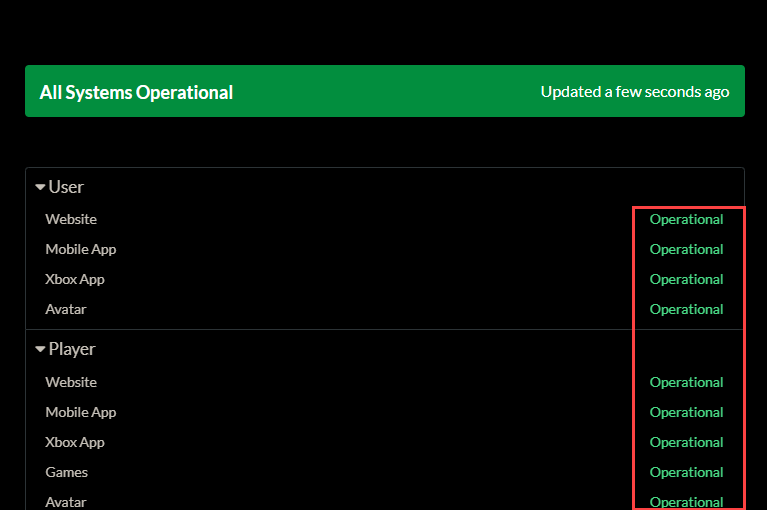
If you get reports of server down, that could be the reason you are getting the Error Code 297.
Fix 2 – Reset the Windows sockets and Refresh the network
Sometimes the corrupted Winsocks and other DNS data can cause this network issue with the Roblox server.
Step 1 – Search for the cmd from the search box.
Step 2 – Next, right-tap the Command Prompt and, tap the Run as administrator.
Step 3 – Run these codes on the terminal to refresh your network components.
ipconfig /flushdns
ipconfig /registerdns
ipconfig /release
ipconfig /renew
netsh winsock reset

After refreshing the network with these codes, you are good to go. Launch Roblox and check again.
Fix 3 – Clear the Roblox app-data and perform a clean reinstall
Clean up the Roblox app data from your system, and then reinstall a fresh version of Roblox.
Step 1 – Search for Roblox from the search box. Next, right-click the Roblox app and tap Uninstall.
Step 2 – Confirm that you want to uninstall the game.
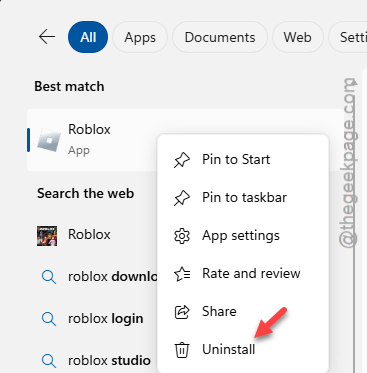
Step 3 – Next, reach this folder using a Run box (pressing Win+R should open up one).
%localappdata%
Step 4 – Find the Roblox game folder there and delete it.
This way, you have cleared the Roblox local app-data from your system.
Step 5 – Now, open the Microsoft Store and search for Roblox.
Step 6 – Reinstall Roblox from there.
Or, you can reinstall Roblox from any other source of your choice.
Fix 4 – Allow Roblox through system firewall
Check whether the Roblox connection is blocked by the system firewall.
Step 1 – Use this code in Run box to load up the Firewall settings directly.
firewall.cpl
Step 2 – Then, use the Allow an app through Windows Defender Firewall.
Step 3 – Tap Change Settings.
Step 4 – Find the Roblox entry there and make sure that it is checked for both the Private and Public check box. Tap Ok to save the change.
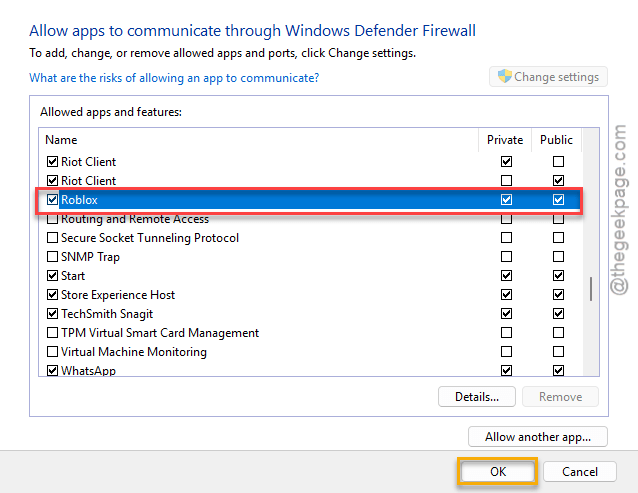
Check with Roblox again.
Fix 5 – Remove any VPN, proxy or extensions
If you are using any kind of VPN, proxy tools to play Roblox, that might cause this Error Code 279 issue. Roblox does allow users to use VPNs to play the game, but it can lead to connection issues like this.
Step 1 – Disconnect or turn off the VPN connection that you are using.
Step 2 – Terminate the VPN app completely.
Step 3 – If you have any other network optimization tools like ExitLag, Lagofast or other, disable them as well.
Step 4 – Then, check whether you can play Roblox or not.
FAQs –
1. Why the Roblox is showing up Error Code 279 ID=17?
The Error Code 279 on Roblox is a network related problem where the game client on your device can’t establish a connection with the Roblox server. It can be due to a server side problem, corrupted network components, or VPN, proxy related issue.
2. What are the ideal internet requirements to run Roblox?
Roblox recommends the 4–8 Mbps internet connection for smooth, lag free gameplay experience. Unstable, poor internet connection with lower bandwidth can lead to certain disconnects and error messages.