A recent Windows 11 update tightened how the system guards memory. Though it is good for security, it is bad for anything that reaches into memory from outside the laptop, and an external GPU over Thunderbolt 4 does exactly that. So Windows loads the card, panics, and shuts it off. Device Manager shows a yellow triangle and “Code 43.” Your card and the cable is fine. It’s a permissions fight, and you can win it in about fifteen minutes.
Why This Happens
Error 43 just means “Windows stopped this device because it reported a problem.” Vague. Useless, honestly. With an eGPU the real cause is almost always one of three things.
Kernel DMA Protection is the first. It’s a BIOS-level shield that stops Thunderbolt devices from reading system memory. An eGPU can’t work without that access. So it gets blocked.
Memory integrity (part of Windows’ virtualization-based security) is the second. The latest update made it stricter, and it now fights external GPU drivers head-on. Nvidia and AMD both.
And the third? A plain old stuck handshake. The enclosure and the laptop stop talking properly over Thunderbolt, and a simple power cycle sorts it. Try that one first. It’s free.
Fix 1 – Power Cycle the Enclosure
Thirty seconds of effort. Do it before anything else.
1 – Shut down the laptop.
2 – Unplug the Thunderbolt cable from the laptop.
3 – Unplug the eGPU enclosure from the wall.
4 – Wait a full 60 seconds. Count it out.
5 – Plug the enclosure back into the wall and power it on.
6 – Connect the Thunderbolt cable to the laptop and boot up.
7 – Press Windows + X buttons at once.
8 – Then, open up the Device Manager.
9 – Expand Display adapters.
If the yellow triangle is gone, you’re done. Still there? Keep going.
Fix 2 – Turn Off Memory Integrity
This is the setting the update broke. Switching it off is safe for most home users (it mainly guards against very targeted driver attacks). And it is the single most common fix on the eGPU forums.
1 – Click Start, type Windows Security, and open it.
2 – Click Device security in the left sidebar.
3 – Click Core isolation details.
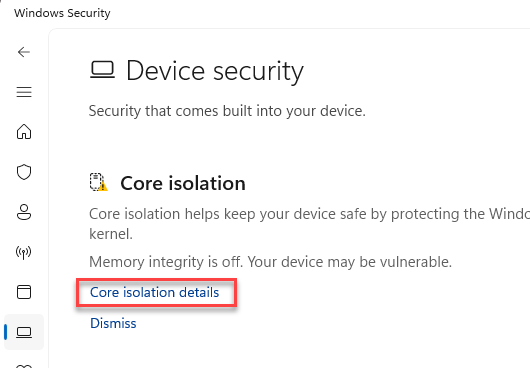
4 – Switch Memory integrity to Off.
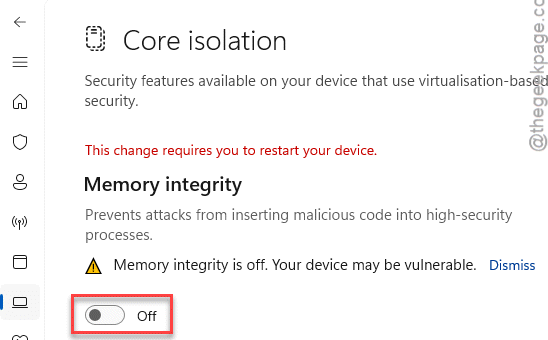
5 – Restart the PC when it asks.
The restart takes a bit longer than usual. Normal. After it comes back, check Device Manager again.
Fix 3 – Disable Kernel DMA Protection in the BIOS
Memory integrity off and still Code 43? Then the BIOS is blocking the card before Windows even sees it.
1 – Restart the laptop and tap the BIOS key as it boots (usually F2, Del, or F10, depending on the brand).
2 – Look under the Security tab, or a Thunderbolt section if there is one.
3 – Find Kernel DMA Protection and set it to Disabled.
4 – Save and exit (usually F10).
But some laptops hide this setting entirely. Dell and Lenovo business models are the worst for it.
If yours is missing, look for Thunderbolt Security Level instead and set it to No Security or User Authorization.
Not ideal, but it gets the card talking.
Fix 4 – Clean Install the GPU Driver
A half-installed driver throws Code 43 too. Reinstall it the clean way, with the eGPU connected and powered.
1 – Download the latest driver from Nvidia or AMD for your card.
2 – Run the installer and pick Custom installation.
3 – Tick Perform a clean installation.
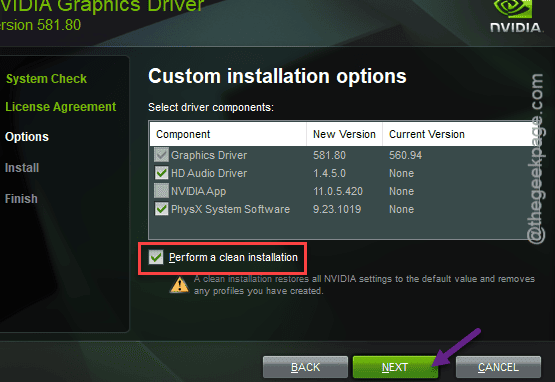
4 – Click Continue and wait. The screen flickers a few times.
5 – Restart the PC.
And on Nvidia, check that nothing killed the driver’s background services.
1 – Click Start.
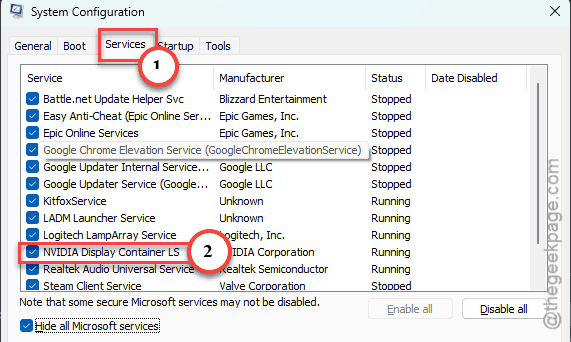
2 – Type msconfig, open it.
3 – Click the Services tab, and make sure every NVIDIA entry is ticked.
4 – Click Apply, then OK.
See if this works out for you.
Fix 5 – Run the Error 43 Fix Script
Last option. The eGPU community wrote a small script years ago that forces the driver to ignore the PCIe restriction Windows puts on external cards. It’s still the most reliable fix for stubborn setups, and it’s still maintained.
1 – Go to the eGPU.io forums and download the egpu-error43-fix script.
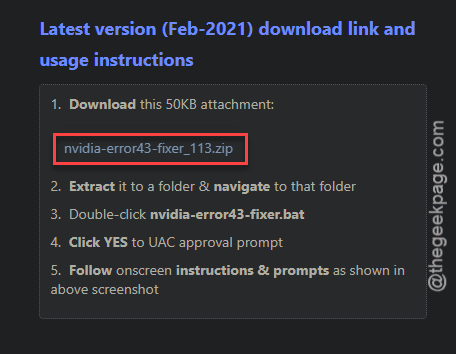
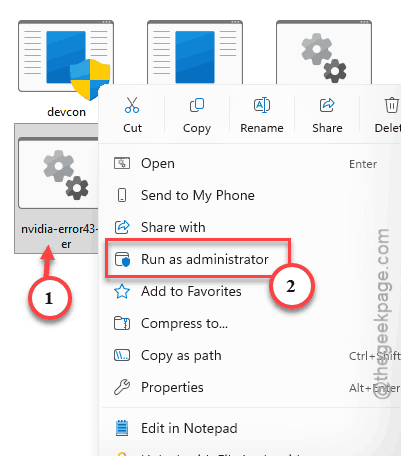
2 – Right-click the .bat file and pick Run as administrator.
3 – Follow the prompts in the window.
4 – Reboot.
But big GPU driver updates sometimes undo it. If Code 43 comes back after a driver update, run the script again. Annoying, but quick.
How to Prevent This
- Don’t overclock or undervolt an eGPU. Thunderbolt power delivery is already touchy. Stock settings, always.
- Plug the enclosure in before you boot, not after. Hot-plugging works most of the time. Most.
- Keep the Thunderbolt controller driver updated from your laptop maker’s site, not just the GPU driver.
People Also Ask
What is error code 43 on Windows 11?
It’s Device Manager’s way of saying Windows shut a device down because the device reported a problem. For an eGPU, the usual triggers are Kernel DMA Protection in the BIOS, Memory integrity in Windows Security, or a corrupted graphics driver. The hardware itself is rarely at fault.
Is it safe to turn off Memory integrity?
Turning it off lowers the protection a little, but Windows Defender and the rest of your security stay on. Gamers switch it off all the time for performance reasons anyway.