If an application is not installed properly or if there are any corrupted files related to that particular application and when you try to open it there occurs a “resampledmo.dll is missing or not found error”. This might also be a cause for other applications not working properly. A few other reasons for the error to occur is the interruption during the application installation. In this case, you may need to reinstall the program. Or the missing or deleted files, by any chance the resampledmo.dll must have been deleted so manually download it. Malware attacks may also be one of the reasons hence perform a scan. And similarly, there might be other issues as well. In this article let us see the different solutions to solve the error. Try it!
Method 1 – Run DISM Command
These commands check the system files and see if there are any system inconsistencies and also start the repair process. The execution of these commands might take a few minutes, wait patiently and do not interrupt the process.
Step 1 – Open the command prompt as an administrator. To do that, type cmd in the windows search bar then hold the ctrl + shift keys together and hit enter
Step 2 – A user account control window will open, click on yes
Step 3 – Once done, copy and paste the following commands one by one into the command prompt and then hit enter
sfc /scannow

DISM /Online /Cleanup-Image /RestoreHealth
Step 4 – Once done, restart the system and check if the issue is resolved
Step 5 – Restart the system
Method 2 – Download The Resampledmo.dll File Manually
Step 1 – To download the resampledmo.dll file, go to the website and check which version of the file is required for your system
Step 2 – Go to that particular version and click on download button to download the file
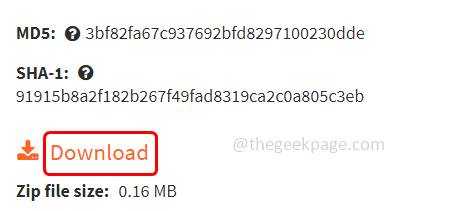
Step 3 – Copy the downloaded file and paste it in the Windows System Directory or in the application/game installation folder
Step 4 – If you are still facing the issue, then you must register the .dll file
Step 5 – To register the resampledmo.dll file, copy the downloaded file and navigate to the below location in the Windows explorer (Windows + E)
C:\Windows\System32
Step 6 – Paste the file in the above location
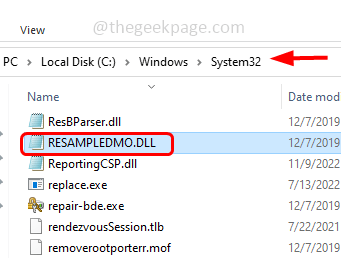
Step 7 – Open the command prompt as administrator. To do that, type cmd in the Windows search bar then hold Ctrl + Shift keys together and hit enter
Step 8 – A user account control window will open, click on yes
Step 9 – Copy and paste the below command in the command prompt and hit enter
regsvr32 resampledmo.dll
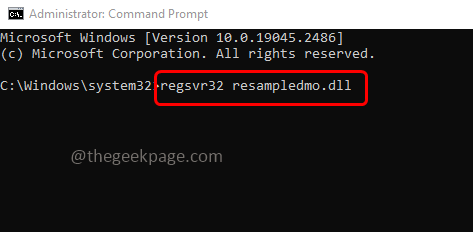
Step 10 – Once the execution is completed, close the command prompt and then restart the system. Now check if the issue is solved.
Method 3 – Perform System Restore
Step 1 – Open the run prompt using Windows + R keys together
Step 2 – Type rstrui in the run prompt and hit enter. This will open the System recovery utility window
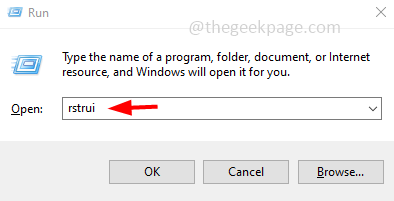
Step 3 – Select Choose a different restore point option and click on next
Step 4 – In the opened window, at the bottom select show more restore point by clicking on the checkbox beside it
Step 5 – Date and time options will appear. Select a particular date and time when the app was running appropriately without any error
Step 6 – Click on next and then click on finish. Now the system will be restored to the previous selected state
Step 7 – Restart the computer. Now check if the issue is solved.
Method 4 – Re-Install The Problematic Application
After applying all of the above methods if you are still facing the issue then uninstall the application. To uninstall follow the below steps,
Step 1 – Open the run prompt using Windows + R keys
Step 2 – Type appwiz.cpl in the run prompt and hit enter. This will open the programs and features window
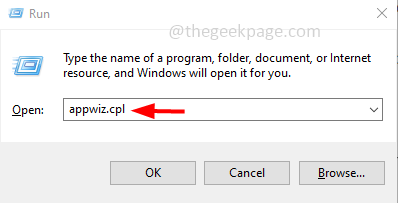
Step 3 – Right click on the problematic application and then click on uninstall
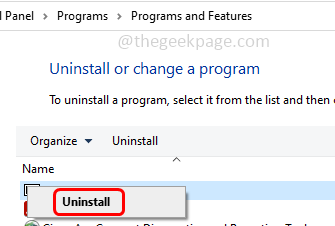
Step 4 – Once it is uninstalled, go to its manufacturer website and download the application
Step 5 – Double click on the downloaded .exe file and install it again
Step 6 – Now all the files will be freshly installed and the error will be solved.
That’s it! I hope the above provided information is helpful. Let us know which of the above methods you applied and worked for you. Thank you and happy reading!!