There are several features on your Apple Watch that gets activated when you wear the watch on your wrist. So, the wrist detection feature plays a vital role for the device to judge whether you are wearing the watch or not. If this basic feature fails or can’t recognize your wrist activity, you must solve the problem as soon as possible. It won’t scan or record any of your health related data or your workout stats, if the ‘Wrist Detection’ is not working.
Fix 1 – Tighten the band
This is a preliminary workaround where we recommend that you tighten the wristband of your Apple Watch. Maybe you are wearing the Apple Watch a bit loosely, and hence the problem has originated.
Just tighten the watch strap on your wrist and check.
Fix 2 – Turn off the Theatre mode
Theatre mode on the watch restricts multiple features of the device. One of the disengaged feature is the Wrist Detection feature.
Step 1 – Tap the side button on the Apple Watch.
Step 2 – Next, find the “Theatre Mode” and disable it from there.
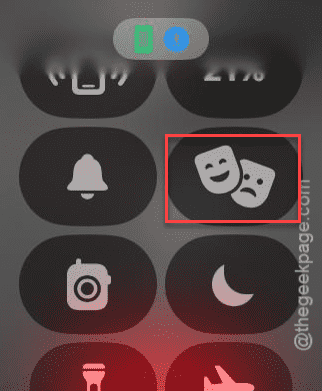
After turning off the synchronization feature, you can use the Apple Watch.
Fix 3 – Clean the back of the watch
You should clean out the backside of the watch. Sometimes the sensors on the backside of the watch can’t recognize whether you are wearing it or not. This may happen due to dust or dirt on the backside of the device.
On the other hand, if you are using a faulty, old magnetic charger with the watch, this problem can appear. So, if there is a fault in the watch charger, replace it or charge the device the other way.
Fix 4 – Wear the watch on another wrist
Many of the users have claimed to fix the problem just by change where you are wearing the watch. If you are using the watch on your right hand, wear it on your left wrist.
Step 1 – Load up the Watch app on your iPhone.
Step 2 – Next, go to the “General” tab in the ‘My Watch‘ section.
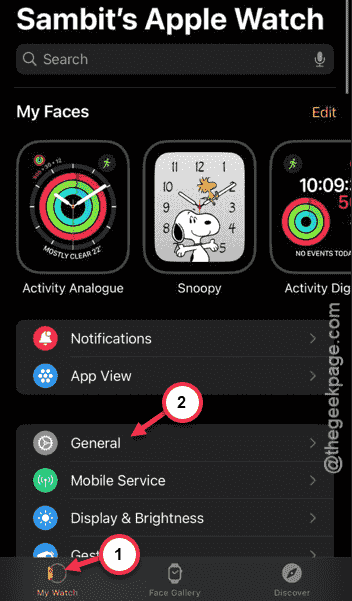
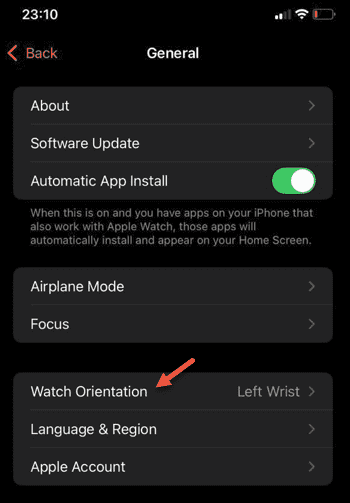
Step 3 – In the ‘General’ tab, open up the “Watch Orientation” tab.
Step 4 – Choose a different wrist from that page. Apart from changing the wrist position, keep the crown position in your mind as well. You may have to alter it, based on the watch orientation.
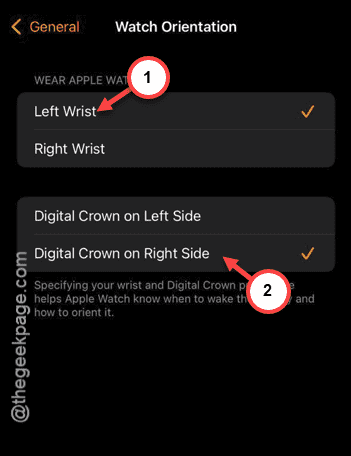
Once you have changed it, the wrist detection should work out for you.
Fix 5 – Refresh the Wrist Detection
The wrist detection protocol is controlled simply via a toggle in the Watch settings.
Step 1 – Load up the Watch app on your Apple Watch.
Step 2 – Go to the “Passcode” settings in the ‘My Watch’ category.
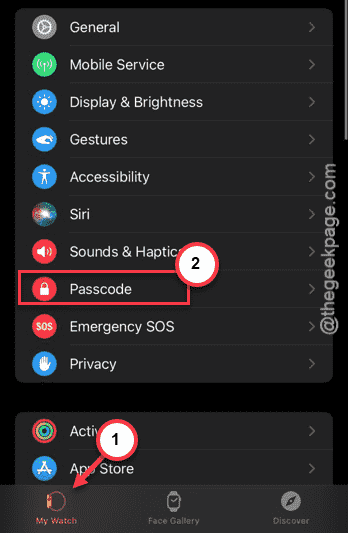
Step 3 – Find the “Wrist Detection” option and turn it off.
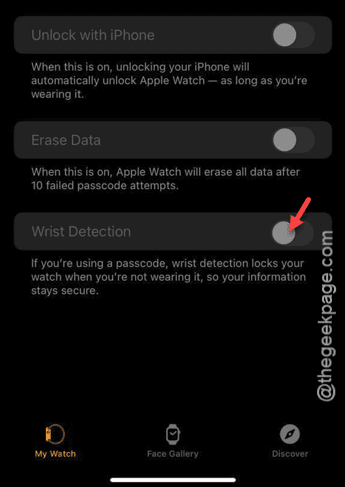
Step 4 – Later, turn on the same feature.
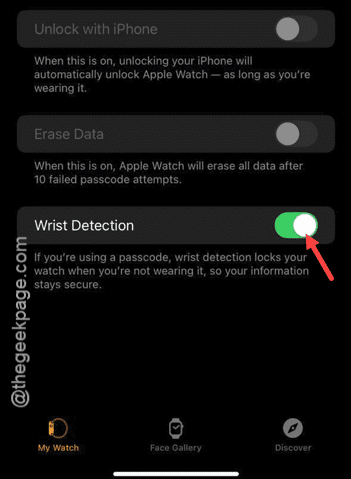
Once you have refreshed the wrist detection, it should function normally.
Fix 6 – Reset the Apple Watch
If nothing so far has worked out, resetting the Apple Watch should be your preferred option.
Step 1 – Load up the Watch app one more time on your device.
Step 2 – Then, go this way –
My Watch > General
Step 3 – In the General tab, go to the “Reset” option.
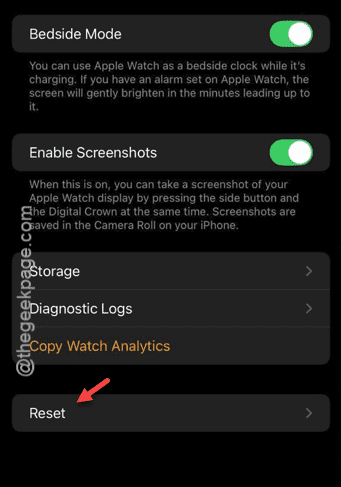
This way, you can reset the watch data directly from your Apple Watch. The resetting process takes some time and asks for your verification to proceed.
Once you have reset it, reconnect the watch afresh.