Having problem accessing your voice memos that you have created on your Apple Watch from the iPhone? Don’t worry. Usually, the voice memos that you create on your Apple Watch automatically synchronizes to your Apple Watch. But, in this case, the affected users can’t seem to transfer their recorded voice memos from their Apple Watch to iPhone.
Why can’t I transfer voice memos from Apple Watch to iPhone?
The voice memos that you record on the go stores locally on your Apple Watch. But, if the Apple Watch is connected to your iPhone, and both the devices are online, the voice memos directly synced into your other Apple devices. You can later listen to them from the devices where you are logged in with your Apple ID. This whole transfer process use iCloud as the standard medium.
But, if there is a problem in the sync-chain on your iPhone and Apple Watch, the voice memos may not get synced on to the device. The main reason here is the ‘Voice Memo’ toggle present in the iCloud settings on your iPhone. We have mentioned the steps on how to re-establish the connection between the devices and get your watch-recorded memos directly on your iPhone.
Fix – Enable the Voice Memo in iCloud
You can turn on the Voice Memos feature in the iCloud from your iPhone settings.
Step 1 – Load up the Settings utility on your iPhone.
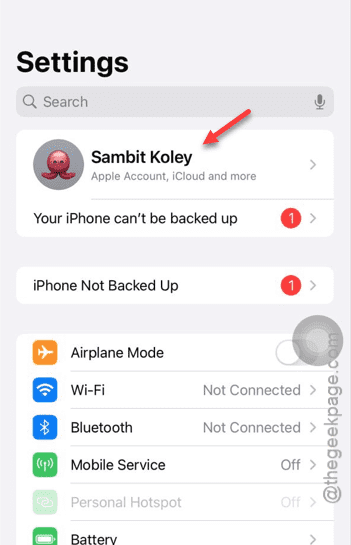
Step 2 – Tap the Apple ID right there to open up the Apple ID settings.
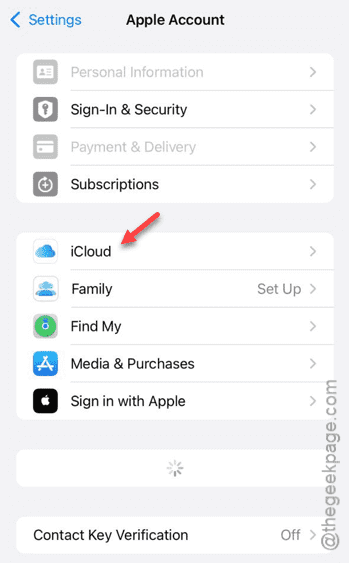
Step 3 – Next, scroll a little bit down and tap “iCloud” settings to open it up.
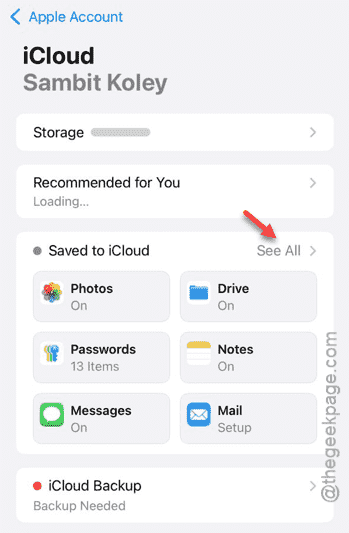
Step 4 – On the subsequent step, tap the “See All” button to load up the complete list of apps.
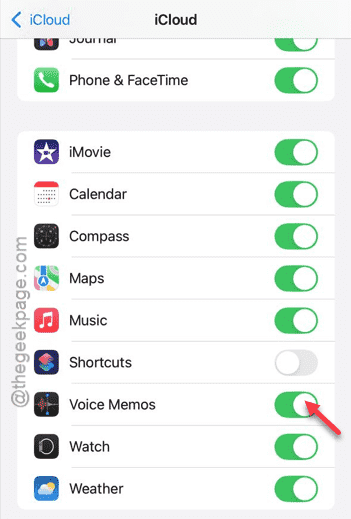
Step 5 – Find the “Voice Memos” in there.
[If you can’t find it there, you just have to open up the Voice Memo app once on your iPhone. ]
Step 6 – Enable the “Voice Memos” feature.
After enabling the voice memo, you will find your recorded memos right on your iPhone. If this doesn’t work out, consider restarting the iPhone and the Apple Watch once. See if this works out for you!