Another emergency update, another round of blue screens. KB5121767 is an out-of-band patch — one Microsoft pushes outside the normal monthly schedule — and it was built with Dell hardware in mind. But Windows Update handed it to everyone. On non-Dell machines it triggers BSODs, random crashes, and for some people it even breaks VMware and VirtualBox. The update is the problem. So the plan is short: remove it, then block it. Not sure this patch is your culprit? Check before you rip things out. The update history screen in Fix 1 shows the install date — compare it against when the crashing started. If the two line up, you’ve found it.
Fix 1 – Uninstall KB5121767
1 – Press Windows + I to open Settings.
2 – Click Windows Update at the bottom of the left sidebar.
3 – Click Update history.
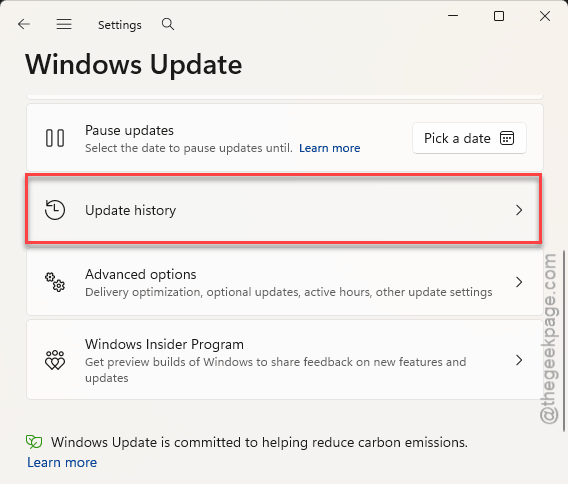
4 – Scroll down and click Uninstall updates.
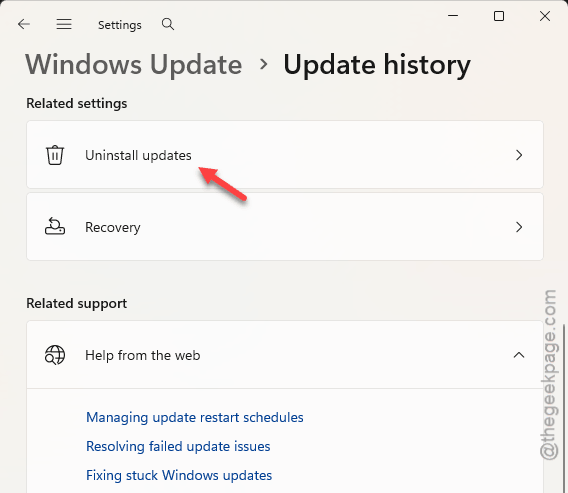
5 – Find KB5121767 in the list and click Uninstall next to it.
6 – Restart when Windows asks.
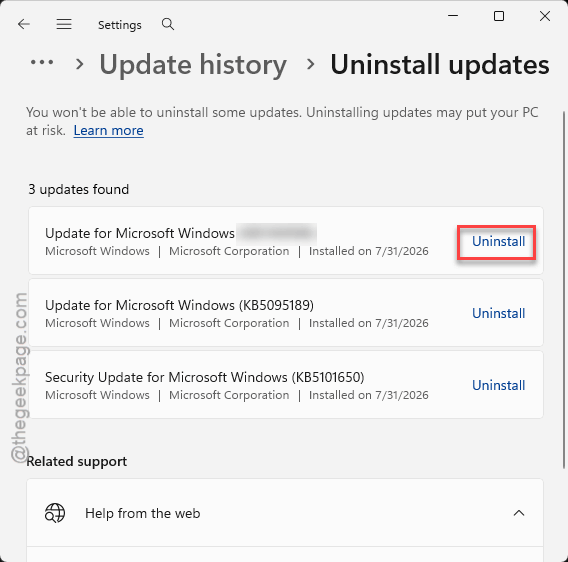
The uninstall itself takes a few minutes, and the restart can hang on a “working on updates” screen for a while. Let it sit. Pulling the plug mid-rollback is how a bad week gets worse.
Stability usually comes back right after the restart. But you are not done. Windows will happily reinstall the same patch in a day or two — the next fixes stop that.
Fix 2 – Turn Off the Early-Updates Toggle
There’s a toggle that tells Windows to grab optional fixes the moment they exist. Which is exactly how a Dell-specific hotfix landed on your PC in the first place.
1 – Open Settings and go to Windows Update, like in Fix 1.
2 – Near the top, find the toggle that says Get the latest updates as soon as they’re available.
3 – Switch it off.
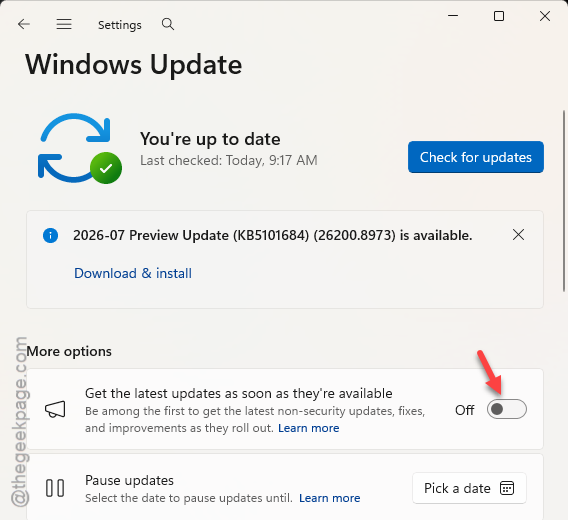
You still get security patches with this off. You just skip the bleeding-edge extras. Fair trade.
Fix 3 – Repair Your Virtual Machine Tools
VMware or VirtualBox acting strange since the patch — no network inside the VM, broken graphics, shared folders gone? The update mangled the links to the virtual hardware. Reinstalling the guest tools rebuilds them.
1 – Open your VM software and start the machine that’s misbehaving.
2 – In VMware, click VM in the menu at the top, then Reinstall VMware Tools.
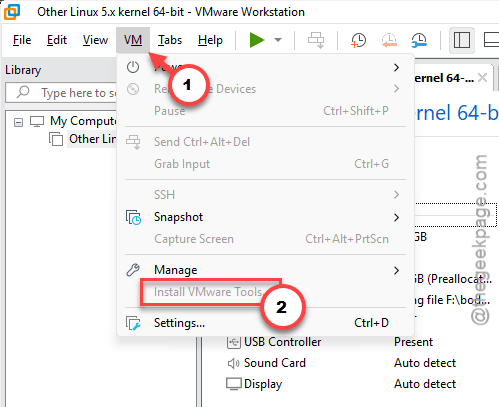
3 – On VirtualBox, the same job is done from Devices > Insert Guest Additions CD image.
4 – Follow the installer inside the virtual machine, then restart the VM.
Five minutes, tops. The virtual hardware comes back like nothing happened.
Keep It From Coming Back
– Leave the early-updates toggle off on any machine that isn’t a Dell. Optional hotfixes are optional for a reason.
– When news breaks about a bad emergency patch, pause updates for a week. Let someone else find the bugs.
– Keep the wushowhide tool downloaded somewhere handy. Blocking a bad KB takes about 30 seconds when the tool is already on disk.
People Also Ask
What is KB5121767 and why did my PC install it?
It’s an out-of-band hotfix aimed at Dell hardware that Windows Update distributed too broadly. PCs with the “get the latest updates as soon as they’re available” toggle on pulled it automatically. On non-Dell machines it causes blue screens and crashes, so uninstalling it is the fix.
Is it safe to uninstall a Windows update?
For a broken optional patch like this one, yes — removal is the recommended move. Your files aren’t affected. Any security fixes bundled inside come back in the next monthly cumulative update anyway, so you’re only skipping the faulty package, not protection.