The OnlineFix64.dll is a component used by many Windows programs to execute certain online functions. But, sometimes you may get this error message ‘Failed to load OnlineFix64.dll from the list’ and often accompanies the Error Code 126. Actually, antivirus programs on your computer sometimes flag this dll file, and hence the error message shows up on the screen.
Fix 1 – Check in the Antivirus program
See whether the OnlineFix64 is quarantined or removed by the antivirus program that you are using. If you are not using any dedicated third-party antivirus programs, you should be looking at the Windows Security can be held responsible for this issue.
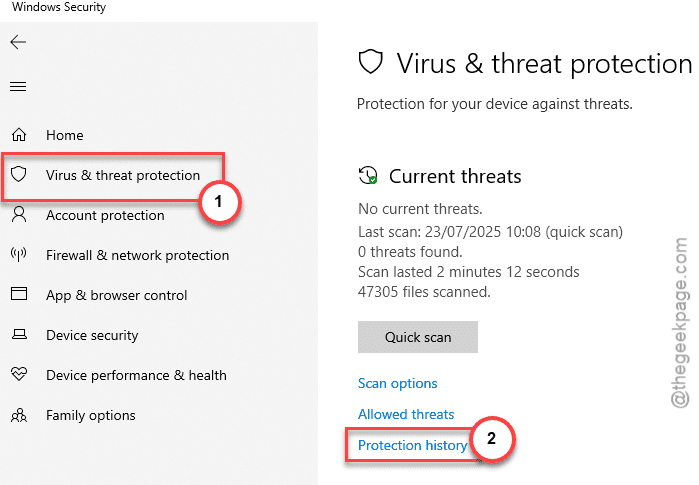
Step 1 – Open up the Windows Security utility on your device.
Step 2 – Now, go to the Virus & Threat protection settings.
Step 3 – Next, open up the Protection history to check whether your antivirus wrongfully removed the OnlineFix64 file from your system.
Step 4 – Try to find the file there and tap the Action button associated to it.
Step 5 – Switch it to Restore option from the drop-down.
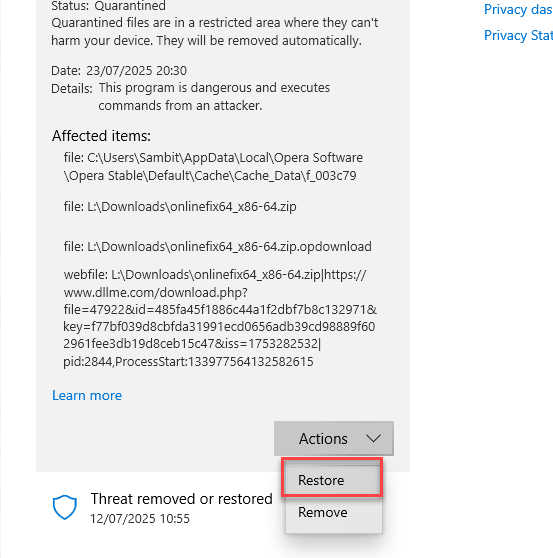
Once you have opted to restored it, Windows Security will put it back to its original directory, from where it was deleted in the first place.
NOTE – You can include the particular OnlineFix64.dll in the exclusion list of Windows Security. This way, the antivirus program won’t remove or quarantine the dll file again.
Step 1 – On the Windows Security client, load up the Virus & threat protection history tab.
Step 2 – On the right-hand tab, tap the Manage settings.
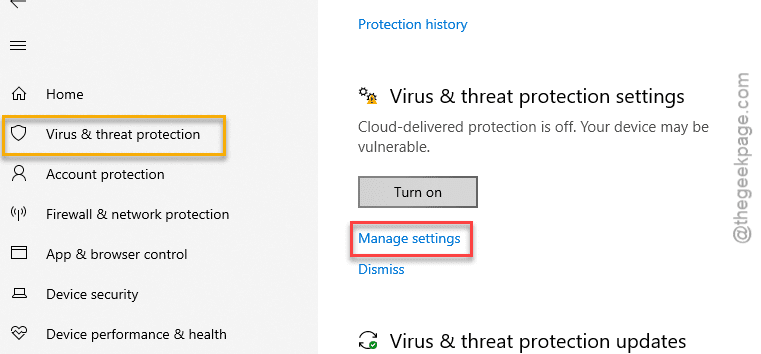
Step 3 – Reach the Exclusions option. Tap Add or remove exclusions option there.
Step 4 – Tap the Add an exclusion option and choose the Folder type.
Step 5 – Select the actual game or program folder from where the OnlineFix64.dll file has been removed and add it to list of exclusions.
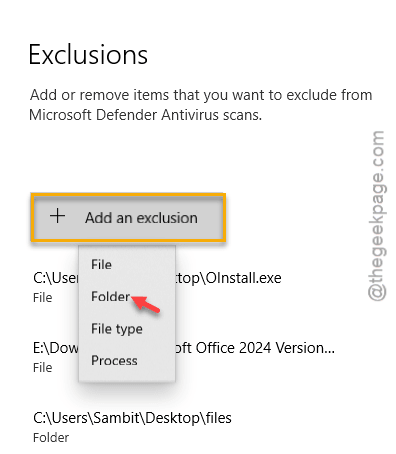
This way, once you have added the folder to the exclusions list, Windows Security won’t delete the OnlineFix64.dll file anymore.
Fix 2 – Re-download the file and place it correctly
If you can’t find the missing OnlineFix64.dll file in the Windows Security or unable to retrieve the same file, you have to download the same file again and place it in the correct directory.
Step 1 – You have to download the OnlineFix64.dll file from the internet.
Step 2 – So, reach the OnlineFix64.dll file. You can use other websites to download the same as well.
Step 3 – Go to the Versions tab. Here, you will get to see the list of version of OnlineFix64.dll file.
Step 4 – Tap the Select option to proceed.
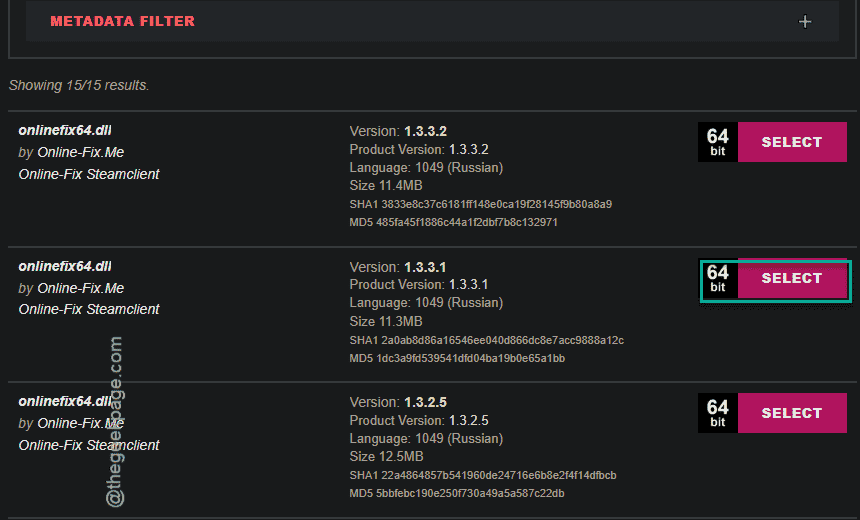
Step 5 – Next, tap the Start download option on the next page to download the dll file on your device.
The dll file will be downloaded in a compressed file.
Step 6 – After downloading the file, open the game or program root directory from where the dll file has gone missing.
Step 7 – Now, you have to extract the dll file directly to that folder.
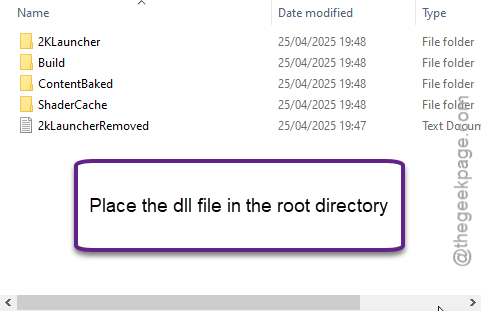
This is the way you can restore the dll file to the root directory. Run the program once again and test.
Fix 3 – Uninstall and reinstall the game/program
You should remove the program or the game where you are having this problem. During the reinstallation process, the OnlineFix64.dll file will be reinstalled as well.
Step 1 – At first, hit the Win+R shortcut keys together.
Step 2 – Then, paste this address there and, click OK.
appwiz.cpl
Step 3 – Find the faulty game or program there. Right-click that and click Uninstall.
Step 4 – Just follow a few steps to uninstall the game or program from there.
Step 5 – Reinstall the game from the source again.
You won’t face the missing OnlineFix64.dll file message anymore.