While clicking on links on your Outlook client may feel like Outlook is dying. It isn’t. Some users have reported this problem where the links do nothing when they click them. You may face a “MAPI failure” error when you share a file from Word. A five-minute freeze when you insert a hyperlink. Three symptoms, and they mostly trace back to one recent update. Every fix here takes under five minutes.
Why This Happens
Here’s the deal. Outlook doesn’t open links itself. It hands them to Windows, and Windows hands them to a browser. Two handoffs, and either one can break.
The first break came from Microsoft. Classic Outlook now opens links in Edge by default, even if Chrome is your browser. But on PCs where Edge is disabled or half-configured (a lot of work laptops), that handoff just hangs. So you click, and nothing. Or Outlook freezes for a while and then gives up.
The second break is the KB5074109 update. It scrambled the file associations that tell Windows what to do with a web link. And the third is New Outlook. Windows sometimes sets it as your default mail app, but New Outlook doesn’t speak MAPI (the old messaging interface Word and Excel use to email a file). That’s the “MAPI failure” and “Unable to share” errors right there.
Confusing? A little. But you can tell which one you have by the symptom, so start with the fix that matches.
Fix 1 – Tell Outlook to Use Your Default Browser
Links hang or open slowly? Start here. Outlook has a setting for which browser handles clicks, and Microsoft quietly set it to Edge.
1 – Open Classic Outlook and click File in the top left corner.
2 – Click Options near the bottom of the left sidebar.
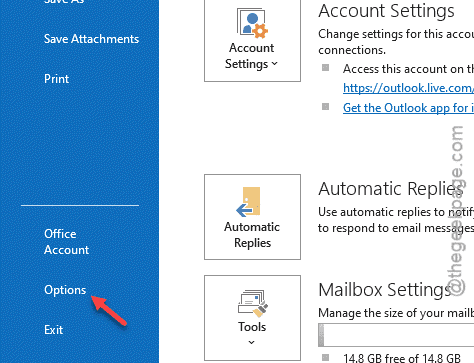
3 – Click Advanced in the left column of the Options window.
4 – Scroll down to the File and browser preferences section. Some builds call it Link handling.
5 – Find Open hyperlinks from Outlook in and change the dropdown from Microsoft Edge to Default Browser.
6 – Click OK and restart Outlook.
Click a link in any email to test. It should open in your normal browser within a second or two.
[NOTE – You can’t find a dedicated browser settings option on MS Outlook 2016 app. Your default browser handles all the Outlook client requests. Changing the browser settings from]
Fix 2 – Reset Your Default Browser
Still nothing? Windows itself may have lost track of which browser owns web links. Setting the default again rewrites the broken associations (even if the right browser already looks selected).
1 – Press Windows + I to open Settings.
2 – Click Apps in the left sidebar, then Default apps.
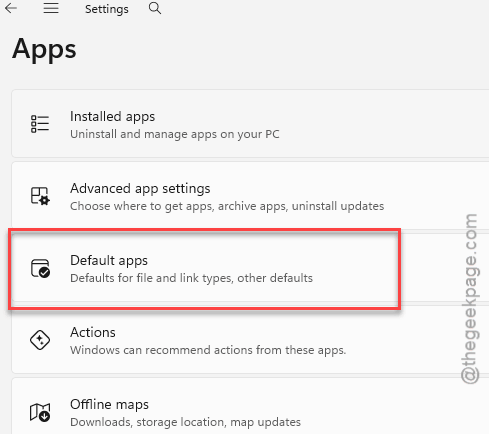
3 – Type your browser’s name in the search box at the top (Chrome, Firefox, Edge, whatever you use).
4 – Click the browser in the results.
5 – Click the Set default button at the top of the page.
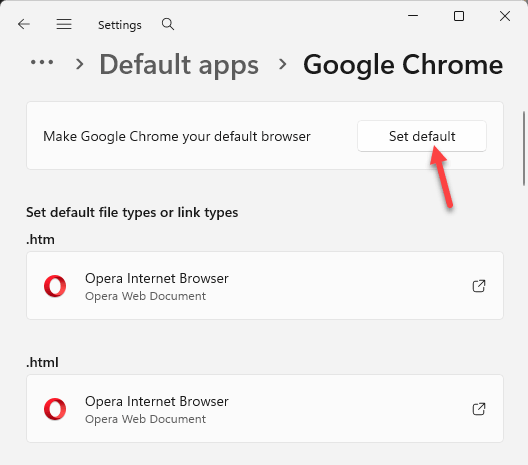
It looks like nothing happened. But that’s normal. Test a link in Outlook anyway.
Fix 3 – Make Classic Outlook the Default Mail App
Getting “MAPI failure” or “Unable to share” when you send a file from Word or Excel? This is your fix. Windows is routing the request to New Outlook, which can’t handle it.
1 – Open Settings, then Apps, then Default apps.
2 – Type “Outlook” in the search box.
3 – Click Outlook (the classic one, not Outlook (new)).
4 – Click Set default at the top.
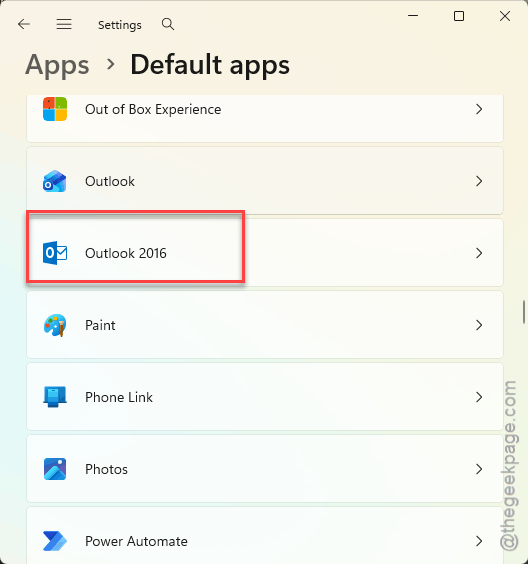
5 – Scroll down the list of file and link types on that page. Make sure MAILTO and the email types all show Classic Outlook. Click any that don’t and pick it.
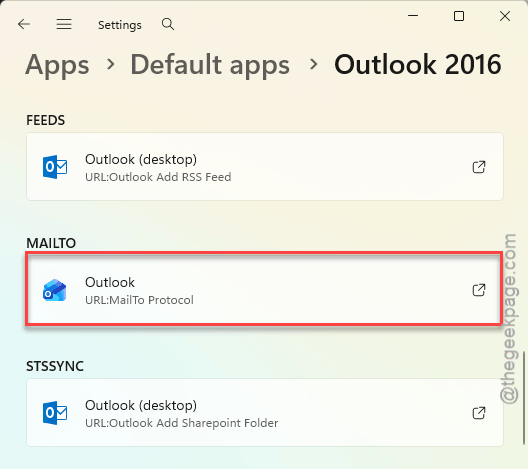
Wondering whether you can just use New Outlook instead? Not for this. Microsoft hasn’t added MAPI support to it yet, so Word’s Share button will keep failing.
Fix 4 – Uninstall Update KB5074109
If links broke the same day Windows updated, the update is the reason. Removing it puts things back.
1 – Open Settings and click Windows Update at the bottom of the left sidebar.
2 – Click Update history.
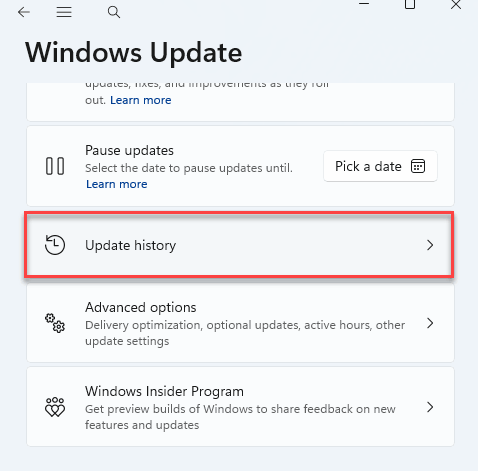
3 – Scroll all the way down and click Uninstall updates.
4 – Find KB5074109 in the list and click Uninstall next to it.
5 – Restart your PC when it asks.
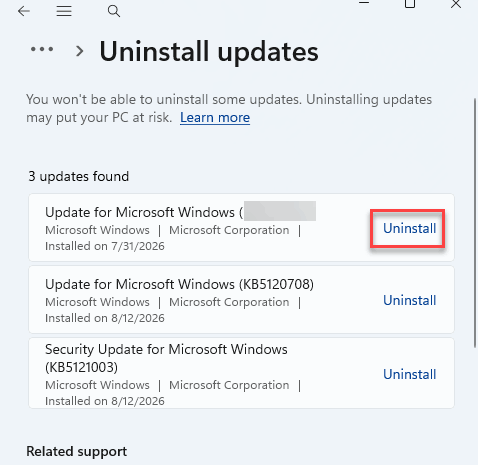
Skip to Fix 5 and Fix 7 if you run into any errors. And if you can remove it, Windows will try to reinstall it within a few days, so pause updates for a week under Windows Update.
Fix 5 – Start Outlook in Safe Mode
This is a test, not a fix.
1 – Close Outlook.
2 – Press Windows + R.
3 – Type this code and press Enter.
outlook.exe /safe
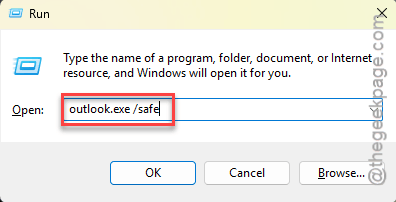
Note the space before the slash.
4 – Open an email and click a link.
Works in safe mode? Do this:
Close Outlook. Then, open it normally,.
1 – Click File and go to Options tab.
2 – Then Add-ins. Look at the Active Application Add-ins list and click Go at the bottom next to COM Add-ins.
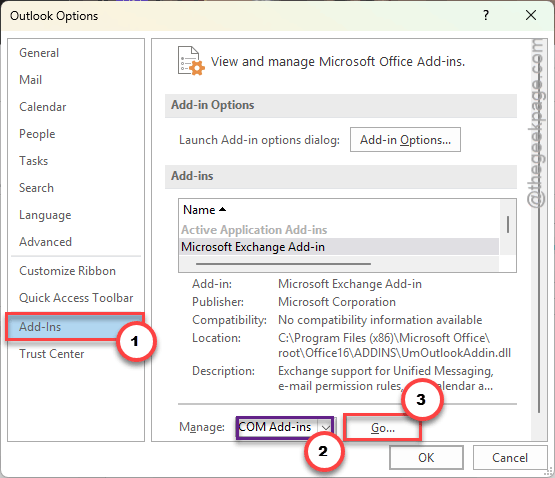
3 – FInally, uncheck them one at a time until the culprit shows itself.
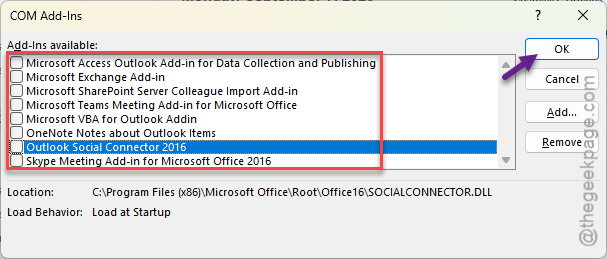
Security add-ins are the usual suspects. Check if this works.
Fix 6 – Delete Dead Shortcuts in Your Documents Folder
Freezes for minutes when you click Insert Hyperlink? This one is weird, but real.
1 – Press Windows + E to open File Explorer.
2 – Open your Documents folder (it’s in the left sidebar).
3 – Look for shortcut files. They have a small curved arrow on the icon and end in .lnk if you have file extensions showing.
4 – Delete any that point to drives or folders you no longer have. Old network shares, an external drive, that “GodMode” folder trick from years ago.
5 – Restart Outlook and try Insert Hyperlink again.
Not sure whether a shortcut is dead? Double-click it. If Windows says the item can’t be found, delete it.
Fix 7 – Run Office Quick Repair
Quick Repair reinstalls the bits of Office that handle email handoffs, including the MAPI parts. It keeps your settings and takes five to ten minutes.
1 – Open Settings, click Apps, then Installed apps.
2 – Find Microsoft 365 or Microsoft Office in the list.
3 – Click the three dots (⋯) on the right side and choose Modify.
4 – Choose Quick Repair and click Repair.
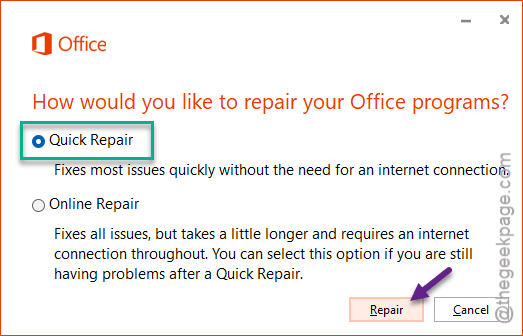
5 – Wait for the “Done repairing” message, then open Outlook.
Quick Repair didn’t help? The same screen offers Online Repair. But that one downloads a fresh copy of Office and takes closer to half an hour, so save your work first.
Fix 8 – Re-Register the HTML File Type
Last one, and it’s a registry edit. The update sometimes wipes the key that says what an .html file is. Without it, web links have nowhere to go.
1 – Press Windows + R, type regedit, and press Enter.
2 – Click Yes if Windows asks.
3 – Click the address bar at the top, paste this path, and press Enter:
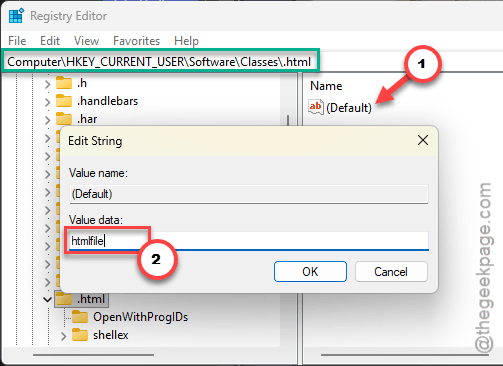
HKEY_CURRENT_USER\Software\Classes\.html
4 – In the right pane, double-click (Default).
5 – Make sure Value data says htmlfile. If it’s blank or says something else, type htmlfile.
6 – Click OK and close Registry Editor.
So restart Outlook and test. No reboot needed (the change is read the next time a link is clicked).
How to Prevent This
- Check the link setting in Outlook Options after every big Office update. Microsoft resets it to Edge more often than you’d think.
- Keep Classic Outlook as the default mail app until New Outlook gets MAPI support. Word and Excel need it.
- Clean out your Documents folder now and then. Dead shortcuts pile up. Period.
- Pause Windows updates for a week when a known bad one is going around. Gives Microsoft time to ship the fix.
People Also Ask
Why does Outlook keep freezing and not responding?
Most freezes in Windows 11 right now come from link handling. Outlook tries to open links in Edge, and if Edge isn’t set up, it hangs. Switch the setting under File, Options, Advanced to Default Browser. Freezes when inserting a hyperlink come from dead shortcuts in your Documents folder. Delete those and it stops.
Why can’t I open links in Outlook on Windows 11?
Either Windows lost track of your default browser, or the KB5074109 update broke the .html file association. Reset your browser under Settings, Apps, Default apps first. Then check that the .html key in the registry says htmlfile. Uninstalling the update also works if your PC allows it.
Why is Outlook freezing on Windows 11 when I share from Word?
That’s a MAPI failure. Windows is sending the request to New Outlook, which doesn’t support the interface Word uses to email files. Set Classic Outlook as your default mail app under Default apps and make sure it owns the MAILTO link type. The Share button starts working again right away.