Does selecting texts sometimes fail to select or select too much in Microsoft Word? Some of the Microsoft Word users have noticed and have complained about this erratic behavior. This often originates from the miscalculation of the Smart Selection feature of Microsoft Word. Disabling it should help you fix the issue, and there are other troubleshooting steps that you can implement to fix the issue.
| Issue | Recommend Fix |
| Grabs the space after a word | Uncheck Automatically select entire word |
| Accidentally moves text | Uncheck Allow text to be dragged and dropped |
| Highlighting flickers or stop | Disable ClickLock in Windows Mouse settings |
Fix 1 – Disable the Smart Selection Feature
This is typically the case with most of the affected users, where the smart selection selects too much text in Microsoft Word document.
Step 1 – In the Microsoft Word document, tap the File tab. Proceed to the Options tab.
Step 2 – Get to the Advanced tab.
Step 3 – In the Editing Options section, uncheck the When selecting, automatically select entire word feature. Click OK to save the changes.
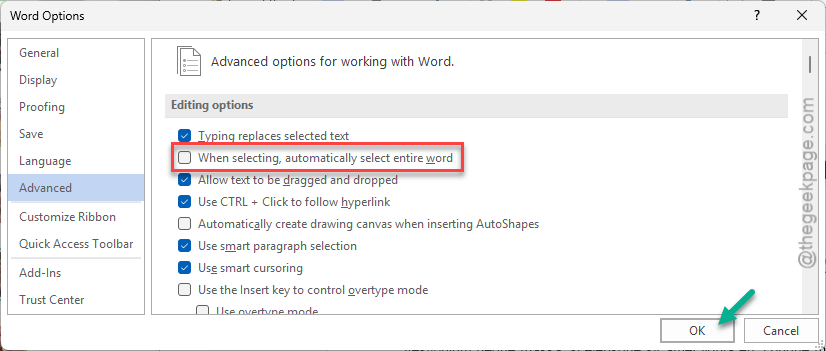 After saving the changes, try to select a portion of the text.
Fix 2 – Refrain from using Smart Cusoring
If the selection process feels laggy and the cursor still jumps behind the cursor, the Smart Cursoring feature may cause that.
Step 1 – In the Microsoft Word document, proceed this way –
File > Options
Step 2 – Go to the same Advanced tab. Uncheck the Use smart cursoring feature.
Step 3 – Save the changes.
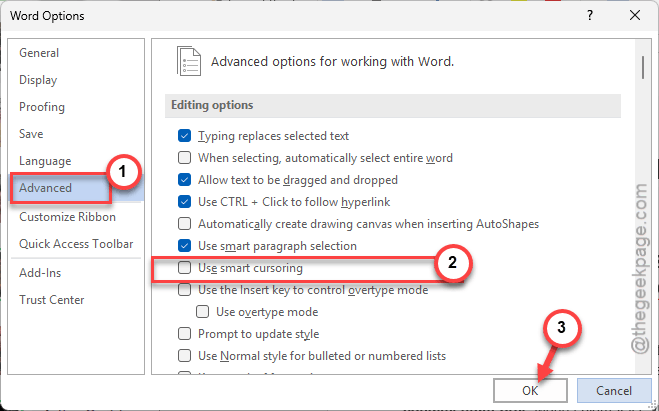
Now, try to select your texts again in MS Word.
Fix 3 – Disable Drag-and-Drop Text Editing
If the highlighted block of texts are just moving, you have to disable the drag-drop text feature in Word.
Step 1 – In the Word document, tap the File menu. Open up the Options tab.
Step 2 – Porceed to the same Advanced tab. This time, uncheck the Allow text to be dragged and dropped feature.
Step 3 – Make sure that you save the changes there.
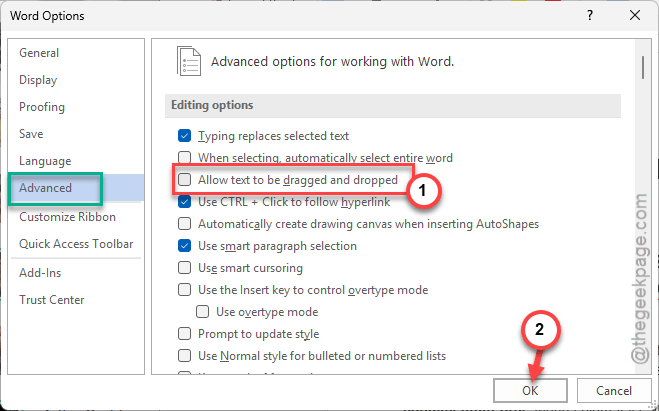
This will lock the text in the place. So, it won’t ‘move’ around when you are just trying to select a patch of text.
Fix 4 – Use the Shift+Click Precision Method to Select
If the mouse is feeling to unreliable to select the patch of texts, using the traditional Shift+Click mechanism can add the missing touch.
Step 1 – Click at the start of the text you want to select, and tap hold down the Ctrl key.
Step 2 – Then, click at the end of the text to select the portion of the text.
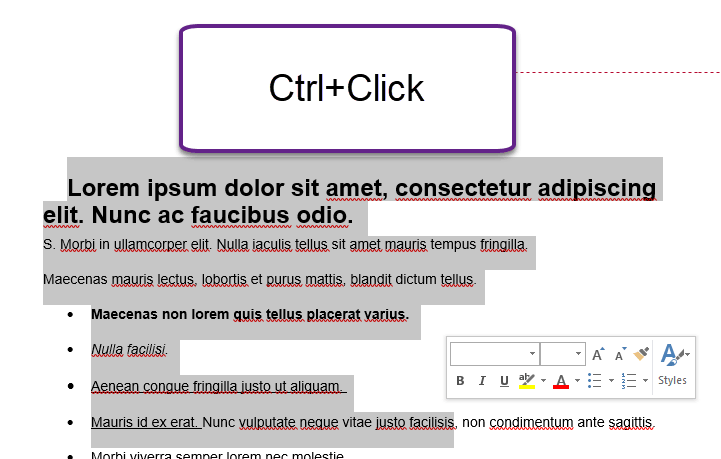
This way, you can easily select the text using the Shift+Click mechanism. This puts you in control.
Fix 5 – Adjust the Click Lock and Sensitivity Settings
If selecting the text still fails, you should check whether the ClickLock mechanism still fails.
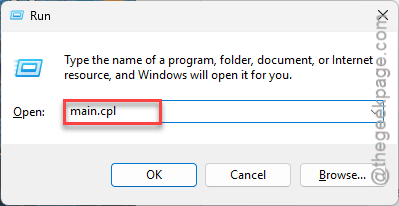
Step 1 – Hit the Win+R buttons together. Then, put this in the Run box, and hit Enter.
main.cpl
Step 2 – Go to the Buttons tab.
Step 3 – Make sure the Turn on ClickLock feature is unchecked. Save the changes using the Apply and OK button.
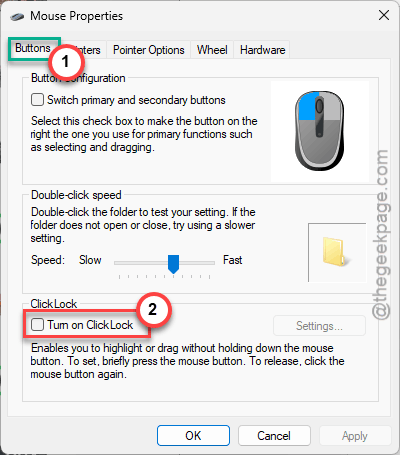
Once you have saved these changes, try selecting the texts again. Check if this helps or not.