Are any of the city clocks missing from the World Clock app on your iPhone? There are many users who use multiple clocks and their subsequent widgets to track the time of cities around the world. But some users have recently noticed the disappearance of some cities from the Watch app. Here are some fixes to solve this issue.
Fix 1 – Toggle System Customization Feature
The World Clock uses a background service to verify the time zones. If that particular service stalls, the app may fail to load the list.
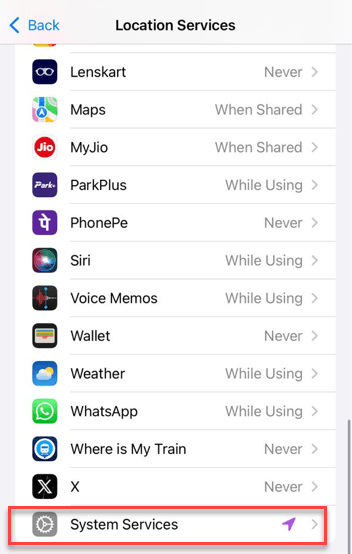
Step 1 – Load up the Privacy & Security settings. Go to the Location Services menu.
Step 2 – Scroll to the bottom and open up the System Services menu.
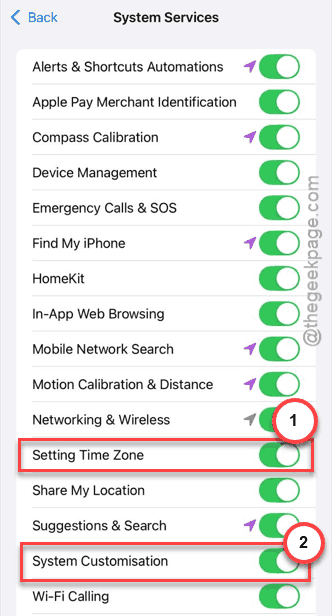
Step 3 – Next, look for the System Customization and Settings Time Zone settings.
Step 4 – Tweak both of these to OFF mode. Then, wait for 10 seconds. Then, turn them back ON.
Step 5 – Then, restart the iPhone.
Check the Clock app once again.
Fix 2 – Force a Search Index Refresh
Sometimes the cities are still in the database but aren’t being drawn by the UI.
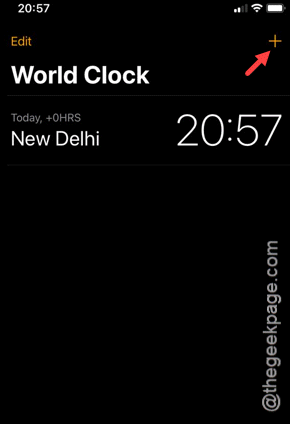
Step 1 – Open up the Clock app. Then, go to the World Clock tab.
Step 2 – Then, tap the + icon there.
Step 3 – Type the name of a city you already have on your list. If it appears, add it again.
This should put the rest of the missing cities back into the main view.
Fix 3 – Reset the Layout via the Display Zoom
This is a reported bug in iOS 26 where World Clock may get drawn to zero opacity.
Step 1 – Load up the iPhone Settings. Then, go to the Display & Brightness tab.
Step 2 – Scroll down to the bottom and find the Display Zoom option. Open that up.
Step 3 – Switch to Larger Text. Tap Done to save the change.
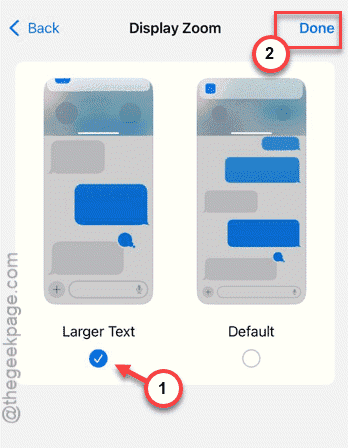
Step 4 – Once the UI reloads, switch back to the Default setting.
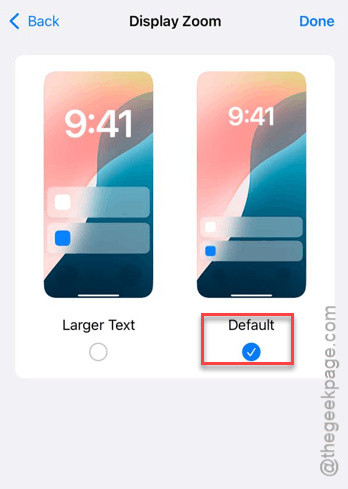
Wait for the UI to restore. Check if this resolves the issue.
Fix 4 – Toggle the iCloud Clock Sync
If you have multiple Apple devices (Mac, iPad, Apple Watch), iOS may be waiting for a new weather data set.
Step 1 – Go to the iPhone Settings. Tap your name banner. Then, go to the iCloud settings.
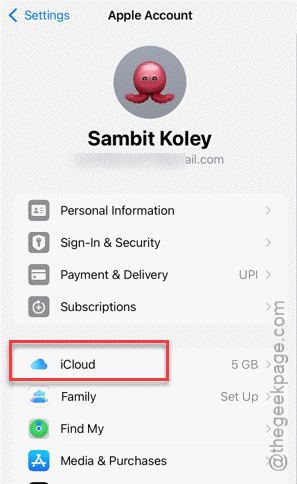
Step 2 – Tap the Show All button there.
Step 3 – Find the Clock there and toggle it to OFF. If you can’t find the Clock toggle, look for the System Settings and turn it OFF.
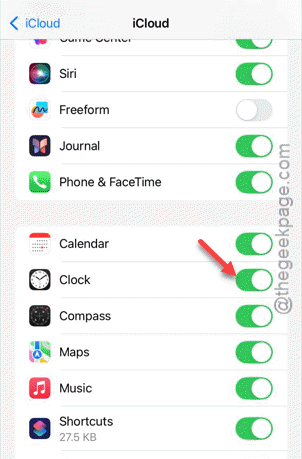
Step 4 – Wait for a minute and then toggle it back ON.
This will merge the local and cloud databases.
Fix 5 – Reset All Settings
If it is still not working, you should reset all the iPhone settings.
Step 1 – Load up the iPhone Settings. Next, load up the General tab.
Step 2 – Then, go to the Transfer or reset iPhone settings option.
Step 3 – Later, use the Reset function.
Step 4 – Finally, tap the Reset All Settings option.
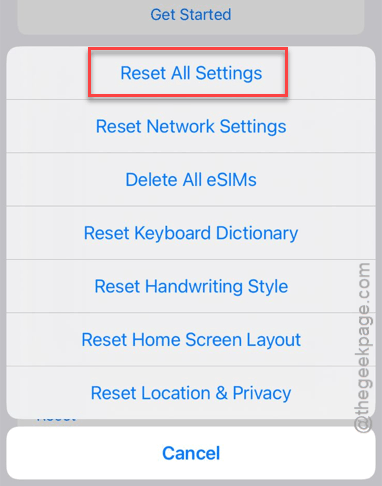
You have to confirm this action using your Apple ID. Once you have confirmed it, all the settings modifications will be reset to the default mode.
See if this offers any help.