You right-click an image. Go to Open with. And Paint isn’t there. Gone. Like it never existed. This started happening after Windows 11 updates broke some file associations. The app is still installed; it just disappeared from the menu. It is an annoying experience, I know. But you can bring it back.
Why This Happens
Windows uses file association entries in the registry to decide which apps show up in the “Open with” menu. When Microsoft updated Paint to a Store app in Windows 11, those registry entries sometimes get wiped during updates. So the app is on your PC. It works fine if you open it directly. But Windows forgot to list it as an option for image files. Makes no sense. But that’s what happens.
Fix 1 – Use “Choose Another App” to Add Paint Back
Quickest way. You can manually tell Windows to include Paint in the menu.
1 – At first, right-click any image file (a .jpg, .png, whatever).
2 – Click Open with > Choose another app.
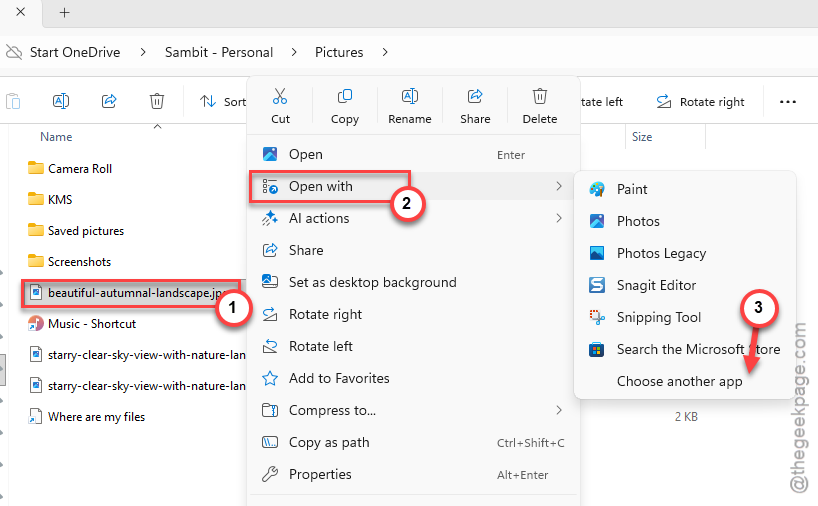
3 – Scroll through the list. If Paint shows up, select it. Check the box that says Always use this app if you want it as the default.
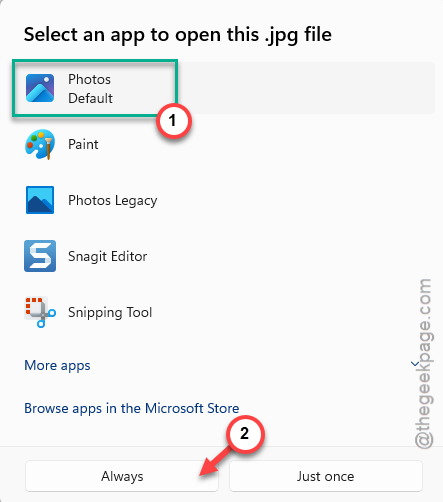
4 – If Paint is not in the list, click More apps or Choose an app on your PC.
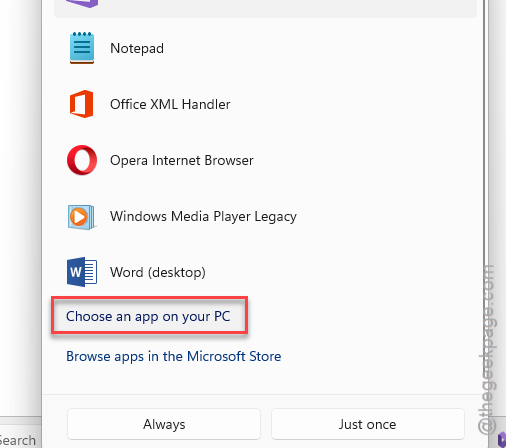
5 – Then go here and select mspaint.exe.
C:\Users\YOUR_USERNAME\AppData\Local\Microsoft\WindowsApps
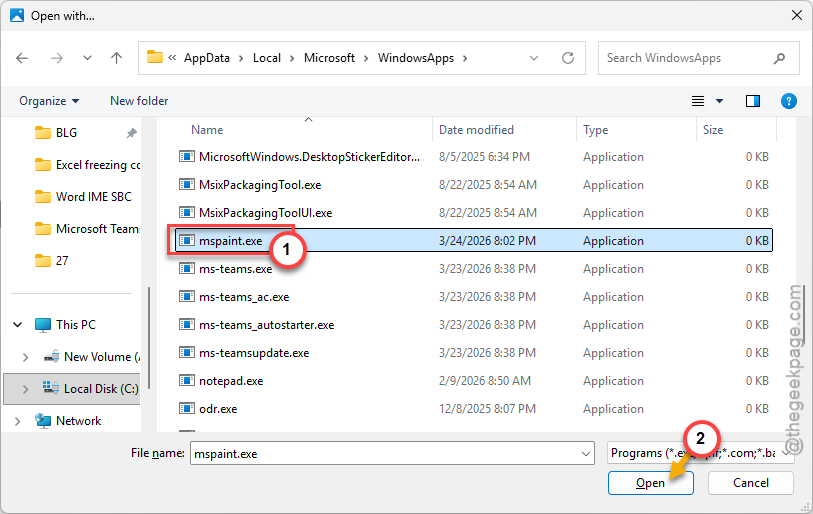
And once you do this, Paint should show up in the Open with menu going forward.
Fix 2 – Repair or Reset Paint
Sometimes Paint’s file associations break because the app itself is corrupted. A repair can fix that.
1 – Open Settings.
2 – Go to Apps > Installed apps.
3 – Find Paint in the list. Click the three dots next to it.
4 – Select Advanced options. It’s in the dropdown menu.
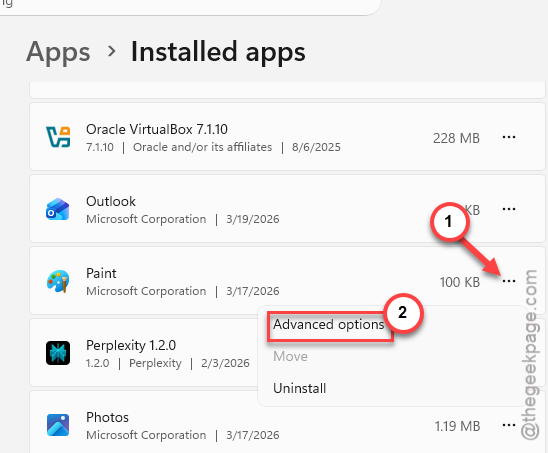
5 – Scroll down and click Repair first. If that doesn’t work, come back and click Reset.
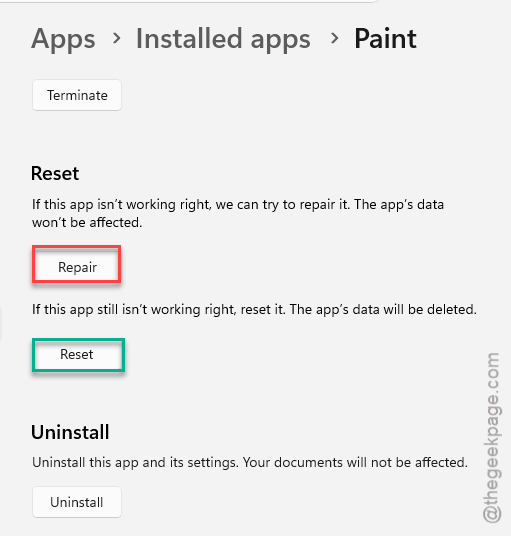
Repair fixes broken app files without deleting settings (takes about 30 seconds). Reset wipes everything and starts clean. Try the repair first. It’s less aggressive.
Fix 3 – Clear the Microsoft Store Cache
Quick fix. The Store cache can mess up app registrations, which affects what shows in the Open with menu.
1 – Press Win + R to open the Run dialog.
2 – Type wsreset.exe and press Enter.
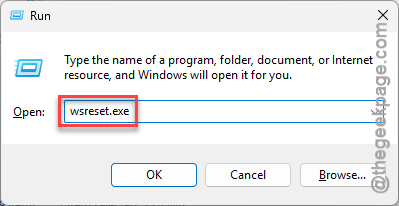
3 – A blank command window opens. Wait for it to close on its own. Then the Microsoft Store opens automatically.
That’s it. This clears cached data that might be preventing Paint from registering as an image handler.
Fix 4 – Set Paint as Default via Settings
You can manually assign Paint to specific file types. More control this way.
1 – Open Settings > Apps > Default apps.
2 – Scroll down and click Choose defaults by file type.
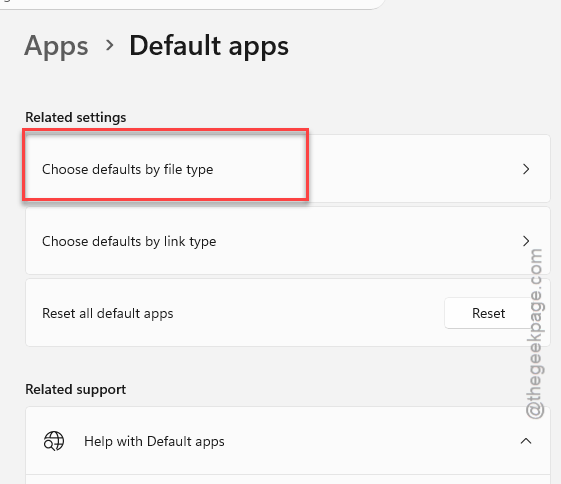
3 – Find .jpg (or whatever file type you want). Click the current default app next to it.
4 – Select Paint from the list. If it’s not there, click More apps or browse to mspaint.exe.
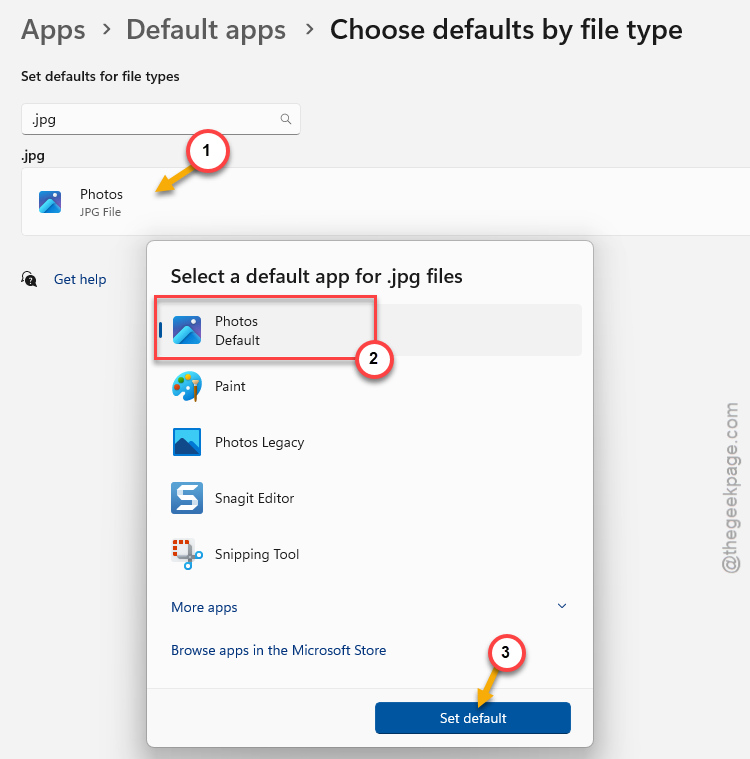
5 – Repeat for .png, .bmp, and any other image format you use.
So yeah, a bit tedious if you have a lot of file types. But it guarantees MS Paint shows up where you need it.
Fix 5 – Add Paint to Open With via Registry Editor
This one’s more advanced. But if nothing else works, this forces Paint into the right-click menu at the system level.
1 – Press Win + R, type regedit, and press Enter. Click Yes on the UAC prompt.
2 – Go to this path in the left panel:
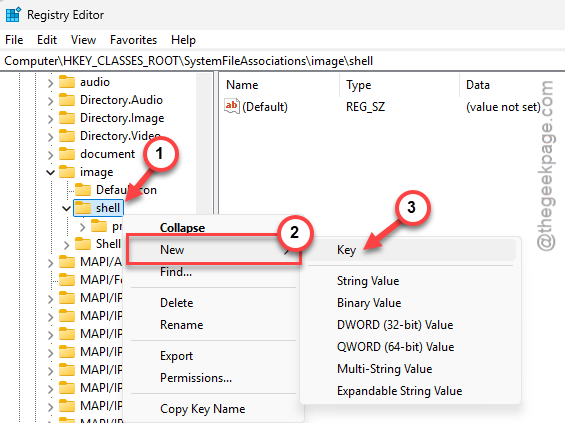
Computer\HKEY_CLASSES_ROOT\SystemFileAssociations\image\shell
3 – Right-click the shell key. Select New > Key. Name it Edit with Paint.
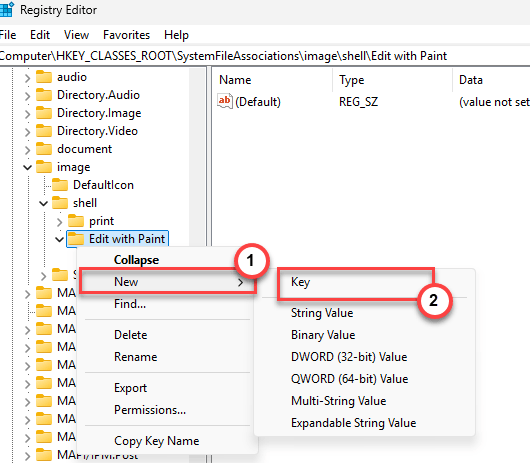
4 – Inside that new key, right-click again. Select New > Key. Name it command.
5 – Click the command key. Double-click (Default) on the right side.
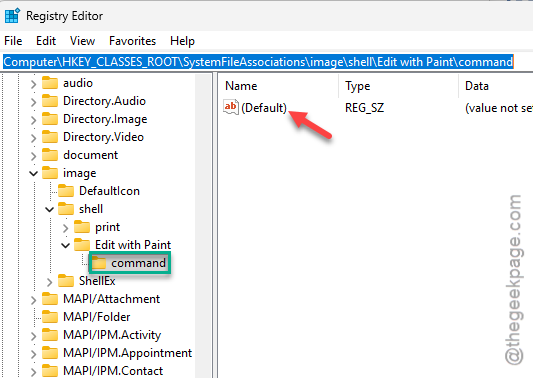
6 – Set the value to:
"C:\Users\YOUR_USERNAME\AppData\Local\Microsoft\WindowsApps\mspaint.exe" "%1"
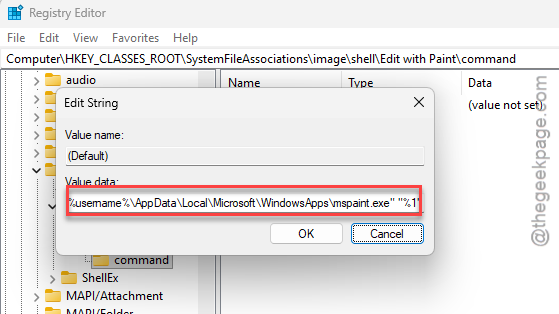
Replace YOUR_USERNAME with your actual Windows username. And make sure the quotes are there — they’re important. After this, “Edit with Paint” will show up when you right-click any image file. Not the prettiest method. But it works every time.
Fix 6 – Reinstall Paint from the Microsoft Store
Nuclear option for this issue. A full reinstall forces Windows to re-register all of Paint’s file associations.
1 – Open Settings > Apps > Installed apps.
2 – Find Paint. Click the three dots. Select Uninstall.
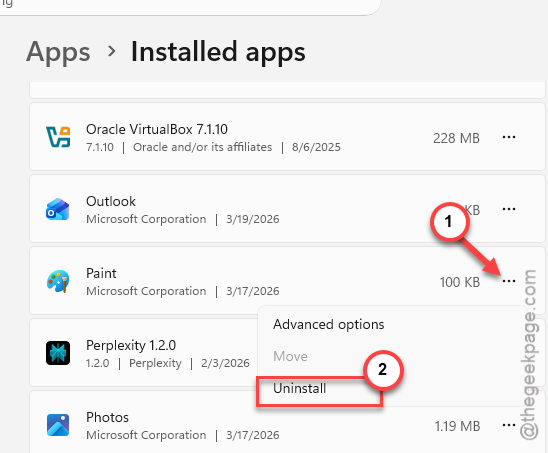
3 – Restart your PC.
4 – Open the Microsoft Store. Search for Paint. Click Install.
After reinstalling, right-click an image and check the Open with menu. Paint should be back. And if it still isn’t? Use the registry fix above. That one is basically guaranteed.
How to Prevent This
- After Windows updates, check that Paint still shows in the Open with menu. These updates love breaking file associations.
- Set Paint as the default for common image types through Settings. More resilient than relying on Open with.
- Keep Paint updated through the Microsoft Store. Newer versions handle re-registration better.
- If you use the registry fix, export the key as a backup. So you can re-import it if an update wipes it again.
People Also Ask
How do I add Paint back to my right-click menu?
Right-click an image, go to Open with > Choose another app, and browse to mspaint.exe. Or use the registry method — create an “Edit with Paint” key under HKEY_CLASSES_ROOT\SystemFileAssociations\image\shell. Both work. The registry way is more permanent.
Why did Paint disappear from my Open With options?
Windows updates sometimes wipe file association entries for Store apps. Paint is still installed on your PC. Windows just forgot to list it. A repair, reset, or reinstall usually brings it back. For some reason this happens more with Paint than other apps.
How do I set Paint as the default image editor in Windows 11?
Go to Settings > Apps > Default apps > Choose defaults by file type. Find .jpg, .png, or whatever format you want. Click the current default and switch it to Paint. You’ll need to do this for each file type separately. Tedious. But it sticks.