Does the equations on your Microsoft Word document not automatically converting to professional mode? If you have run into the same problem on Microsoft Word, you might feel relieved to know that you are not the only one and the same situation. Here are some fixes along with the reason for this error to fix the issue on your own.
Possible reasons behind this problem ~
The reason why your equations are not automatically converting to professional mode may not be singled out to one particular cause. It can be due to the wrong user input, like if the formula or equation is copy-pasted from elsewhere. Then there is the LaTeX and Unicode typesetting contradiction that can create this issue.
Fix 1 – Use the Unicode
Use either the Unicode or LaTeX format for all the equations on the Word document.
Step 1 – On your Microsoft Word document, select the equations. Go to the Insert tab and select the Equations tab.
Step 2 – Look at the Conversions tab.
Step 3 – Check which conversion type you are using. Either it should be in the LaTeX or Unicode format.
Step 4 – Select the Unicode, unless you are using the dedicated LaTeX format. Make sure to select the particular mode according to your preference.
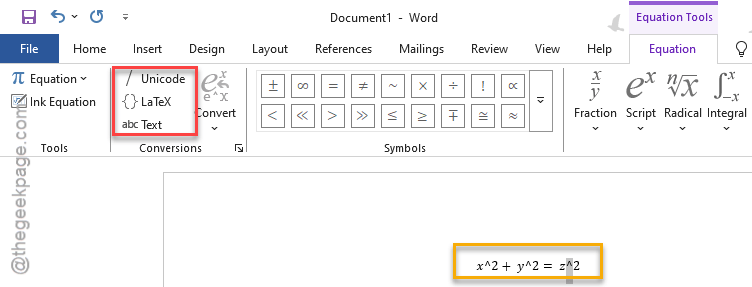
See if this works.
Fix 2 – Repair the Office client
Modify the Office client, if any missing or corrupted component is causing this issue.
Step 1 – Start by opening a Run panel box using Win+R shortcut key.
Step 2 – Next, type this there and click OK.
appwiz.cpl
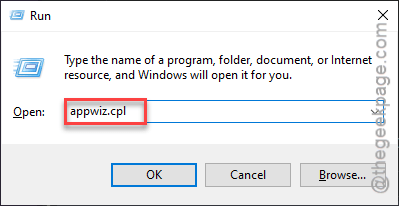
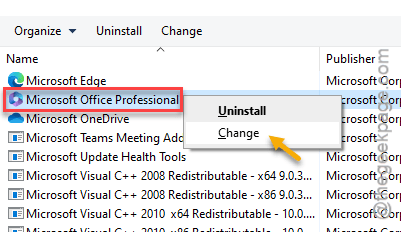
Step 3 – Next, look for the Office package file in the app list. Right-click that and click the Change option.
Step 4 – Tap the Online Repair option and use the Repair option.
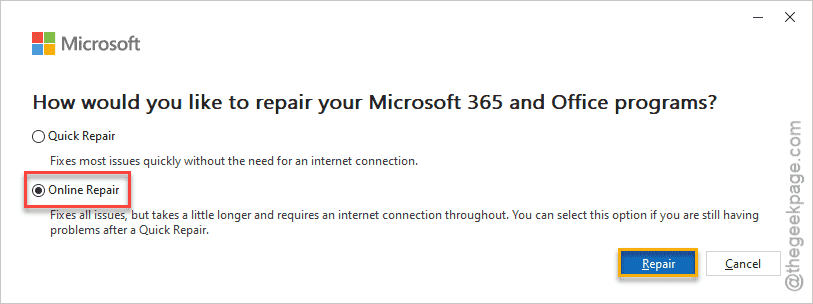
Wait for a few minutes. The online repair method does take some time to repair the Office files.
See if this works out for you!
Fix 3 – Launch the Word in Safe Mode
Launching the MS Word in Safe Mode should resolve the issue at your end.
Step 1 – At first, press the Win+R buttons at once.
Step 2 – Next, put this in the box. Click OK.
winword /safe
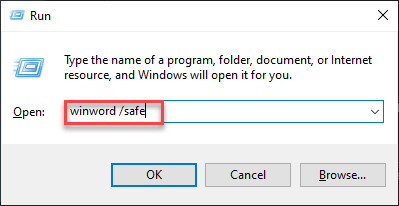
This will launch the MS Word without any third-party plug-ins or features.
Input the same equations now and check it yourself.
Fix 4 – Convert the Equation to professional mode
You can manually convert the equations to professional mode using shortcuts.
Step 1 – While iterating any equation, or if you have any existing equation, select it.
Step 2 – Then, use the Alt + = shortcut keys to load up the equation settings.
Step 3 – Now, go this way –
Insert > Equations
Step 4 – Tap the Convert option and choose the All-Professional mode.
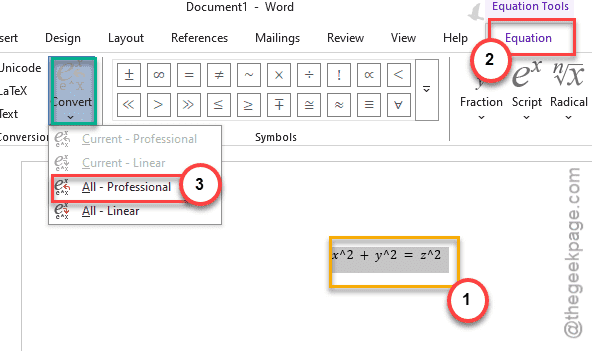
Step 5 – Otherwise, you can also tap the small down arrow button to open the Equation options.
Step 6 – Select the All-Professional mode.
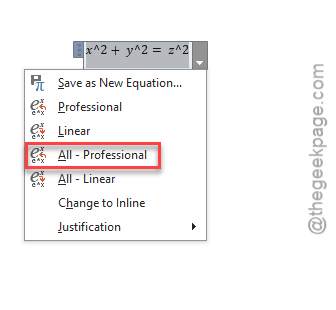
This way, all the equations will be in the professional mode automatically.