Does your Apple Watch keep entering Low Power Mode or Power Reserve mode despite having a nearly full charge? This weird issue has been reported by many affected users, where the affected Apple Watches keep going to the low power mode without any user input. This is normally a calibration error that can be fixed manually without taking the Apple Watch to a service center. Here are the steps to follow and fix the issue.
Fix 1 – Do a Hard Battery Recalibration
The Apple Watch enters Power Reserve or Low Power Mode at 20-30% charge; that is a calibration fault that you can fix following these steps.
Step 1 – Let the Apple Watch lose battery power and drop dead completely. You have to ensure it goes to 0%, when pressing the digital crown does not even show the time.
Step 2 – Place it on the charger and let it charge 100% without any interruption.
Step 3 – Once the Apple Watch battery reaches 100%, keep it on the charger for an additional 1-2 hours.
This will stabilize the Apple Watch battery and won’t put it in reserve mode automatically.
Fix 2 – Turn OFF the Low Power Mode
The Low Power Mode is designed to kick in automatically if the battery goes below a certain level.
Step 1 – On your Apple Watch, tap the ⚙ button to open the Watch Settings.
Step 2 – Go to the Battery tab.
Step 3 – Find the Low Power Mode and turn it OFF from there.
Step 4 – Check the Maximum Capacity marker there.
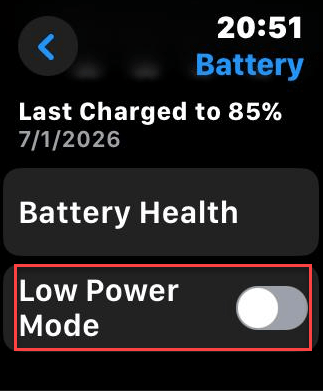
If it shows a reading below 80%, it can be because the Apple Watch is going into reserve mode to protect the Apple Watch.
Fix 3 – End residual Workout processes
If a power workout activity is running in the Apple Watch background, it can cause watchOS 26 to crash into low power mode.
Step 1 – Open the Workouts app.
Step 2 – Ensure there are no active or paused workout sessions running. It usually shows up directly on the watch face.
Step 3 – Swipe the right side and click the cross button to end any such processes.
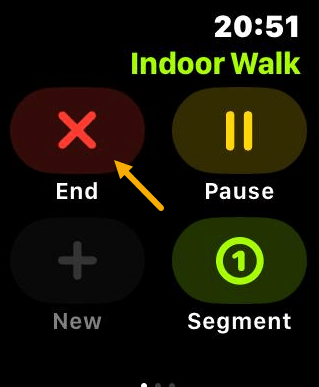
After you have ended the workouts, they won’t cause high battery drains anymore.
Fix 4 – Tweak the Wake on Wrist Raise
The sensor that controls the Wake on Wrist Raise feature might be ovoveracting ifhe Apple Watch is entering into low power mode in your sleep.
Step 1 – Open the Watch app on the iPhone.
Step 2 – Go to the Display & Brightness settings.
Step 3 – Turn OFF the Wake on Wrist Raise feature in there.
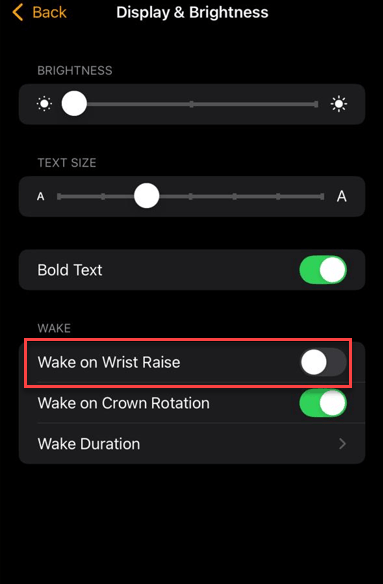
After disabling this, use the Apple Watch for a day and track whether the watch is going into low power mode automatically or not.
Fix 5 – Remove third-party Battery Complications
Some users have found out that the third-party battery complications on the Apple Watch can sometimes heavily drain the wearable’s battery.
Step 1 – Long press the watch face on the Apple Watch, tap Edit.
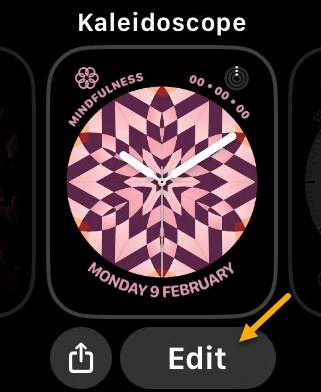
Step 2 – Swipe until you reach the Complications tab.
Step 3 – Remove any non-Apple related complications from the watchface from the Apple Watch. Simply, set those complications to None mode.
Step 4 – Restart your Apple Watch once.
This way, this low power mode issue can be resolved on your Apple Watch.