Does your iPhone popping up a Low Storage Space message even when you have enough storage space? Some users have reported this issue in Apple community threads, where the affected devices have shown this strange sign even there is a ton of free space on the device. You should apply these fixes as they have fixed the problem, following these steps –
Fix 1 – Install via iTunes/Finder
Users have fixed this problem by updating their iPhones via Finder or iTunes app.
Step 1 – Do connect the iPhone to your MacBook or Windows PC/laptop using a data cable.
Step 2 – If you are using a MacBook, open Finder.
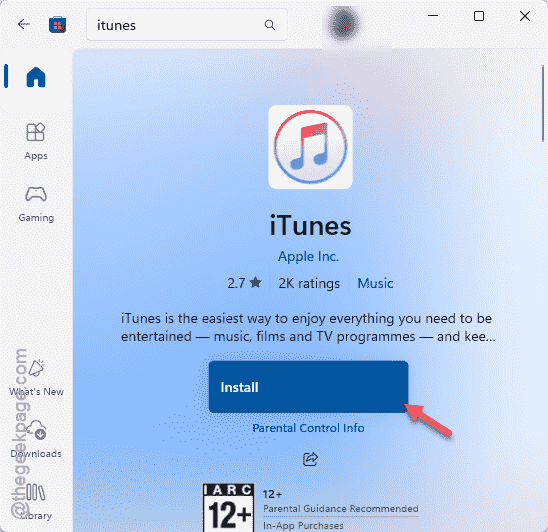
If you have connected the iPhone to a Windows machine, make sure to install iTunes from the Microsoft Store. Open up the iTunes, once it is installed.
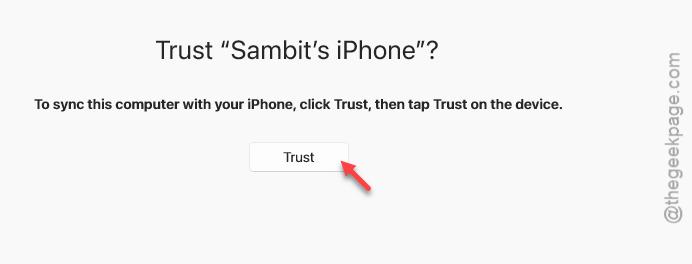
Step 3 – There it will ask for a confirmation prompt. You may get a Trust prompt on your devices to authenticate your access. Tap the Trust button there to proceed.
Step 5 – Now, once you are on the iTunes app, tap to select your iPhone from the left-hand tab.
Step 6 – Then, go to the General section. Find and use the Check for Update to update the software of the iPhone.
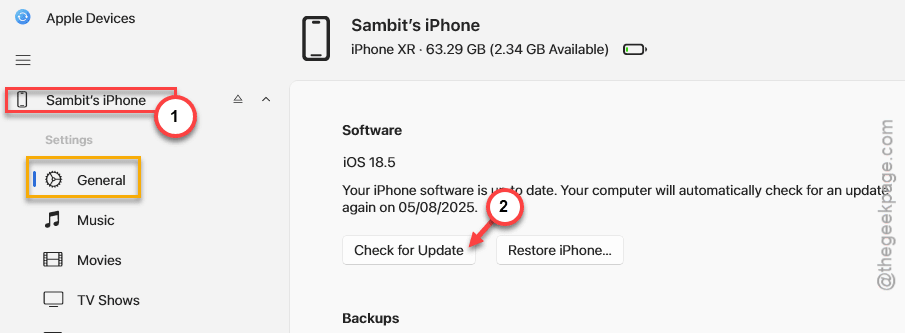
It will download and install the pending update on the iPhone. It will solve the issue for sure.
Fix 2 – Review Other Category and Offload Unused Apps
iOS put the space occupied by unknown file types in the Other category in iPhone Settings. Even sometimes, this message may show up when the iOS is indexing the files on the device.
Step 1 – Open iPhone Settings. Then, go to the General tab.
Step 2 – Next, go to the iPhone Storage.
Step 3 – Wait for a few seconds, like 10–20 seconds, for the iPhone storage to load up.
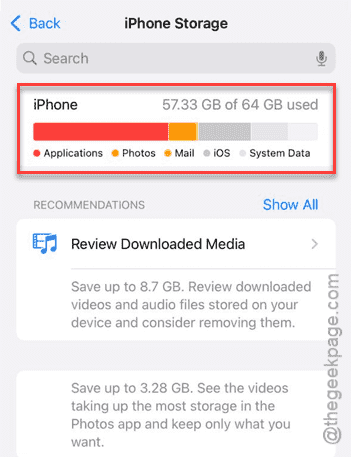
If it is taking time to load up the storage bar or showing ‘Calculating’ stage, that means it is indexing the storage on the device. Just leave the iPhone in locked state and put it to charge for 15–30 minutes.
Later, this message should disappear.
Fix 3 – Clean up Safari Cache & Website Data
The website data can eat up too much space on the iPhone. So, you should clear them along with
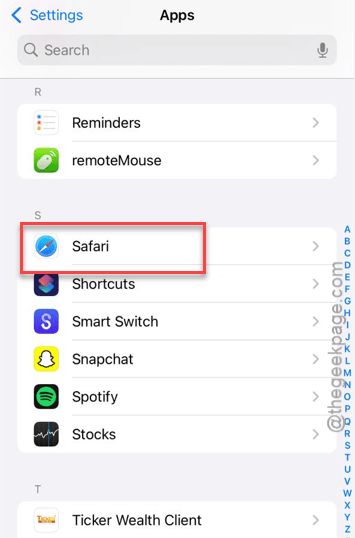
Step 1 – Go to the iPhone Settings panel. Go to the Apps page. Next, load up the Safari settings.
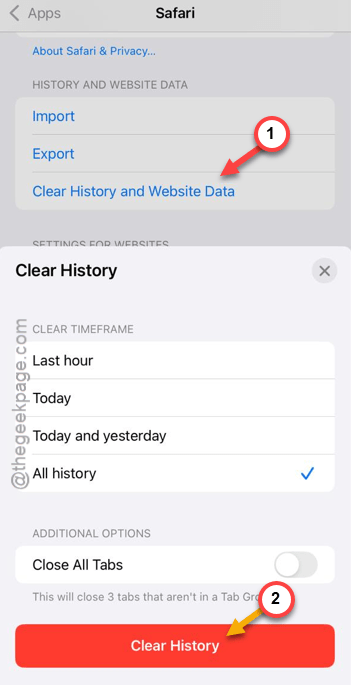
Step 2 – Tap Clear History and Website Data. Set it to All mode and clear it up.
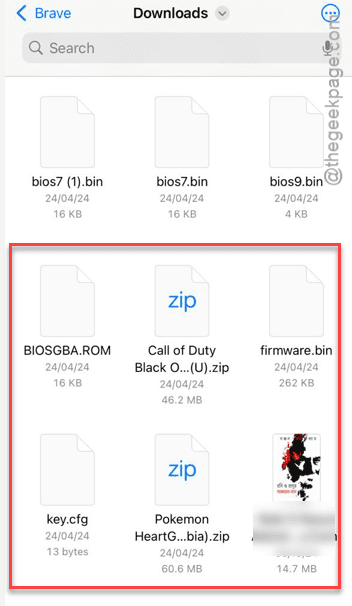
Step 3 – Later, open up Files app and proceed to the Downloads page.
Step 4 – Find any files that are consuming too much space and remove them from there.
Step 5 – Proceed to the Photos app and delete duplicate photos from the Duplicates folder.
This will open up a lot of free space on the device and remove that annoying Low Storage Space message.
Fix 4 – Offload any big, unnecessary apps
You should uninstall (offload) any big, unnecessary apps from the device to free up more space.
Step 1 – In the iPhone Settings, go this way –
General ⇾ iPhone Storage
Step 2 – Set the sort filter to Size mode to sort via the size of apps.
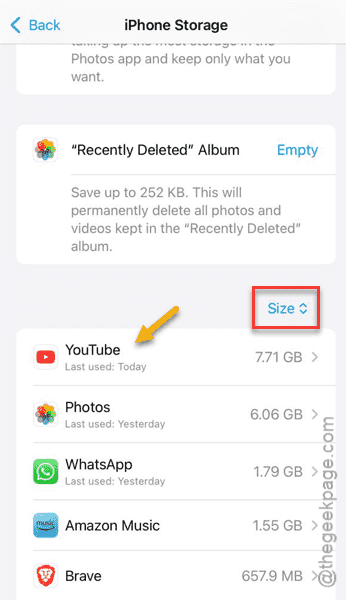
Step 3 – Find any such app that is eating up space on your iPhone. Offload such apps to clear up space.
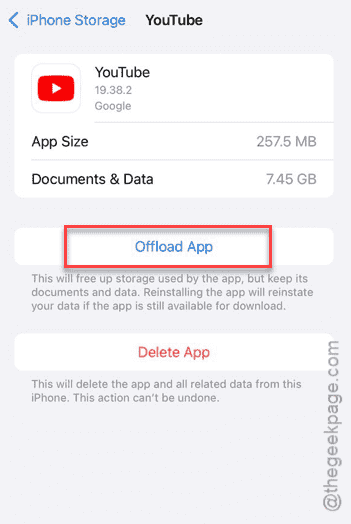
It will fix the storage issue.
Fix 5 – Update to the latest iOS patch
If this has happened after updating to iOS 26, this can just be a bug in that build of iOS 26.
Step 1 – Load up the iPhone Settings console. Go to the General tab.
Step 2 – Proceed to the Software Update tab.
Step 3 – Use the Update Now option to download and install the latest version of the iOS.
After this, the iPhone will download the pending iOS update and install it.