In iOS 26, the Always-On Display (AOD) may turn off unexpectedly due to the proximity sensor issues. Some users have complained about this problem in recent times, where the Always On-Display is turning off unexpectedly. Here are some resolutions you can apply to fix the issue.
Fix 1 – Disable the Adaptive Power Mode Feature
The iOS 26 offers the Adaptive Power Mode feature that can dynamically enable or disable the AOD feature based on your usage patterns.
Step 1 – Go to the iPhone Settings. Then, proceed to the Battery tab.
Step 2 – Tap on Power Mode.
Step 3 – Ensure that Adaptive Power Mode is toggled to OFF.
The Adaptive Power mode or the regular Low Power mode can kill the Always On Display in iPhone to save battery power.
Fix 2 – Turn OFF Attention Aware Features
There are reports of a bug that can disable the AOD if you are not looking at the screen directly. This is controlled by the Attention-Aware feature.
Step 1 – Open the iPhone Settings and proceed to the Face ID & Passcode settings.
Step 2 – Then, find the Attention Aware Features option.
Step 3 – Toggle this to OFF mode.
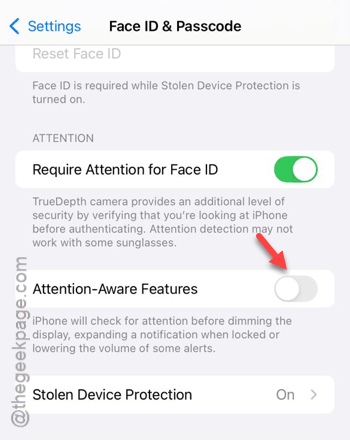
Now, check whether the display stays ON or not. This prevents the iPhone from timing out the AOD when you are looking at the device.
Fix 3 – Reset the Proximity Sensor
Sometimes, it is a faulty case or a screen protector that is triggering iOS 26 to trigger the Pocket Mode, where the Always On mode is disabled by default.
Step 1 – Take a clean piece of cloth and clear the area around the Dynamic Island/Face ID sensor region.
Step 2 – Then, open the iPhone Settings and proceed this way –
Accessibility > Touch
Step 3 – Set the Vibration to OFF and ON mode.
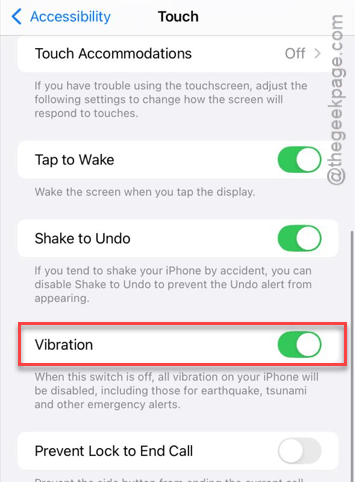
This should refresh the proximity sensor polling rate and fix the issue.
Fix 4 – Toggle the Walk-Away Feature
The Always On mode on iPhone is designed to turn off automatically when you walk away from your iPhone.
Step 1 – Proceed to the iPhone Settings. Go to the General section.
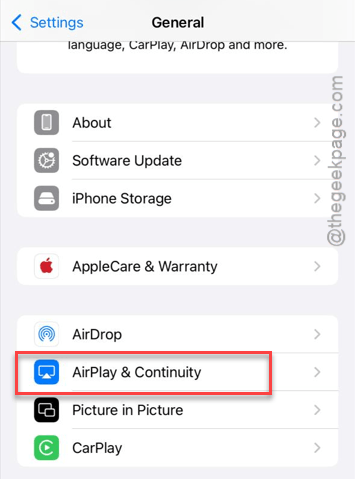
Step 2 – Load up the AirPlay & Continuity tab.
Step 3 – Toggle the HandOff to OFF mode. Then, set it back to ON.
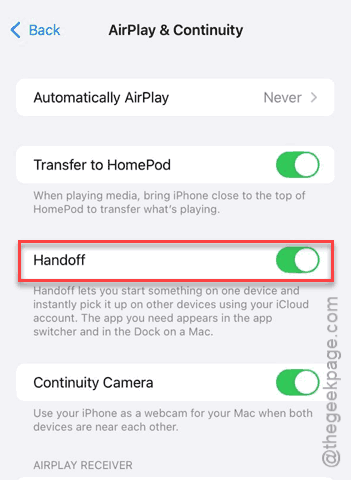
After enabling the HandOff feature, the Always On mode should be functional once again on the iPhone.
Fix 5 – Disable Sleep Focus Overrides
The latest version of iOS 26 has this feature where certain Focus Modes can override the global AOD settings on the iPhone.
Step 1 – At first, open up the iPhone Settings.
Step 2 – Then, proceed to the Focus tab.
Step 3 – Tap the Do Not Disturb settings.
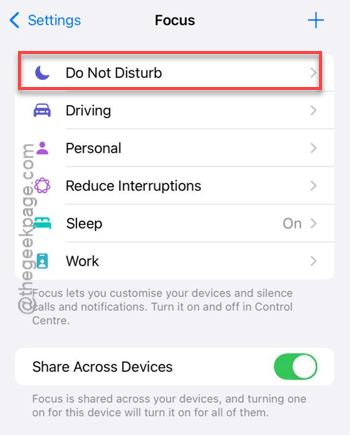
Step 4 – Click the Options in the Allow Notifications tab.
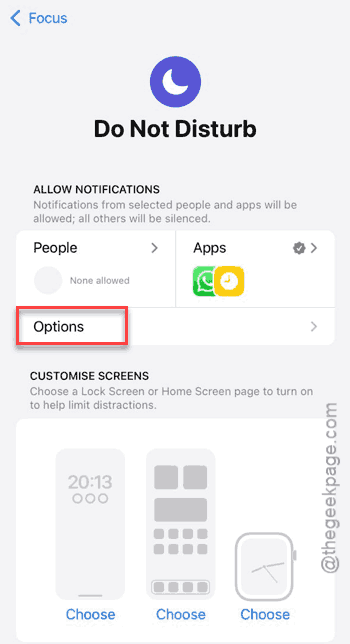
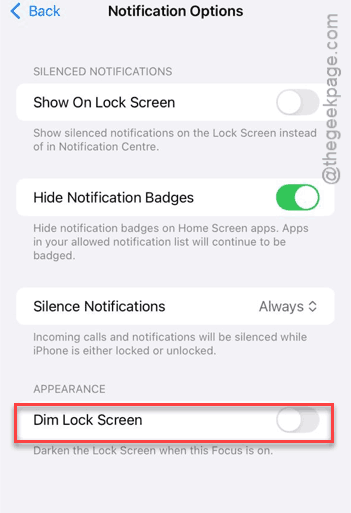
Step 5 – Then, ensure Dim Lock Screen is toggled to OFF mode.
Step 6 – Also ensure that the Share Across Devices is OFF.
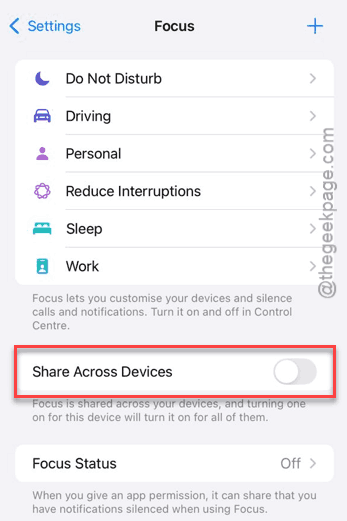
Step 6 – Return to the main Focus page and open up the Sleep focus settings.
Step 7 – Do the same thing for this one as well. Disable the Dim Lock Screen and Share Across Devices feature.
The Always On Display function should work just fine.
Hope these fixes have worked out for you!