Some users have noticed a problem on their MS Teams client where the app is not detecting the device microphone. If this problem has affected your system, you won’t be able to use the microphone in the meetings. So, you should give this issue a top priority and address this microphone issue as soon as possible. Here are these proven fixes that will help you troubleshoot the issue at your end.
Fix 1 – Manually Configure the Microphone Settings in Teams
If you have a dedicated microphone apart from the system microphone, Teams might be configured to the wrong microphone.
Step 1 – At first, load up the MS Teams client on your system. Tap the three-dot button in the app, and tap the Settings.
Step 2 – In the Teams Settings console, go to the Devices tab.
Step 3 – On the right-hand pane, go to the Audio settings section. Switch the Microphone settings to the particular microphone device that you want to use as your primary device.
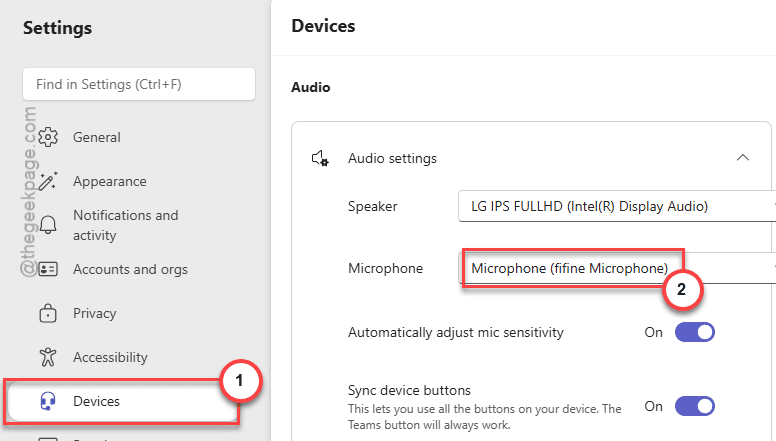
Once you have rectified the microphone device, close the Settings panel in the Microsoft Teams app. Start a demo call or a meeting to test whether the microphone is working.
Fix 2 – Permit the Teams app to Use Microphone
Windows does not automatically provide Teams app access to microphone.
Step 1 – Minimize the Teams client and head on to the Settings console. Next, go to the Privacy & Security tab.
Step 2 – Then, proceed to the Microphone settings.
Step 3 – In the Microphone settings, turn on the Microphone access feature.
Step 4 – Now, make sure the Let apps access your microphone permission is enabled. Next, scroll down through the list of apps, and turn on the Teams app microphone permission.
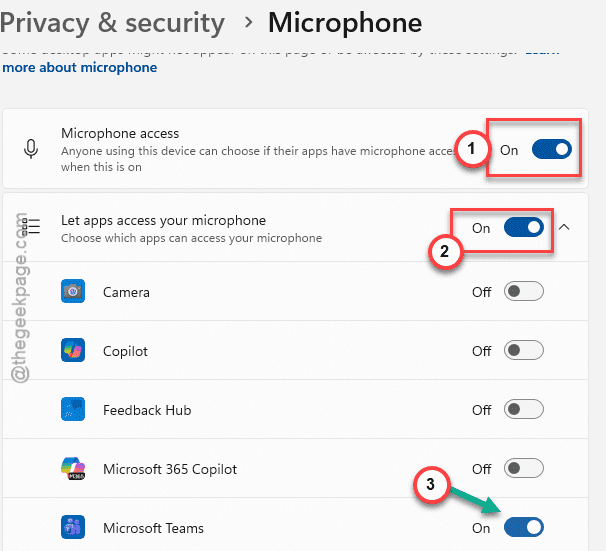
Once you have provided this permission, Teams app has the proper permission to use the microphone. Go ahead and start to use the Teams app and test.
Fix 3 – Uninstall and Reinstall the Device Manager
If you are still having issues with the microphone settings on Microsoft Teams, you must uninstall the microphone driver, and reinstall the same.
Step 1 – At first, right-click the Windows icon, and tap the Device Manager to load up the utility.
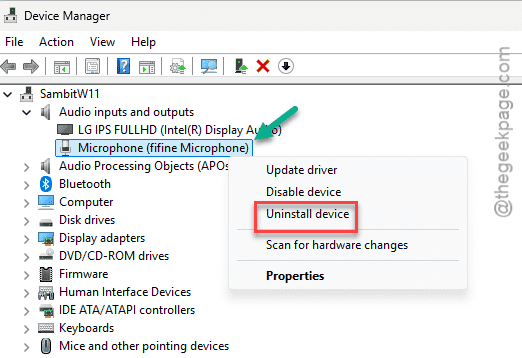
Step 2 – In the Device Manager utility, expand the Audio inputs and outputs section.
Step 3 – Find out the microphone device that you are using from the drop-down list. Next, right-click the microphone and tap Uninstall device.
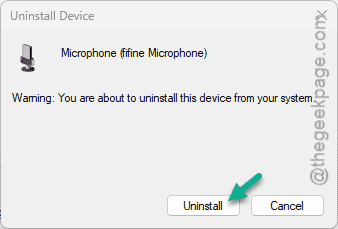
Step 4 – Then, tap the Uninstall button to uninstall the microphone from your system. If you see the Delete the driver software for this device option, check it.
After this, close the Device Manager console. Restart the computer after uninstalling the microphone driver.
Now, while the Windows is rebooting, it will automatically reinstall the removed microphone driver. After completing this driver refresh process, check whether the microphone is working correctly or not.
NOTE – You can download and install the microphone driver update package from the microphone manufacturerer’s website as well.
Why MS Teams Can’t Detect Microphone?
Microsoft Teams not able to detect the microphone can be due to misconfigured microphone settings, lack of microphone permission, wrong microphone driver. It can be easily solved by rectifying the correct microphone device in the Device settings of Microsoft Teams settings.