Don’t want the Mail app from showing up in the search results? A set of users seem to be on the hunt for a way to hide the Mail app from showing up in the search results. If you are looking for the same fix, this is the right place for you. But first, you should take a look why Apple Spotlight enlists almost everything on your iPhone in the search results.
Why Spotlight is showing up the Mail app?
When you query something, using the Apple Spotlight, it returns all the items in the search results page. This includes search results from all the places like, apps, documents and files, images, emails, messages and the list goes on. The Spotlight goes one step forward and show you results from the web, App Store as well. So, when you type ‘Mail‘ in the search tab, the app shows up at the top of the search result.
Mail is a very sensitive app that contains a lot of personal or business mails. So, many iPhone users may not want the Mail app to appear in their search result. In that case, you can set the Mail app hidden when you search using the search button.
Way to disable the Mail app from appearing in the search result
There is a very easy way to disable the Mail app from appearing in the search results tab.
Step 1 – To do this, you have to first go to your iPhone’s Settings.
Step 2 – Next, find the “Apps” category by scrolling downwards and open it up.
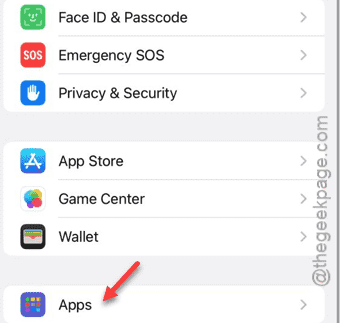
Step 3 – Later, in the Apps tab, look for the “Mail” app. Tap to open it up.

Step 4 – After opening the Mail app, go to the “Search” tab.

Step 5 – In that search page, turn off the “Show App in Search” feature.

After disabling this option, the Mail app won’t show up when you search something from the search box on the iPhone. Although, you can access the Mail app directly from the home screen or directly from the app library. You can ask Siri to open the Mail app as well.