Can’t share your current location with others from your iPhone? Though, it is easy to share your iPhone’s location thanks to Apple’s extensive Find My network, sometimes the shared location may not function correctly. If the location that you have shared is wrong or not updating on the go, that is a serious problem. These tips and tricks will be helpful if your shared location is not working properly.
Fix – 1 Turn on the location services
You must turn on the location services on your iPhone to share it with others.
Step 1 – In the iPhone Settings, open up the “Privacy & Security” option.
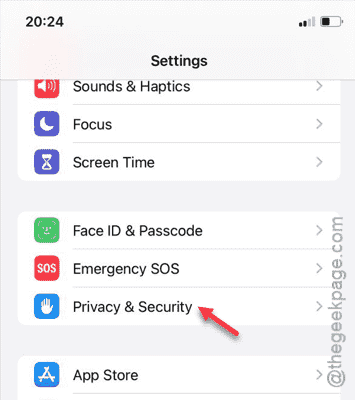
Step 2 – Later, open the “Location Services” panel.

Step 3 – Turn on the “Location Services” option from there.

When the location services are enabled, you can share your location from your iPhone.
Fix 2 – Sign in to your Apple ID/iCloud account
Sharing the location needs the Find My network, which is linked with your Apple ID/iCloud settings. So, you must sign in with your Apple ID.
Step 1 – If you have factory reset the device or formatted it, you must be signed out of the Apple ID.
Step 2 – To do this, get to the Settings page. There, you shall find the “Sign in with Apple ID” in the banner. Tap this and follow the rest of the procedure to log in using your Apple ID credentials.
Once you have logged in, you can share your location with the family and friends.
Fix 3 – Turn on the Share My Location option
Sharing your location with others use the Find My feature on the iPhone. So, you must enable the Share My Location feature.
Step 1 – At once, go to the iPhone Settings.
Step 2 – You must open up the Apple ID banner.

Step 3 – Next, open up the “Find My” panel.

Step 4 – Next, turn on the “Share my location” feature.

After you have turned this on, location sharing should not be a problem anymore. Share the location once more and check it out.
Fix 4 – Disable the Content Restrictions
If the shared location still not working properly, disable the Content Restrictions on your iPhone.
Step 1 – On your iPhone Settings, open the “Screen Time” settings.
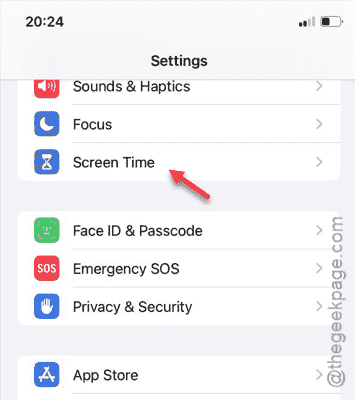
Step 2 – On the next settings page, open up the “Content & Privacy Restrictions“.
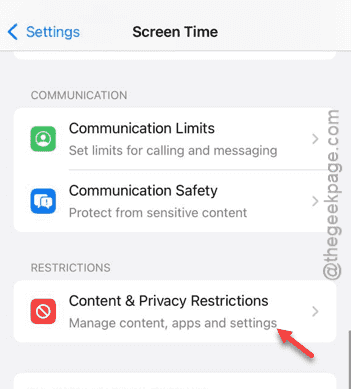
Step 3 – You can disable the “Content & Privacy Restrictions” module directly in there.

You won’t face any problem sharing your location with your friends after you have revoked this.
Check whether if this works out for you.
Fix 5 – Enable and disable Airplane mode
Enabling and disabling the Airplane mode does turn off the location services and re-enable the same.
Step 1 – Scroll down the Control Center and enable the Airplane mode.

Step 2 – Leave the iPhone alone for a few seconds.
Step 3 – Next, get out of the Airplane mode.

Doing this will restart the location services along with the cellular data and restore the Wi-Fi connection.
You can now share the location with your iPhone.