You press the Windows key and start typing. Results appear — a tidy little column of icons. And nothing else. No names. No labels. Just mystery squares, and you’re left hovering over each one like it’s a guessing game. It looks like something deep is broken. It isn’t. This is a rendering bug, and you can fix it without resetting anything.
What’s Actually Going On
A recent update — KB5101650 is the known offender — corrupted part of the CBS client package. That’s the component that draws chunks of the search interface (CBS here is the shell package’s name, not something you’ll ever interact with directly). The icons still render. The text layer doesn’t.
And it compounds. SearchHost, the background process that runs the search window, freezes in that corrupted visual state and keeps serving it. Windows also remembers the window’s old text layout in a registry cache, so even a reboot can bring the blank labels right back.
Sound bad? It’s really not. The fixes go from a ten-second process restart to a Safe Mode cleanup, easiest first.
Fix 1 – Restart the SearchHost Process
Start with this basic process.
1 – Press Ctrl + Shift + Esc to open Task Manager.
2 – Click the Details tab.
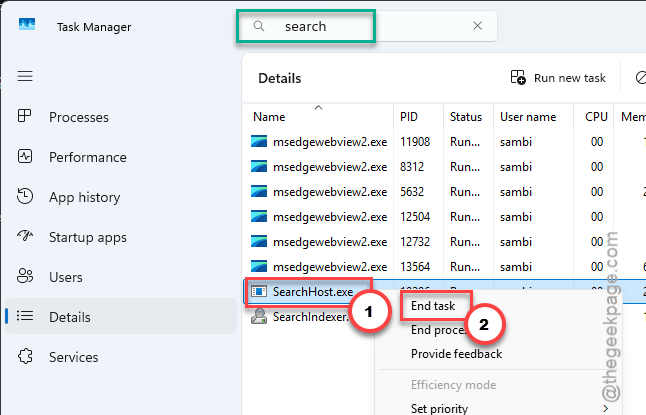
3 – Scroll down to SearchHost.exe. Typing “search” in the search box at the top is faster than scrolling.
4 – Right-click it and select End task.
5 – Confirm if Windows asks.
The process restarts on its own the next time you open search. Fresh process, fresh rendering — check whether your labels are back.
Fix 2 – Delete the Search Registry Cache
This wipes the stored window-sizing memory and forces Windows to recalculate the text layout from scratch. Registry time, so stick to exactly this key and nothing else.
1 – Press Windows + R, type regedit, and press Enter.
2 – Paste this into the address bar at the top:
HKCU\Software\Microsoft\Windows\CurrentVersion\Search
3 – In the left pane, right-click the Search key (the folder itself) and select Delete.
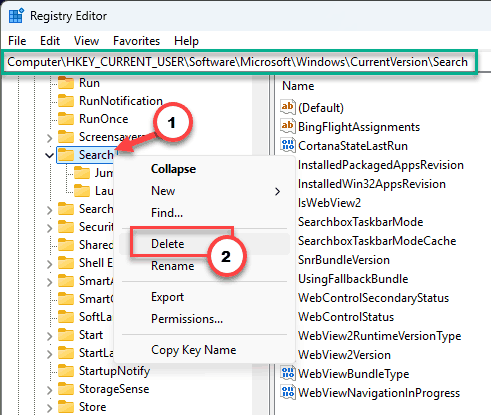
4 – Confirm, then reboot.
Windows rebuilds the key with defaults on startup. Your files and apps aren’t touched — this is layout memory, nothing more.
Fix 3 – Rebuild the Search Index
The index is the database search pulls names from.
1 – Open Control Panel (press the Windows key and type “Control Panel”).
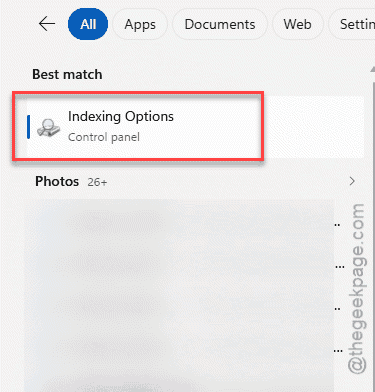
2 – Search for “Indexing Options” in the box at the top right and open it.
3 – Click Advanced at the bottom.
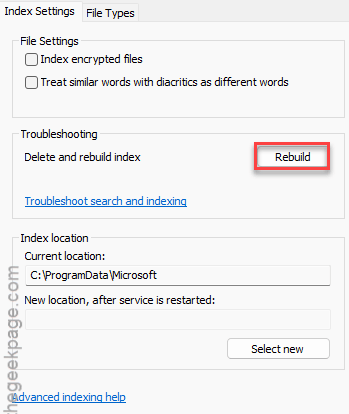
4 – Click Rebuild.
5 – Click OK on the warning about it taking a while.
And it does take a while — anywhere from minutes to a couple of hours, depending on how much stuff you have. Search results stay patchy until it finishes, so kick it off before lunch, not before a deadline.
Fix 4 – Uninstall the KB5101650 Update
Still icon soup? Go after the update that started it.
1 – Open Settings and go to Windows Update > Update history.
2 – Scroll to the bottom and click Uninstall updates.
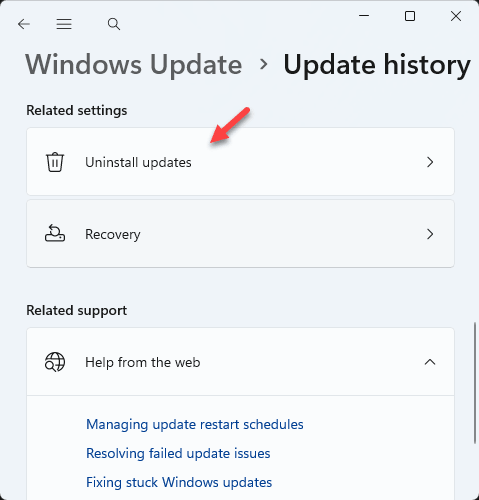
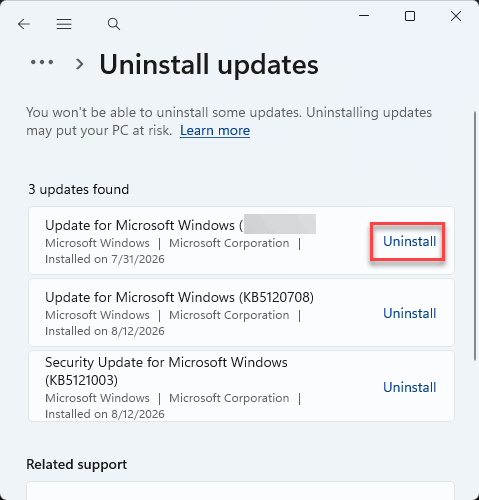
3 – Find Update for Microsoft Windows (KB5101650) in the list.
4 – Click Uninstall and restart your computer.
Windows will try to reinstall it eventually. That’s fine — reinstalling fresh usually lands without the corruption that hit the first attempt.
Fix 6 – Clear the Stuck PackageStatus Value
One more registry stop. This value holds the CBS package’s rendering state, and right now it’s holding the broken one.
1 – Open regedit again, like in Fix 4.
2 – Paste this path:
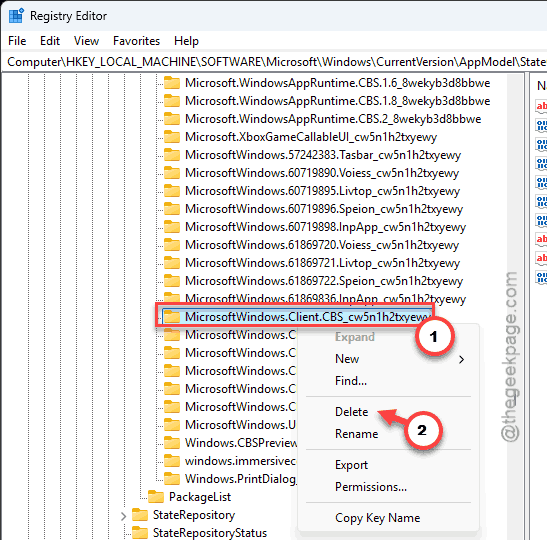
HKEY_LOCAL_MACHINE\SOFTWARE\Microsoft\Windows\CurrentVersion\AppModel\StateChange\PackageList
3 – In the left pane, click the subkey whose name starts with MicrosoftWindows.Client.CBS_.
4 – In the right pane, right-click the PackageStatus value and select Delete.
5 – Restart your PC.
Check if this works.
Fix 7 – Delete the CBS Package Folder in Safe Mode
The deep clean, for when nothing above stuck. You’re deleting the corrupted package cache itself; Windows rebuilds it clean. It needs Safe Mode because the folder is locked during normal use.
1 – Hold Shift and click Restart in the Start menu’s power options.
2 – In the blue Advanced Startup screen, go to Troubleshoot tab.
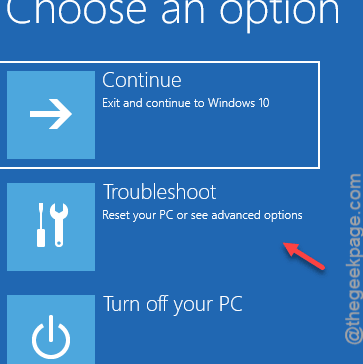
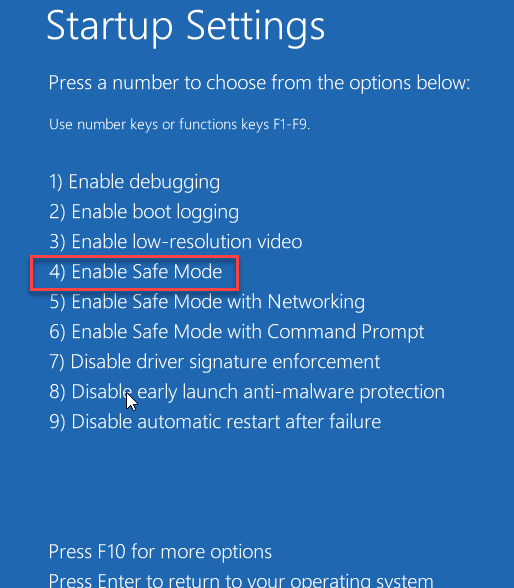
3 – Go to the Advanced options tab and load up the Startup Settings,
4 – Finally, tap the Restart button.
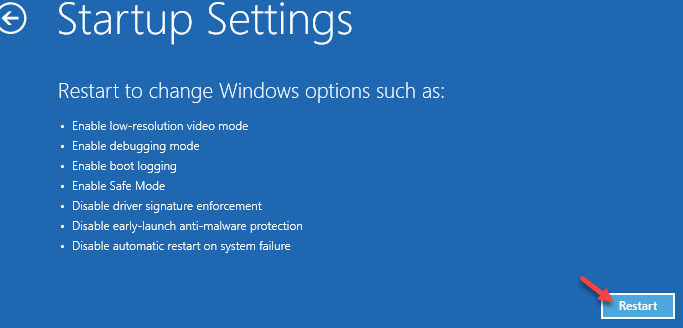
5 – Finally, press 4 to boot into Safe Mode.
3 – Open File Explorer and go to
C:\Users\[Your_Username]\AppData\Local\Packages
4 – Find the folder named MicrosoftWindows.Client.CBS_cw5n1h2txyewy.
5 – Delete it.
6 – Restart normally.
First boot afterward runs a little slow while the cache rebuilds. Expected. Then your search labels come back for good.
Keeping Search Text From Vanishing Again
- Pause updates for a week or two after a big feature drop. Let other people find bugs like this one first.
- If search starts acting weird again, restart SearchHost before anything else. Ten seconds, like in Fix 1.
Quick Answers
Why is my search blank on Windows 11?
A blank or text-less search window points to a corrupted rendering state — often caused by a bad update like KB5101650. Restart SearchHost first.
How do I fix search not working at all in Windows 11?
Work through three layers: restart SearchHost.exe in Task Manager, run the built-in Search and Indexing troubleshooter, then rebuild the index from Control Panel’s Indexing Options. Between those three, most dead-search cases come back without touching anything deeper.
Will rebuilding the search index delete my files?
No. The index is just a catalog — a list of what’s on the drive and where. Rebuilding throws out the catalog and rescans; your actual files never move. The only cost is time, since results look incomplete while the rescan runs.