Password app may not show saved passwords or login information suddenly after updating to iOS 26. Users have reported this problem on various platforms, where the login script seems to be stuck in various apps and the Safari web browser. The Passwords app does store user passwords and log-in IDs securely and show them directly in the appropriate place to ease the log-in experience. These solutions will help you fix this problem.
Fix 1 – Refresh the Autofill Connections
If the Key icon is not showing up in the credentials bar, refreshing the autofill connections should return the Passwords app to normalcy.
Step 1 – Go to the General settings on the iPhone.
Step 2 – Next, tap the Autofill & Passwords settings.
Step 3 – Now, proceed to open up the Autofill Passwords and Passkeys settings. Turn off main option from there.
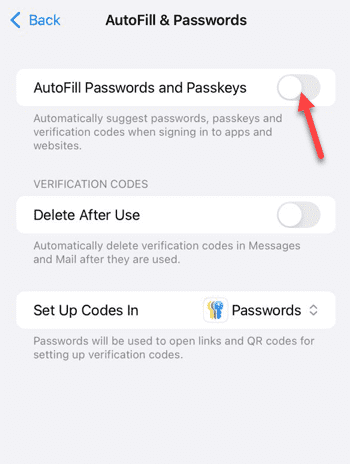
Step 4 – Uncheck the Passwords button in the Allow filling forms section.
Step 5 – Restart the iPhone. After that, tweak both the settings to On.
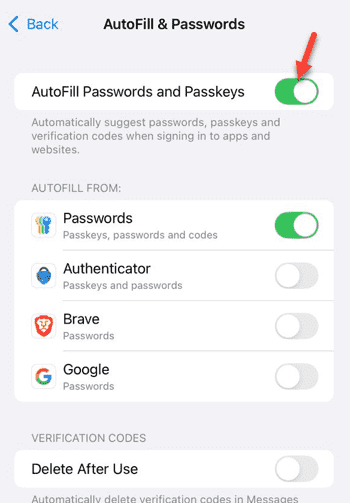
Refreshing the autofill connections setting should fix the problem.
Fix 2 – Refresh the Predictive Text Settings
Turning the Predictive Text feature off and on should refresh it up.
Step 1 – Open the iPhone Settings app, and load up the General settings menu. Proceed to the Keyboard settings.
Step 2 – Then, turn off the Predictive and Show Predictions settings. Wait a few seconds and then, turn them back On.
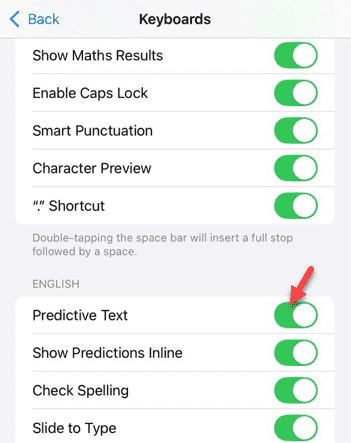
This should force the passkey/password bar to refresh in the main keyboard layout.
Fix 3 – Turn off the Stolen Device Protection
Several users have found that iOS 26’s Stolen Device Protection can prohibit users from authenticating and using the Passwords app if they are not in a familiar location.
Step 1 – Open the Face ID & Passcode settings in the iPhone Settings.
Step 2 – Then, proceed to the Stolen Device Protection settings.
Step 3 – Turn it Off.
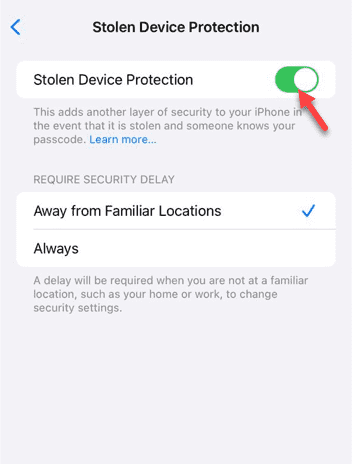
NOTE – If a Security Delay is enacted, you have to wait for an hour before you can actually turn off the Stolen Device Protection feature.
Once it has turned off, try to access the passwords again.
Fix 4 – Reset the Safari Web History
If you are having any issues with the Passwords failing to retrieve saved passwords in Safari, clearing the Safari history should fix this.
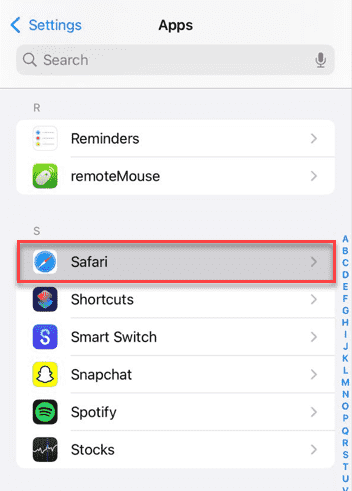
Step 1 – Go to the Apps tab on the iPhone.
Step 2 – Open the Safari app settings.
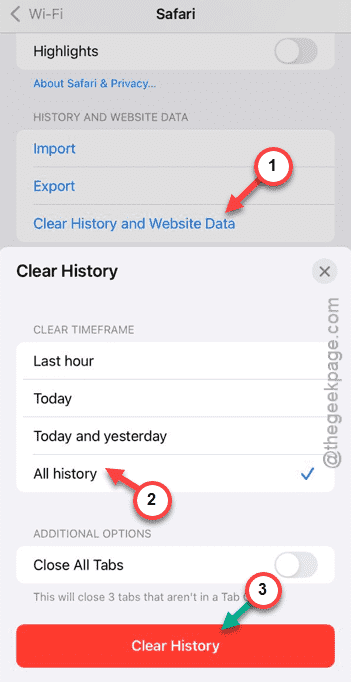
Step 3 – Then, use the Clear History and Website Data option. Tap to select the All History and tap Clear history to clear all the website history.
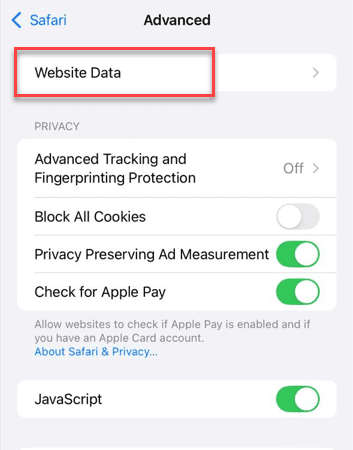
Step 4 – Go this way –
Advanced > Website Data
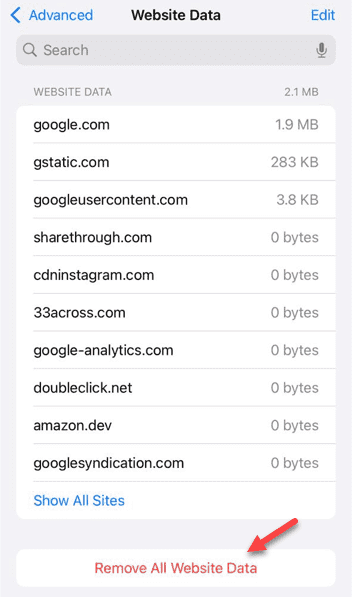
Step 5 – Use the Remove All Website Data to remove all the website data.
This will rejuvenate the login scripts. You can use the autofill prompts again.
Fix 5 – Verify the Passwords App Installation
While the Password app is natively installed on your iPhone, it may not get initialized properly after the iOS 26 update.
Step 1 – Open the App Store.
Step 2 – Search for the Passwords app. If you see the Get option there, use it to install the Passwords app.
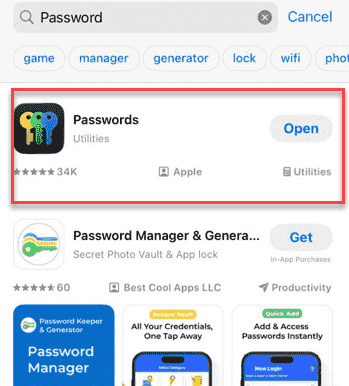
Step 3 – Later, open the app and set it up properly using the Face ID.
Once it is active and running, there won’t be any further issues with the passwords or log-in information not popping up during your log-in session.