You click the notification icon. The panel flashes open for a split second. Then it’s gone. Like it never existed.
This started after a Windows 11 update. And you can’t read any notifications because the panel won’t stay open.
Why This Happens
Short version: the Shell Experience Host is broken. That’s the system process that runs the Notification Center, the taskbar, and the Start menu. All of it.
When a Windows update corrupts this process, the Notification Center opens, realizes something’s wrong, and immediately closes. It’s not crashing exactly. It’s bailing.
And Microsoft keeps shipping updates that break this component. For some reason they never fully fix it. So here we are.
Fix 1 – Restart Windows Explorer
Quickest thing to try. Takes five seconds.
1 – Press Ctrl + Shift + Esc to open Task Manager.
2 – Click the Processes tab.
3 – Scroll down and find Windows Explorer.
4 – Right-click it.
5 – Click Restart.
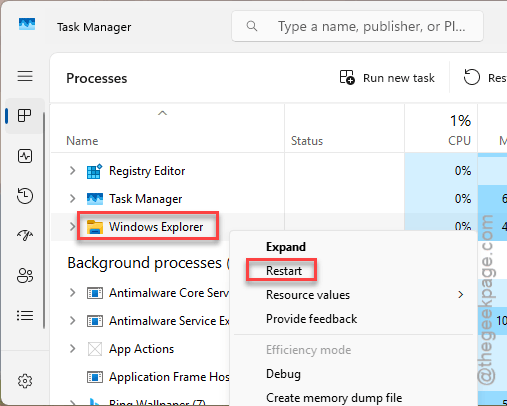
The taskbar flickers and comes back. Try clicking the notification icon now. Working? Great. If not, keep going.
Fix 2 – Re-register Shell Experience Host
This is the fix that works for most people. It re-registers the component that runs the Notification Center.
1 – Press Ctrl + Shift + Esc to open Task Manager.
2 – Click File at the top left.
3 – Click Run new task.
4 – Type powershell in the text box.
5 – Check the box that says Create this task with administrative privileges.
6 – Click OK.
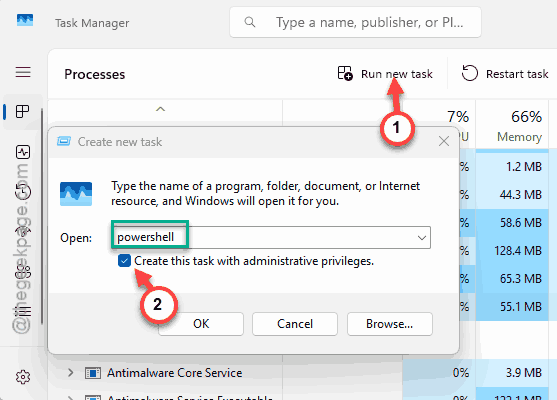
7 – Copy and paste this command, then press Enter:
Get-AppxPackage Microsoft.Windows.ShellExperienceHost | foreach {Add-AppxPackage -register "$($_.InstallLocation)\appxmanifest.xml" -DisableDevelopmentMode}
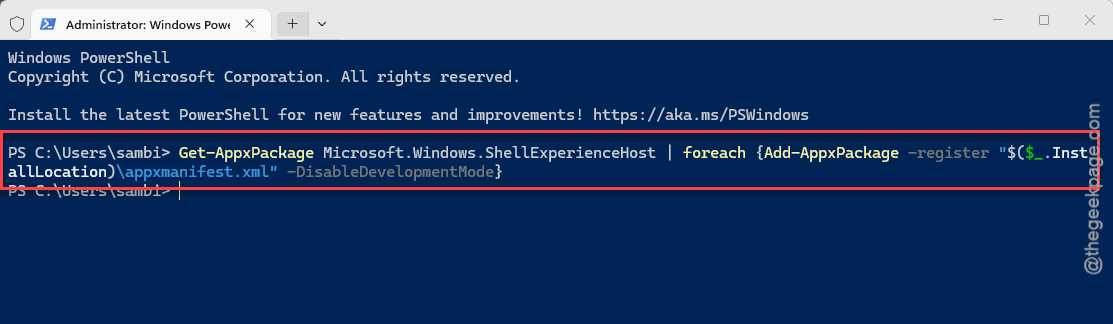
8 – Ignore any red error text. Let it finish.
9 – Restart your computer.
And that should fix it. This basically reinstalls the Notification Center without touching anything else on your system.
Fix 3 – Re-register All Windows Apps
If Fix 2 alone didn’t work? Hit everything at once. Nuclear option for shell issues.
1 – Open PowerShell as administrator (same method as Fix 2).
2 – Paste this command and press Enter:
Get-AppXPackage | Foreach {Add-AppxPackage -DisableDevelopmentMode -Register "$($_.InstallLocation)\AppXManifest.xml"}
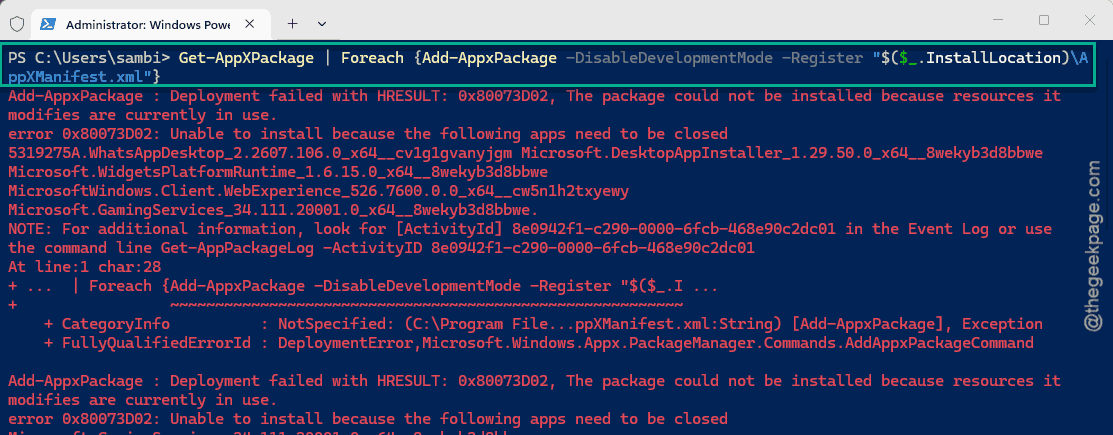
3 – You’ll see a wall of red text. That’s normal. Ignore it.
4 – Wait for it to finish.
5 – Restart your PC.
So yeah, not pretty. But it repairs every built-in Windows app at once. Catches whatever’s broken.
Fix 4 – Run SFC and DISM
Deeper fix. Corrupted system files underneath the shell.
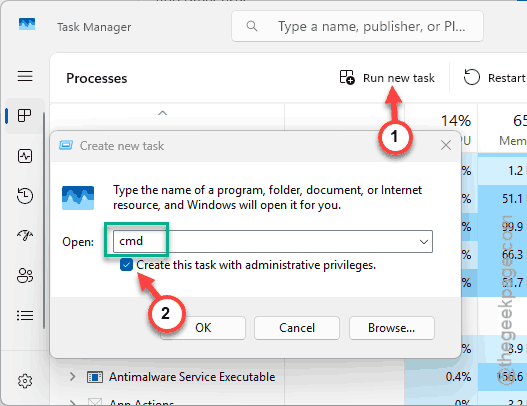
1 – Open Task Manager.
2 – Click File.
3 – Click Run new task.
4 – Type cmd in the box.
5 – Check the admin privileges box.
6 – Click OK.
7 – Type this command and press Enter:
sfc /scannow
8 – Wait for it to finish. Takes a few minutes.
9 – Now type this command and press Enter:
DISM /Online /Cleanup-Image /RestoreHealth
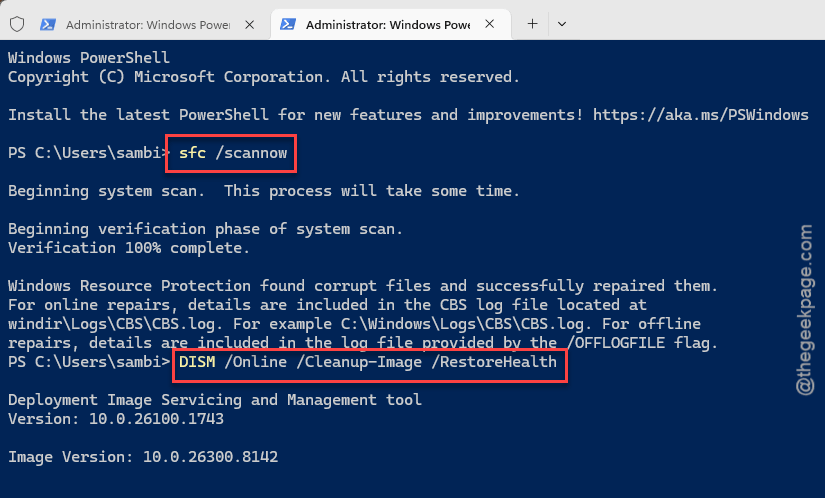
10 – Wait again. This one takes longer.
11 – Restart your PC.
Fixes things the PowerShell commands can’t reach.
Fix 5 – Check for Windows Updates
Microsoft breaks things with one update. Fixes them with the next. Worth checking.
1 – Open Settings.
2 – Click Windows Update.
3 – Click Check for updates.
4 – Install everything available. Including optional updates.
5 – Restart.
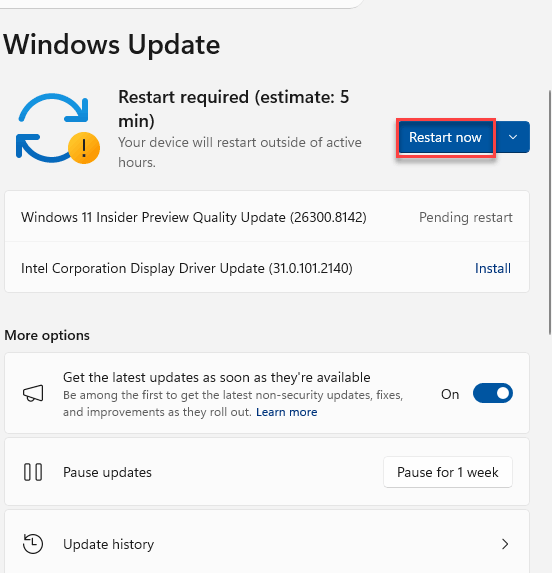
Sound familiar? Yeah. But Microsoft has patched this exact bug in several cumulative updates. So if you’re behind, this might be all you need.
Fix 6 – Create a New User Profile
Nothing working? Might be your Windows profile itself. Not the system.
1 – Open Settings.
2 – Go to Accounts.
3 – Click Other users.
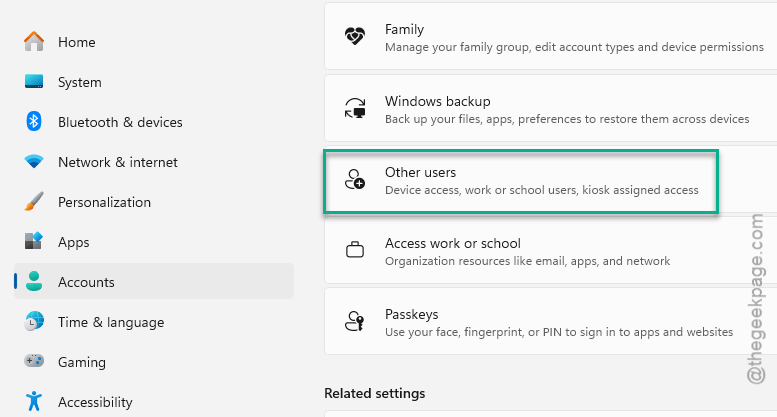
4 – Click Add account.
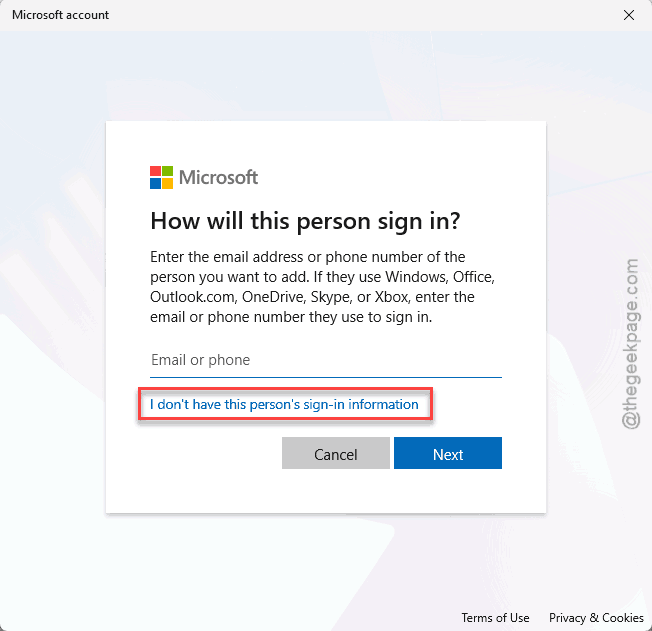
5 – Create a new local account: Tap the I don’t have this person’s sign in information option.
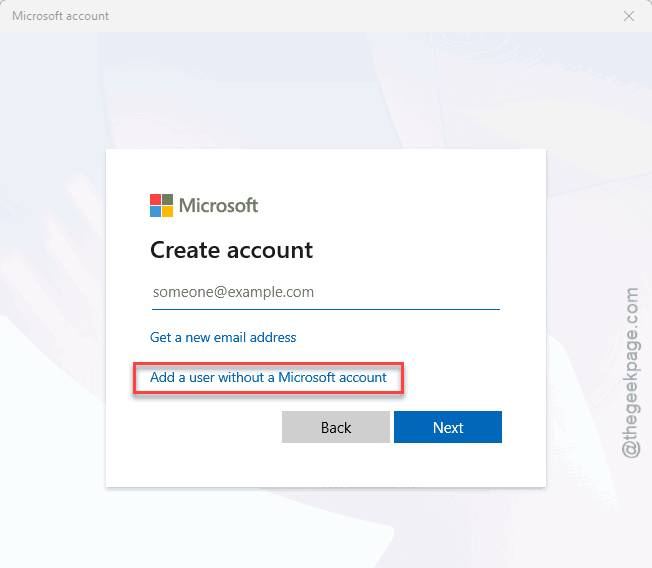
6 – Tap the Add a user without a Microsoft account option. Continue with this to create a local account.
7 – Sign in with the new account.
8 – Test the Notification Center.
Works on the new profile? Your old one has corrupted data. Not ideal. But at least you know where the problem is.
How to Prevent This
- After Windows updates, click the notification icon right away. Catch it early.
- Don’t install third-party taskbar customization tools. They break Shell Experience Host.
- Run sfc /scannow once a month. Catches corruption before it causes problems.
- Keep Windows updated. These bugs get patched. Eventually.
People Also Ask
Why does my Notification Center close immediately in Windows 11?
Probably a corrupted Shell Experience Host. Restart Windows Explorer first. If that’s temporary, re-register it via PowerShell and restart.
How do I reset the Notification Center in Windows 11?
PowerShell as admin. Run the Get-AppxPackage ShellExperienceHost command from Fix 2. Restart. That re-registers the whole thing.
Why is my Windows 11 taskbar glitching?
Usually corrupted Explorer or system files. Restart Explorer. Still happening? SFC and DISM. Then re-register apps via PowerShell.