Some users have recently reported that the motion and fitness data is not updating on their iOS 26 devices. This is evident since the devices have received the iOS 26 update. The Motion & Fitness tracking system may stall due to the inactivity of the sensors. These are the tips you can follow to troubleshoot and fix this issue.
Fix 1 – Re-initialize the Hardware Handshake
If your iPhone has stopped measuring or tracking movements entirely, there are some necessary background processes that may not be operating properly.
Step 1 – At first, go to your iPhone Settings. Next, to the Privacy & Security tab.
Step 2 – Later, go to the Motion & Fitness tab.
Step 3 – Toggle the Fitness Tracking to OFF.
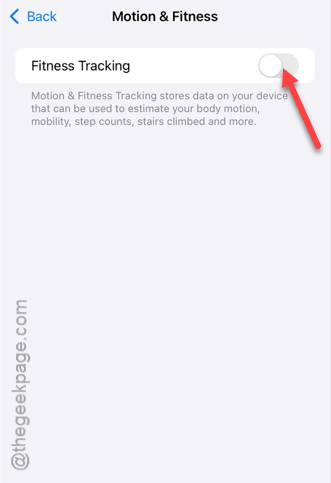
Step 4 – After this, you have to perform a force-restart procedure~
- Quickly press the Volume Up button and release.
- Then, press and release the Volume Down button.
- Finally hold the Side button until the Apple logo appears.
Step 5 – Return to the Fitness Tracking feature and turn it back ON.
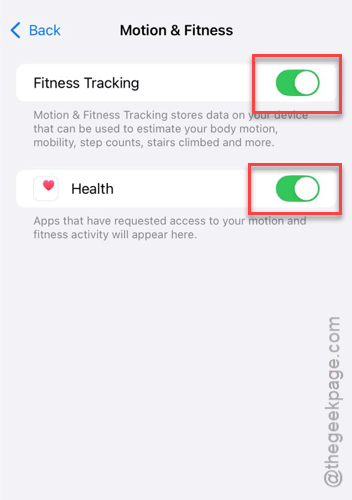
This simple refresh should resolve this issue.
Fix 2 – Trigger the HealthKit Re-Index
iOS 26 on iPhones encrypts the health data index, which may become stuck in the due process and hence cause this sort of issue.
Step 1 – Proceed to the Privacy & Security tab on the iPhone Settings console.
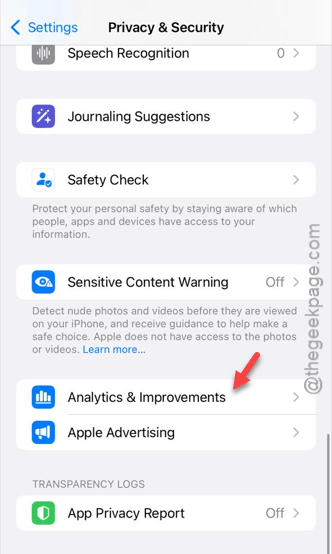
Step 2 – Next, open up the Analytics & Improvements tab.
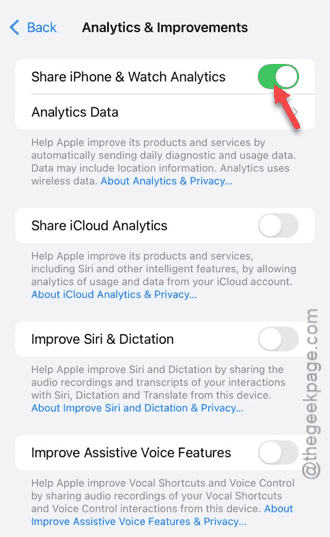
Step 3 – Toggle Share iPhone Analytics to ON.
Step 4 – Now, plug your iPhone into a charger and connect to the Wi-Fi. Leave it alone for 10 minutes.
This should re-index the data on the device and synchronize the motion and fitness data.
Fix 3 – Disable the Adaptive Power Mode
Compared to the traditional low power mode, the new adaptive power mode on iOS 26 is more powerful and may restrict the motion and fitness tracking feature, if the battery level is too low.
Step 1 – Load up the Battery settings on your iPhone.
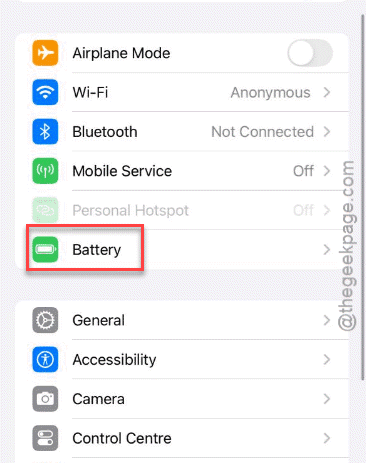
Step 2 – Next, go to the Power Mode settings.
Step 3 – Make sure the Adaptive Power Mode stays OFF.
We recommend you turn off the Low Power Mode as well, unless the iPhone is extremely low on battery juice. It also hinders the basic functionalities like the fitness and motion tracking synchronization.
Fix 4 – Reset the Motion Calibration & Distance
You should refresh the Motion Callibration & Distance service on the iPhone, which is primarily responsible for the motion and fitness tracking service.
Step 1 – Open the Privacy & Security settings on the iPhone.
Step 2 – Go to the Location Services. Open up the System Services there.
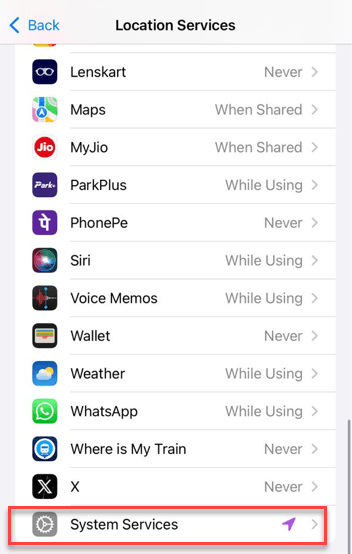
Step 3 – Ensure the Motion Calibration & Distance service is toggled to On mode.
Step 4 – Now, just it turn OFF, and then turn it back ON.
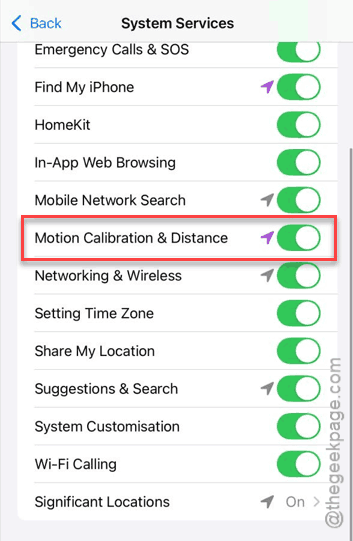
After refreshing this service, check whether the motion and fitness service is working properly in your iPhone or not.
Fix 5 – Reset the Home Screen Layout
If none of the solutions have worked out for you, you should just reset the iPhone’s home screen layout to fix this issue.
Step 1 – Start by going to the General tab on the iPhone Settings.
Step 2 – Then, follow this path –
Transfer or reset iPhone > Reset
Step 3 – Use the Reset Home Screen Layout settings there.
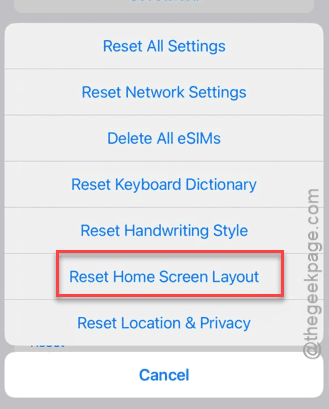
Don’t worry! This will just reset the home screen layout of the iPhone, but won’t touch any of your apps or app data.
Once you are done, the issue will be resolved.