Does your iPhone wallpaper have turned black all of a sudden? This is not an ordinary phenomenon, as the wallpaper or lock screen should not change automatically on your iPhone. So, leave all the tasks aside and go through these solutions to fix it as soon as possible.
Fix 1 – Turn off the Sleep Mode
The iPhone can dim the brightness while the iPhone goes into the Sleep Mode. So, when the iPhone is in Sleep Mode, it can be the reason why the wallpaper is turning black.
Step 1 – You can do this directly from the Control Center. So, swipe down to get access to it.
Step 2 – Now, just tap the “Sleep Mode” to disable it on your iPhone.
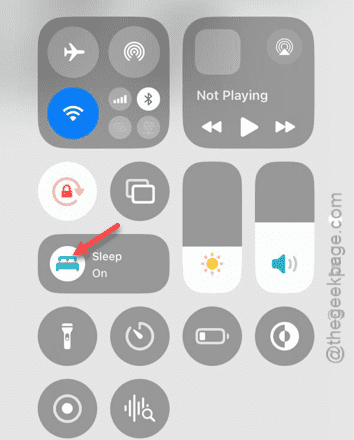
After disabling the Sleep Mode, the wallpaper will automatically stop dimming or turning black on its own.
But, if the wallpaper continues to exhibit the same behavior, you can follow the next fix.
Fix 2 – Force-reboot the iPhone
You should go through the force-reboot procedure on the iPhone to fix the issue.
Step 1 – This is a very simple procedure. So, hit the Volume Plus button.
Step 2 – Next, hit and release the Volume Minus button.
Step 3 – After this, press-release the Power button on the iPhone until the iPhone shuts down and restarts automatically.
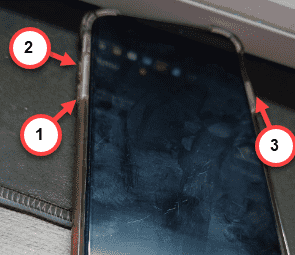
After the iPhone restarts, see the wallpaper on the device. Check whether the wallpaper is still appearing black or not.
Fix 3 – Delete the wallpaper combination
Maybe the wallpaper on the iPhone have become corrupted. In that case, deleting the wallpaper and re-applying it should fix the issue.
Step 1 – At first, lock your iPhone.
Step 2 – Next, wake up the device and while looking at the device, hold the lock screen for a few seconds. This shall lead you to the iPhone customization page.
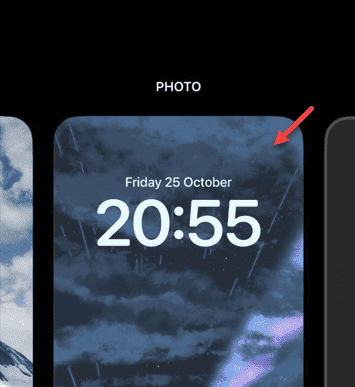
Step 3 – While you are on that page, scroll sideways until you see your current preset of wallpaper and lock screen.
Step 4 – Next, tap the “Delete” option.
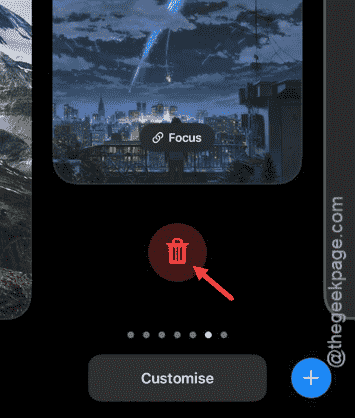
After deleting the wallpaper, you can apply the wallpaper on your iPhone whenever you want. Once you have set the new wallpaper, you won’t face the wallpaper issue anymore.
Fix 4 – Update the iOS
See whether an update is pending on your iPhone and install it on the device.
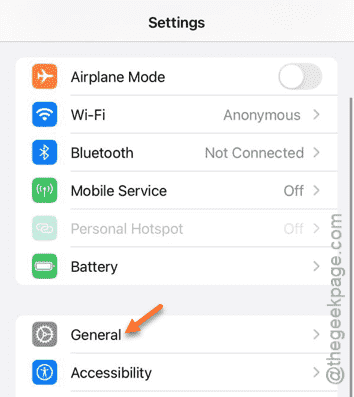
Step 1 – At first, go to the iPhone Settings.
Step 2 – Open the “General” settings.
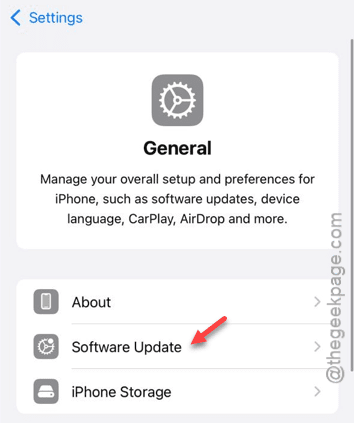
Step 3 – After opening the General settings, load up the “Software Update” page.
Step 4 – Wait for a few seconds. Then, tap the “Update Now” option, if the updates are available.
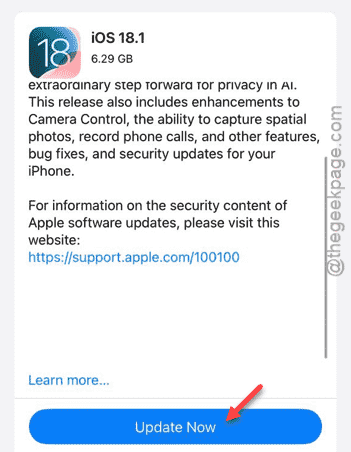
After installing the iOS updates, check whether this works out!