Does your iPhone keep turning on and off by itself? Some iPhone users have complained of this issue on Reddit and other places. Generally, this is a battery problem, but there can be other minor reasons, as well. But, instead of wasting time to look for the cause, you should just spend a minute to fix the issue on your iPhone.
Fix 1 – Charge the iPhone to sufficient level
You must charge your iPhone to a sufficient level (more than 50%) for the device to perform correctly. Less charged iPhone seems to be get affected by this issue more than the others.
So, check the battery level on your iPhone and charge it, if needed.
Fix 2 – Hard restart the iPhone
You can execute the Hard restart procedure to force-restart the iPhone and fix the issue.
Step 1 – This procedure is very simple. All you have to do is to pinch the Volume Up button once.
Step 2 – Next, pinch the Volume Down button on your iPhone.
Step 3 – Later, press and continue pressing the Power button until your iPhone shuts down and restarts automatically.
This whole process should not take more than 15–20 seconds.
So, when the iPhone finally boots up, go to the Software Update page and update your iPhone.
Fix 3 – Check the Battery health
An iPhone with a very bad battery health can’t hold the charge properly. So, see the battery health for yourself.
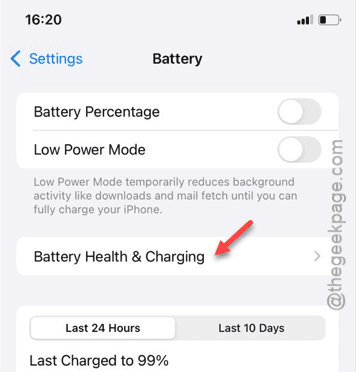
Step 1 – You must go to the Settings window.
Step 2 – Next, go to the “Battery” area.

Step 3 – Next, you must open the “Battery Health & Charging” mode.
Step 4 – Take a look at the “Maximum Capacity” marking.
If your iPhone battery health has reduced significantly, you may face this on and off issue on your device.
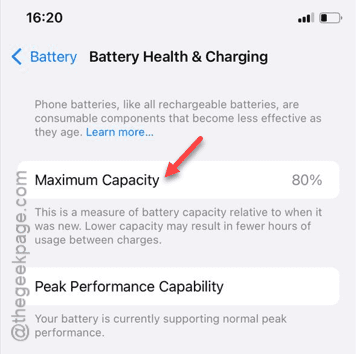
If the battery health has deteriorated too much, you may visit an Apple Service Center to get a new battery for your iPhone.
The problem should be gone when you do so.
Fix 4 – Remove residual iPhone updates
You must delete the residual iPhone updates stored on your iPhone.
Step 1 – We have to start by opening the Settings page. So, open the ⚙ button.

Step 2 – Thereafter, open up the “General” tab.

Step 3 – Inside the General tab, you will find the “iPhone Storage” option. Open this up.

Step 4 – Within a few seconds you will see the storage information there. Scroll down and open the “iOS <version number>” folder.
[The ‘version number’ may change depending upon the downloaded version of iOS.]

Once you have removed the update package from your iPhone, your iPhone will stop turning off and on automatically.
Hope these fixes have helped you.