Is your iPhone stuck in the SOS emergency mode for too long? While the emergency mode is an essential feature on the iPhone, there are certain restrictions placed upon the device while the device is in emergency mode. So, no one wants their iPhone stuck in the SOS emergency mode. This guide will steer you clear off this uncomfortable situation and help you get a quick resolution.
Fix 1 – Enable and disable the Airplane mode
Enable and disable the Airplane mode on your iPhone should reset the network system of the iPhone.
Step 1 – At first, quickly scroll down from the top to get access to the Control Center.
Step 2 – Once you are there, do the necessary to enable the Airplane mode.

As the iPhone goes into the Airplane mode, it disconnects all the network connection from the device. This also includes the Emergency mode.
Step 3 – Now, leave the iPhone aside for 5 seconds.
Step 4 – After it goes through, you can disengage the Airplane mode from the same Control Center.

The network connections, cellular or Wi-Fi shall be restored in no time. Your iPhone should be out of Emergency Mode.
Fix 2 – Turn on the primary line
If you are using an eSIM on your iPhone, Emergency mode may disable it.
Step 1 – Open up the iPhone Settings.
Step 2 – Go to the “Cellular Service” or “Mobile Service” in there.

Step 3 – After opening the Mobile Services page, find your eSIM profile and open it up.
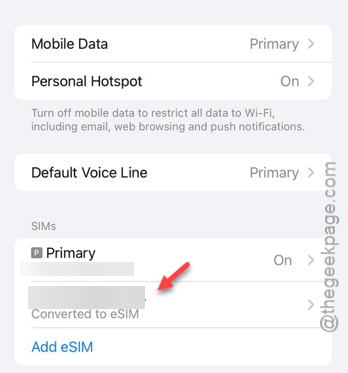
Step 4 – In the eSIM Profile page, disable the “Turn On This Line” option, if it is enabled.
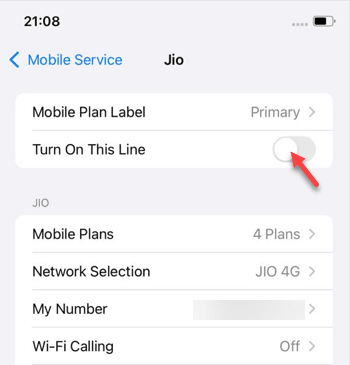
Step 5 – Again, wait for 5 seconds and re-enable the “Turn On This Line” feature.
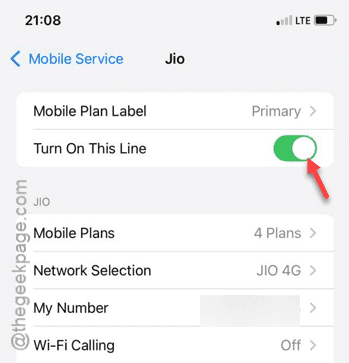
This way, you can get out of the Emergency Mode on your iPhone.
Fix 3 – Disable or delete any VPN profile
Using a VPN profile can create some issues while you are on the Emergency mode.
Step 1 – Go straight to the iPhone Settings page.
Step 2 – Load up the “General” settings.
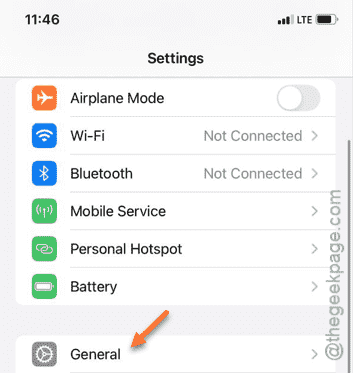
Step 3 – In that General page, open up the “VPN & Device Management” mode.
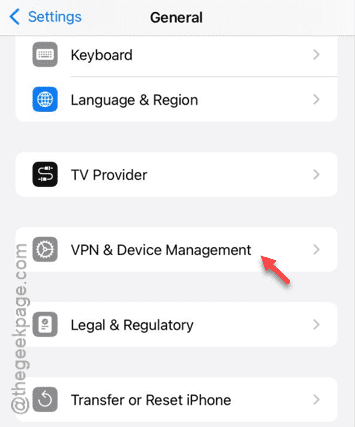
Step 4 – If you can find any VPN profiles in there, delete it.
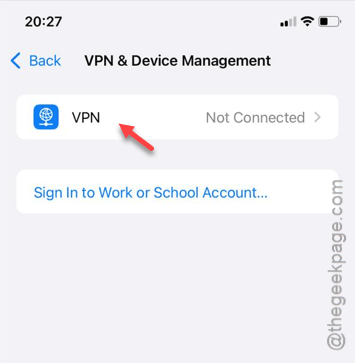
After deleting the VPN profile, try checking the condition on your iPhone.
See whether it is still stuck to the Emergency mode.
Fix 4 – Turn on the Data Roaming option
If you are travelling and outside your usual location, enabling the Data Roaming function can be useful.
Step 1 – In the iPhone Settings page, go to the “Mobile Services” tab.
Step 2 – Later, open the “Cellular Data Options” tab.
Step 3 – Turn on the “Data Roaming” function in there.
After turning on the data roaming function, the emergency mode can be disabled.
Fix 5 – Reset the iPhone’s network settings
Reset the iPhone’s network settings to the default mode.
Step 1 – At first, open the Settings.
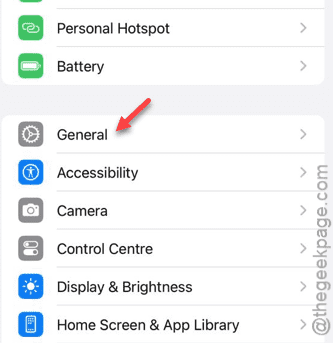
Step 2 – Just scroll down and touch the “General” settings.
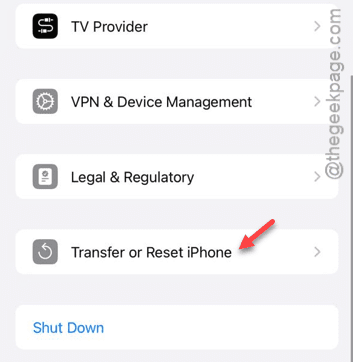
Step 3 – Scroll down again and open the “Transfer or reset iPhone“.
Step 4 – Touch the “Reset now” option.
Step 5 – Then, select the “Reset network settings” to clear out all the network settings.
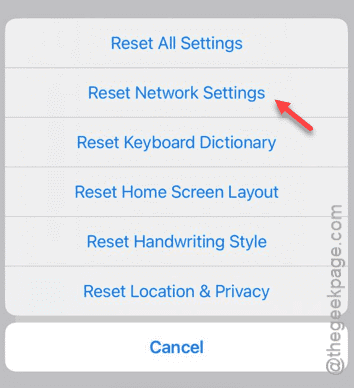
After the iPhone goes through the network reset process, the emergency mode should be automatically.
Hope these fixes have helped you out!