Missing the Settings icon from your iPhone Home Screen page? Settings is the most valuable system feature available on your iPhone. Whether you have to modify an intricate feature or change the device zoom level, you have to look for that gear icon every time. So, without-ado, follow this article where we have discussed the origin of the problem and the best resolution to fix it.
Why the Settings icon is missing from the iPhone Home Screen?
Settings is a system utility that lets you take control of almost all the app settings on your iPhone. Unlike other OS, iPhone Settings utility can cater to all set of user as it unifies all the app settings under one belt. Any app installed on your iPhone, whether it is a native app or of a third-party origin, you can find all of their settings in the Settings page. So, this makes the Settings app more important than anything else on the device. Losing the access to the iPhone Settings means you can’t tweak several features or app experiences, even if you wanted to.
We have already mentioned this, Settings is a utility app and none of utility apps can be removed from an iPhone. So, the disappearance of the Settings app means that the Settings icon has been removed from the Home Screen. It is still present in the App Library. You can just reset the current settings, and that should retrieve the Settings icon back to its location. Or, you can just search it from the App library and place it in the correct place.
Fix 1 – Reset all the Settings
Resetting all the Settings should be the trick to fix the issue.
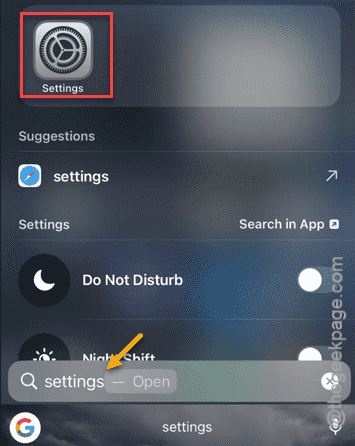
Step 1 – Simply open the Apple Spotlight, using the search button in the Home Screen.
Step 2 – Search for “settings” and open up the “Settings” utility from there.
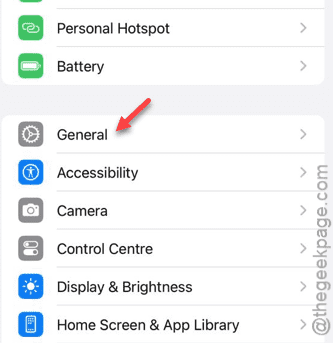
Step 3 – Go straight to the “General” part of the settings.
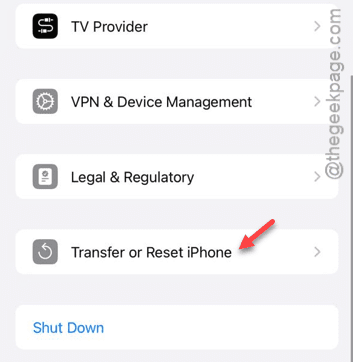
Step 4 – Touch the “Transfer or reset iPhone” option.
Step 5 – Tap the “Reset Now” option present in there.
Step 6 – Next, tap the “Reset All Settings” option there.

The next part of the process requires your input, as you have to go through a verification step to approve the process.
Once you are done, your iPhone will get restarted normally. You will find the Settings on your Home Screen.
Fix 2 – Place the Settings in its place
Place the Settings back to the correct place on your iPhone home screen.
Step 1 – Search for the “Settings” the same way you did before.
Step 2 – Next, hold the “Settings” utility there and tap “Add to Home Screen” to place the Settings in the home screen.
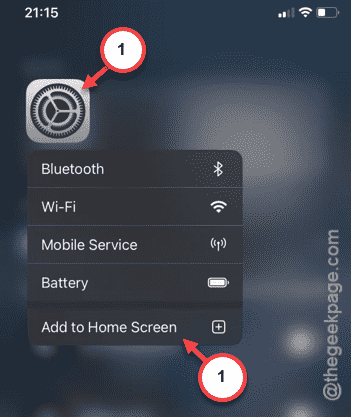
This should place the Settings icon directly on an open space of the iPhone. So, when it does appear there, you can re-arrange the Settings icon according to your preference.