It can be really annoying if an iPhone gets restarted at an unexpected time. Isn’t it? Several iPhone users have reported that their iPhones get restarted randomly at times. They are wondering why all of a sudden this is happening with their iPhones.
The reasons for causing this type of problem in any iPhone are problematic applications installed, a lack of iPhone storage, Outdated iPhone software & applications, changes done to some critical settings on an iPhone, etc.
Having said that, we have researched more on this issue and came up with the best possible troubleshooting ideas that are explained in the article below.
Fix 1 – Uninstall problematic Apps
Step 1: Go to your home screen after unlocking your iPhone.
Step 2: Then find the problematic application and long tap on it.
Step 3: Select the Remove App option from the context menu as shown in the below screenshot.
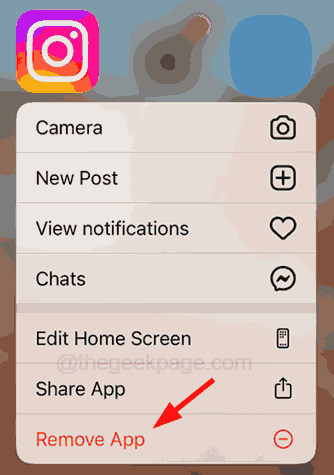
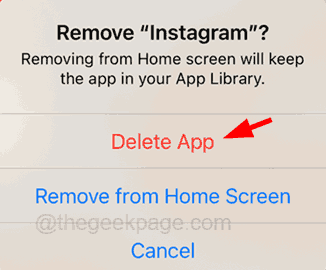
Step 4: Now tap on the Delete App option on the popup window on the screen.
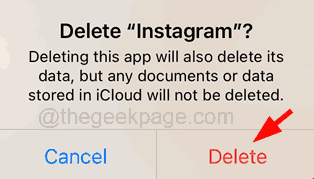
Step 5: To confirm, click on Delete as shown below.
Step 6: After that, repeat the same to uninstall all the problematic apps from your iPhone.
Fix 2 – Force Restart the Device
Step 1: For this, you have to first press the volume up button on the side of the iPhone and release it quickly.
Step 2: Then press the volume down button and immediately release it.
Step 3: At last, all you need to do is press and hold the power button until there is an Apple logo on the screen of your iPhone.
Fix 3 – Update All Apps
Step 1: Long tap on the App Store on your iPhone.
Step 2: Then select the Updates option from the context menu that appeared on the App Store.

Step 3: This opens the Updates page on the App Store directly.
Step 4: Scroll down a little bit and you will see the Update All option if there are updates from many apps.
Step 5: Follow any onscreen instructions for completing the update process.
Fix 4 – Clear Some Space on iPhone
Step 1: Launch the Settings page on your iPhone.
Step 2: Then go to the General option.
Step 3: Now select the iPhone Storage option by clicking on it as shown below.
Step 4: This might take some time to load the page with the details of the iPhone storage data.
Step 5: Here you can see which ones taking up more space on your iPhone and decide accordingly which one to be deleted to make space.
Fix 5 – Check your Battery Health
Step 1: Go to the Settings app.
Step 2: Tap on the Battery option from the settings menu.
Step 3: Now select the Battery Health & Charging option.
Step 4: If the Maximum Capacity option displays less than 80%, then you need to rethink replacing the battery of your iPhone.
NOTE – If it is more than 80%, the battery health is fine.
Fix 6 – Reset All Settings
Step 1: Tap on the Settings icon from the home screen.
Step 2: This opens the Settings app.
Step 3: Click on the General option from the settings menu list.
Step 4: Now scroll down the general page to the bottom and tap on Transfer or Reset iPhone.
Step 5: Click Reset at the bottom.
Step 6: This pops up a context menu on the screen.
Step 7: Tap on the Reset All Settings option from the menu list as shown below.
Step 8: Now it might ask you to provide the iPhone passcode.
Step 9: After successfully entering the passcode, you need to click on Reset All Settings.
Step 10: It will start resetting all settings on your iPhone.
Fix 7 – Factory Reset your iPhone
NOTE – Please make sure you back up all your necessary personal data from the iPhone to your PC or iCloud because the factory reset will erase all contents and data from your iPhone.
Step 1: Open the Settings app by clicking on the settings icon
Step 2: Then tap on the General option.
Step 3: After that, you need to scroll down to the bottom and select the Transfer or Reset iPhone option.
Step 4: Next, you should click on the Erase All Content and settings option at the bottom of the page as shown in the screenshot below.
Step 5: Click on the Continue option.
Step 6: Once done, you need to follow all the onscreen instructions on your iPhone.
Step 7: This will factory reset or hard resets your iPhone and you will get a feel of using your iPhone for the first time after doing it.
Additional Fixes
- Update your iPhone once by browsing Settings –> General –> Software Update and then tapping on Download and install. This will make sure the software on your iPhone has installed all the latest features released by Apple.
- Try removing your Sim card holder by inserting a pointed pin on the side of the iPhone and taking out the sim card. Clean the sim card with a clean cloth and place it back into the cardholder and then insert it back into your iPhone. This will refresh the cellular network if this issue was caused because of it.