Snipping Tool finally records video, and this is what we get. You capture a perfect walkthrough, play it back, and your voice trails the screen by half a second. Unusable. The cause is almost always a timing mismatch. Your mic records at one sample rate while Windows expects another, so the audio track slowly drifts, or, Windows’ audio enhancements delay the mic feed just enough to fall behind the screen capture. And in games, a bouncing framerate desyncs the video from the steady audio track.
Where This Comes From
Basically? Two clocks that disagree.
Your microphone records at one sample rate (how many audio snapshots it takes per second). Windows expects another. So every second, the audio track ends up a hair shorter or longer than the video. Ten seconds in, you can’t tell. Five minutes in? Your mouth is moving before the words show up.
And Windows makes it worse by running the mic through its own noise cleanup before any app hears it. That cleanup takes time. Not much. But enough.
Bluetooth headsets add their own delay on top. Games with a bouncing framerate add another kind of mess entirely.
Fix 1 – Set the Mic to 48000 Hz
Start here. This fixes the majority of drift complaints I’ve seen.
1 – Press Windows + R.
2 – Type mmsys.cpland press Enter. The old-style Sound window opens.
3 – Click the Recording tab at the top.
4 – Double-click your microphone.
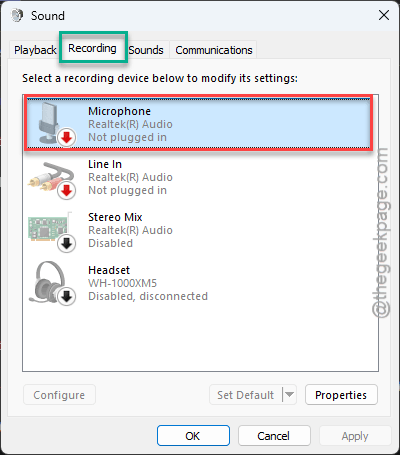
5 – Click the Advanced tab.
6 – In the Default Format dropdown, pick 2 channel, 16 bit, 48000 Hz (DVD Quality).
7 – Click Apply, then OK.
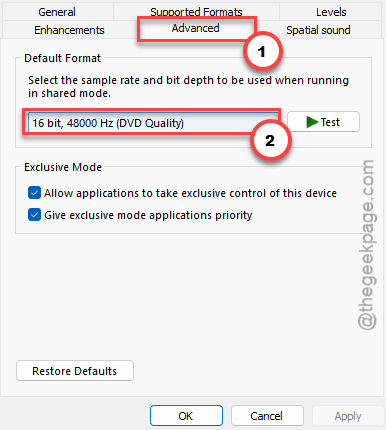
Record a three-minute test and skip to the end. Drift shows up at the tail first, so if the end is in sync, you’re done. Leave this window open, though. The next two fixes live in it.
Fix 2 – Kill the Audio Enhancements
Same Microphone Properties window as Fix 1.
1 – Look for an Enhancements tab. Some sound drivers hide this on the Advanced tab instead, so check both.
2 – Check Disable all sound effects. On newer drivers it’s called Disable audio enhancements.
3 – Click Apply.
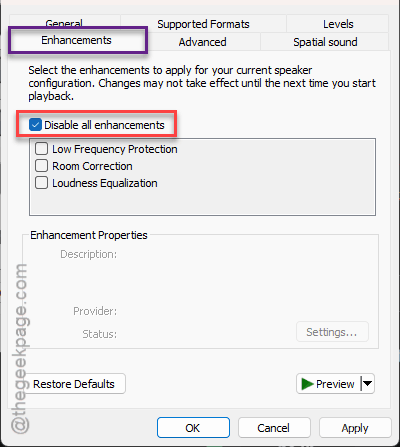
Your voice may sound a little rougher in calls afterward. Honestly, nobody will notice. And your recordings stop lagging.
Fix 3 – Turn Off Exclusive Mode
Still in the same window. Exclusive mode lets one app grab the mic and lock everyone else out (a game, a chat app, whatever). When Snipping Tool has to fight for the mic, timing goes sideways.
1 – Click the Advanced tab.
2 – Find the Exclusive Mode. Next, just uncheck the Allow applications to take exclusive control of this device feature.
3 – Click Apply, then OK.
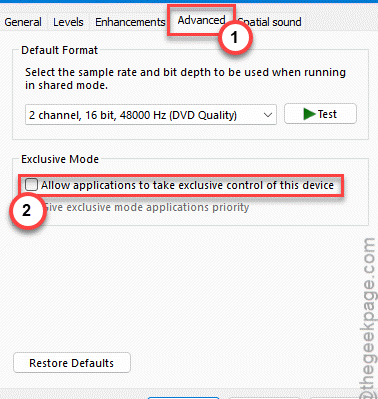
Now close the Sound window and test again.
Fix 4 – Remove Bluetooth Audio Devices
Bluetooth audio has lag baked in. Always has. A wireless headset mic can sit 100 to 200 milliseconds behind the screen capture, and Snipping Tool does nothing to compensate.
1 – Press Windows + I to open Settings.
2 – Click Bluetooth & devices in the left sidebar.
3 – Now, locate your headset or speaker in the list.
4 – Click the three dots (⋯) next to it and pick Remove device.
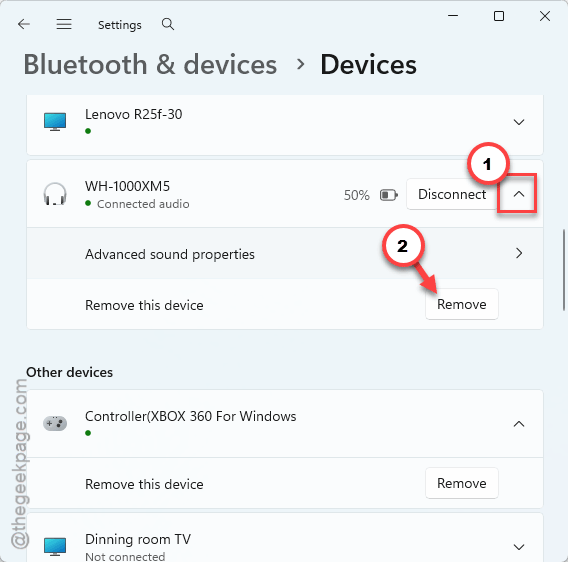
5 – After that, you can plug in a wired mic or use the built-in one.
Annoying if you love your headset, I know. But for recordings, wired wins every single time.
Fix 5 – Repair, Then Reset, the App
Leftover junk from earlier recordings can get stuck in the app’s cache. Repair first (keeps your settings). Reset only if repair doesn’t cut it.
1 – Press Windows + I to open Settings.
2 – Click Apps, then Installed apps.
3 – Type snipping in the search box at the top.
4 – Click the three dots (⋯) next to Snipping Tool and choose Advanced options.
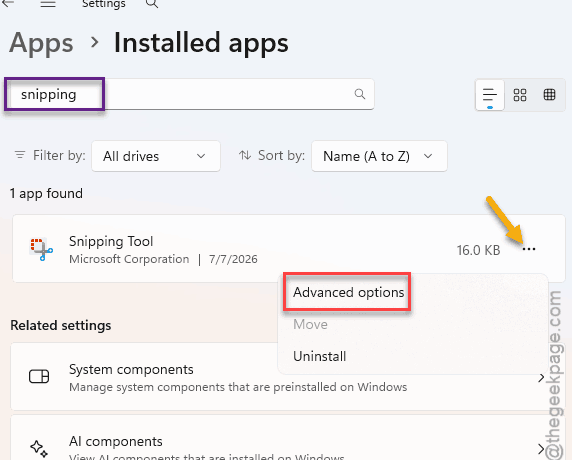
5 – Scroll down and click Repair. Wait for the checkmark to appear next to the button.
6 – Record a short clip and check it. Still drifting? Come back and click Reset.
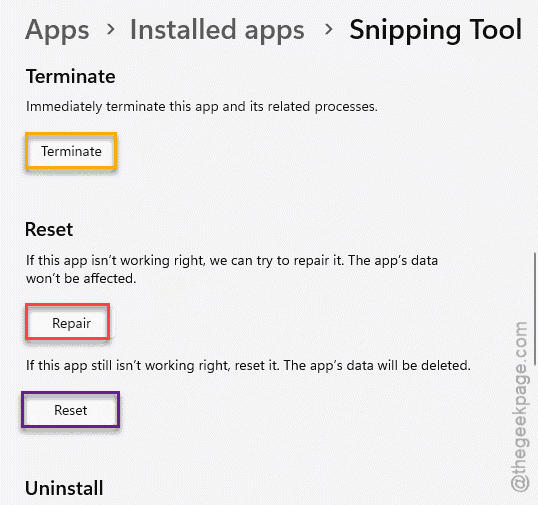
Reset wipes the app’s settings, but not your saved recordings (those are in your Videos folder under Screen Recordings). You’ll need to re-enable anything you customized, like auto-save.
Fix 6 – Cap Your Game’s Framerate Before Recording
Only for game captures.
The game that you are playing jumps between 45 and 144 frames per second. So, the video track may speed up and down with that. The audio track ticks along at one constant speed. So the two drift apart, and no mic setting on earth fixes that.
1 – Open the game’s graphics settings.
2 – Turn On the Vsync settings.
3 – Set the Maximum FPS to 60 FPS.
Either way, start the recording only after the cap is active. Steady frames, steady sync.
So It Doesn’t Happen Again
- Leave the mic at 48000 Hz. Driver updates love to flip it back, so peek at it after any big Windows update.
- Wired mic for anything that matters. Bluetooth is for music.
- Keep enhancements and exclusive mode off on your recording mic. Calls survive fine without them.
- And record a ten-second test before every long session. Ten seconds. It beats re-recording an hour.