If you are a veteran VMWare user, you are bound to run into some VMWare NAT services problem at least once. One of such problem statements reads as this, “The VMware NAT Service service terminated unexpectedly” on the Event Viewer. It carries the Event ID 7031 with it. So, if you are having this problem, these are the solutions you can execute on your device to troubleshoot the NAT services issue.
Fix 1 – Automate the NAT Service
You have to make the NAT Services automatic and running on your device.
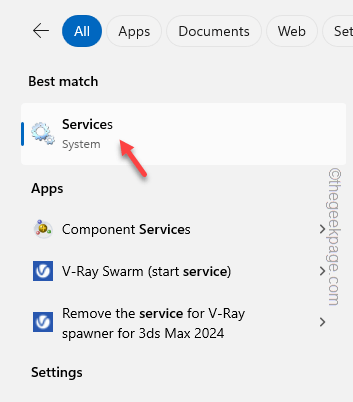
Step 1 – To check this prerequisite, you have to search for “services“.
Step 2 – Next, tap to open the “Services” utility.
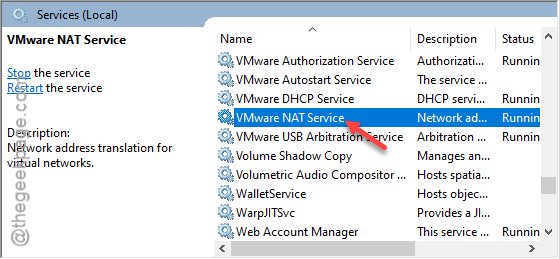
Step 3 – In the Services page, locate the “VMWare NAT Service” service.
Step 4 – Double-tap the service to load it up.
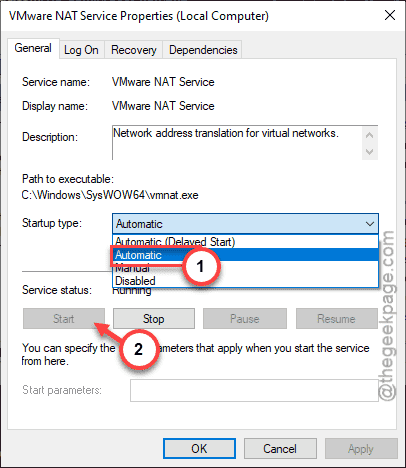
Step 5 – This service ‘Startup type:’ should be set to “Automatic” mode.
Step 6 – Once it is set to the automatic mode, tap the “Start” button.
Step 7 – Don’t forget to save the changes using ‘Apply‘ and ‘OK‘ function.
After saving these changes for NAT Services, close the Services page. Just restart your computer once, and, then retry, use the VMWare.
Fix 2 – Restart the service for service failure
You can configure the Windows to reboot the VMWare NAT service, if it fails.
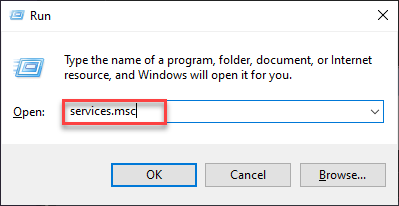
Step 1 – Open the Win+R buttons together.
Step 2 – Input this there and click “OK“.
services.msc
Step 3 – Again, double-tap the “VMWare NAT Service” to load that up.
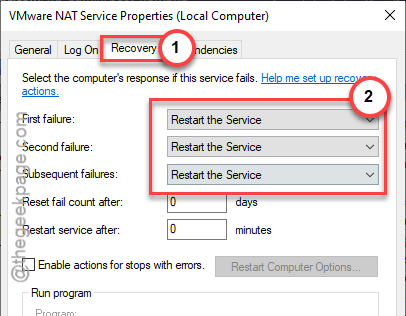
Step 4 – Go straight to the “Recovery” page.
Step 5 – There, you will find multiple recovery conditions for sequential failures. Set the “First Failure:” to “Restart the Service“.
Step 6 – This way, set the “Second Failure” and “Subsequent failures” to “Restart the Service” mode as well.
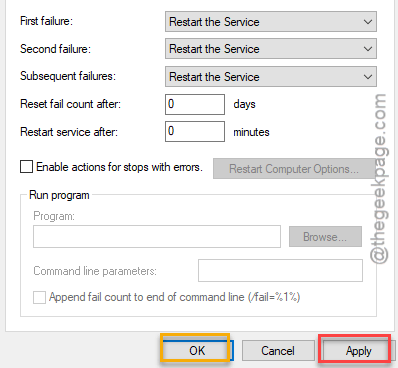
Step 7 – Save these modifications.
You will not get the same VMWare NAT Service again. See if this works.
Fix 3 – Reset the NAT Network
You can just reset the NAT network settings to the default mode to fix the problem.
Step 1 – Load up the VMWare Workstation on your device.
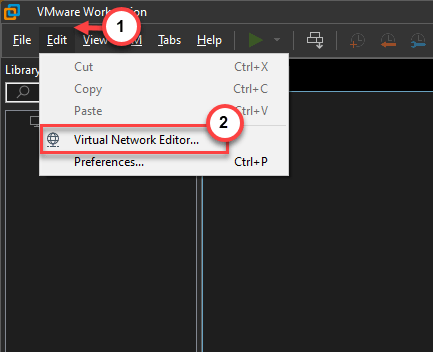
Step 2 – Next, tap the “Edit” in the menu-bar and “Virtual Network Editor” option.
Step 3 – Tap the “Change Settings” option to perform the desired changes.
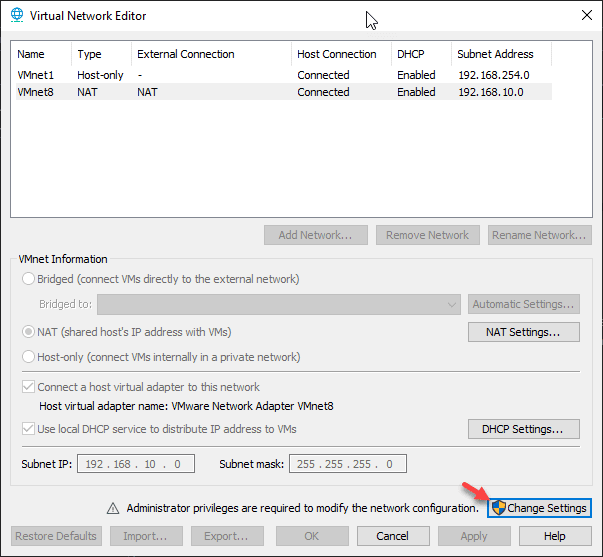
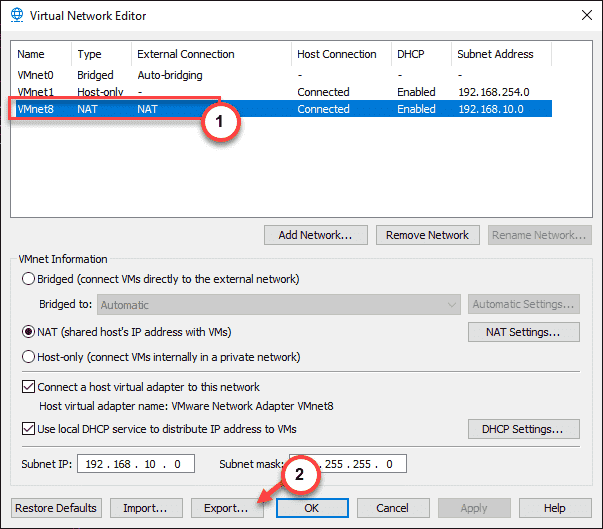
Step 4 – You have to find the NAT network adapter there. Select it once you have found it.
Step 5 – We recommend you export the current NAT configurations. So, tap the “Export” option.
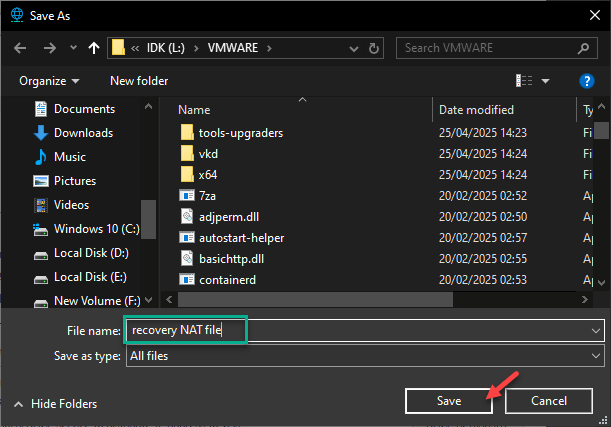
Step 6 – Name this backup anything of your choice and make sure to save it somewhere safe.
Step 7 – Once you have created the backup, you can just tap the “Restore Default” settings to restore the default configuration of the NAT settings.
Once you have restored the default settings, test the VMWare NAT settings. It won’t show up the error again.
Fix 4 – Restart the device
Restarting the device should reboot the necessary VMWare NAT service as well. So, just shut down any running VMWare and the VMWare Workstation tool. Then, restart your computer and, later, check if this solves the problem for you!